Vishal Sharma
On this page
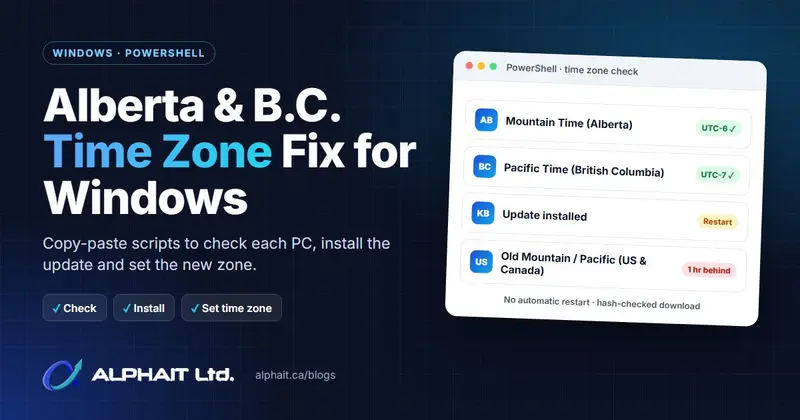
In short: since November 1, 2026, Alberta stays on UTC-6 and most of British Columbia stays on UTC-7 all year. Windows only knows about this after a September/October 2026 update, which adds two new time zones: (UTC-06:00) Mountain Time (Alberta) and (UTC-07:00) Pacific Time (British Columbia). A PC that is missing the update, or is still set to the old “Mountain Time (US & Canada)” or “Pacific Time (US & Canada)” zone, is one hour behind. Below are the three PowerShell scripts we use at AlphaIT: one to check a PC, one to install the update without forcing a restart, and one to set the correct time zone. Each one has a Copy button.
If you only have one or two PCs, the simple route is Windows Update plus the settings in our earlier guide, Alberta didn’t fall back on November 1. The scripts are for IT staff and anyone who looks after several machines.
What Microsoft changed
According to Microsoft’s message center notice MC1510951 (summary):
- On November 1, 2026, “clocks in affected regions will not be set back by one hour.”
- Windows adds region-specific time zones:
| Region | New Windows time zone | Time zone ID (for scripts) | Offset |
|---|---|---|---|
| Alberta (also Yellowknife, Inuvik and south-east B.C. towns that follow Alberta) | (UTC-06:00) Mountain Time (Alberta) | Alberta Standard Time |
UTC-6 all year |
| British Columbia (most of the province) | (UTC-07:00) Pacific Time (British Columbia) | British Columbia Standard Time |
UTC-7 all year |
| Manitoba | (UTC-05:00) Manitoba | Manitoba Standard Time |
UTC-5 all year |
- Windows 11 24H2 and 25H2 got the Alberta and B.C. zones in the September 22, 2026 optional preview update (KB5124010). Other supported versions, including Windows Server, got them in the October 13, 2026 security update.
- Devices that set their time zone automatically “will select the new time zone on their own”. Every other device has to be switched by hand. This is the step most people miss: installing the update alone doesn’t move a PC off the old zone.
If you can’t update a PC yet
Use a temporary zone with the right offset and no daylight saving. Microsoft’s interim guidance for B.C. recommends (UTC-07:00) Yukon (Microsoft). For Alberta, the usual stopgap is (UTC-06:00) Saskatchewan (UCalgary, Microsoft guidance for Alberta). Microsoft says these “should not be treated as permanent replacements”, so switch to the new zone once the update is in.
Step 1: check a PC (read-only)
This script changes nothing. Open PowerShell (no admin rights needed), paste it and press Enter. It shows the Windows build, the current time zone, the UTC offset the PC will use this winter, whether the new Alberta and B.C. zones exist yet, and a one-line verdict.
# AlphaIT: Alberta / B.C. time zone check (read-only, changes nothing)
$cv     = Get-ItemProperty 'HKLM:\SOFTWARE\Microsoft\Windows NT\CurrentVersion'
$tz     = Get-TimeZone
$zones  = (Get-TimeZone -ListAvailable).Id
$winter = $tz.GetUtcOffset([datetime]'2026-12-15')

$verdict = switch ($tz.Id) {
    'Alberta Standard Time'          { 'OK: Alberta zone (UTC-6 all year)' }
    'British Columbia Standard Time' { 'OK: B.C. zone (UTC-7 all year)' }
    'Canada Central Standard Time'   { 'WORKAROUND: Saskatchewan. Switch to Mountain Time (Alberta) after updating.' }
    'Yukon Standard Time'            { 'WORKAROUND: Yukon. Switch to Pacific Time (British Columbia) after updating.' }
    'Mountain Standard Time'         { 'WRONG for Alberta: old Mountain Time, 1 hour behind this winter' }
    'Pacific Standard Time'          { 'WRONG for B.C.: old Pacific Time, 1 hour behind this winter' }
    default                          { 'Not an Alberta/B.C. zone. Check that this is intended.' }
}

[pscustomobject]@{
    Computer         = $env:COMPUTERNAME
    Windows          = '{0} build {1}.{2}' -f $cv.DisplayVersion, $cv.CurrentBuildNumber, $cv.UBR
    TimeZone         = $tz.DisplayName
    WinterUtcOffset  = $winter
    AlbertaZoneReady = $zones -contains 'Alberta Standard Time'
    BCZoneReady      = $zones -contains 'British Columbia Standard Time'
    LocalTimeNow     = Get-Date -Format 'yyyy-MM-dd HH:mm'
    Verdict          = $verdict
} | Format-List
On an updated Edmonton PC the result looks like this:
Computer         : OFFICE-PC01
Windows          : 25H2 build 26200.9711
TimeZone         : (UTC-06:00) Mountain Time (Alberta)
WinterUtcOffset  : -06:00:00
AlbertaZoneReady : True
BCZoneReady      : True
LocalTimeNow     : 2026-11-03 12:35
Verdict          : OK: Alberta zone (UTC-6 all year)
How to read it:
- WinterUtcOffset should be -06:00:00 in Alberta and -07:00:00 in B.C. If it says -07:00 in Alberta or -08:00 in B.C., the PC is an hour behind.
- AlbertaZoneReady / BCZoneReady = False means the update isn’t installed yet. Go to Step 2.
- Ready = True but the verdict says WRONG means the update is installed but the PC is still on the old zone. Go to Step 3.
Step 2: install the update (the script we use)
Windows Update is the normal way to get the fix. We wrote this script for PCs that were stuck: Windows Update was paused, broken or blocked, or we needed to push the fix remotely through our remote support tool (ScreenConnect) without waiting on anyone.
What it does, in plain English:
- It works out the Windows version and build, then picks the matching Microsoft update:
- Windows 11 24H2 / 25H2: KB5124010
- Windows 11 23H2: KB5126653 (only Enterprise and Education still get 23H2 updates)
- Windows 10 22H2 / 21H2: KB5126657 (an Extended Security Update, so the PC must be enrolled in ESU)
- If the PC is already on that build or newer, it stops and reports COMPLETE. Nothing is downloaded.
- If Windows is already waiting for a restart, it stops and says so instead of piling another update on top.
- It downloads the package from Microsoft’s own Update Catalog servers and checks its SHA-1 fingerprint before it installs anything. A broken or tampered file is deleted, not installed.
- It installs silently with
wusa.exe /quiet /norestart. It never restarts the PC. You choose when. - It writes a status file and a full log, and returns a clear exit code.
It also runs as a Windows scheduled task under the SYSTEM account. Remote tools such as ScreenConnect stop a command after a timeout, and these packages are big (the Windows 11 24H2/25H2 file is about 4.7 GB, the others about 1.2 GB). The scheduled task keeps the install running after the remote command has ended.
Before you run it:
- Run it in an elevated PowerShell (Run as administrator), or as a PowerShell command from your RMM tool. The first line,
#!ps, tells ScreenConnect’s command box to run PowerShell. Other tools treat it as a comment. - Leave at least 10 GB free on drive C:. The download goes to
C:\Temp\AlphaIT\WindowsKB. - It supports 64-bit Windows 10 and 11 desktops only. Servers, ARM PCs and versions not in the list are refused (exit code 2), so you can’t install the wrong package by accident.
- It’s safe to run twice. If the task is already running, it says so and doesn’t start a second copy.
#!ps
$ErrorActionPreference = 'Stop'

$folder = 'C:\Temp\AlphaIT\WindowsKB'
$scriptPath = Join-Path $folder 'Install-Windows-KB.ps1'
$taskName = 'AlphaIT-Install-Windows-KB'

try {
    $existing = Get-ScheduledTask -TaskName $taskName -ErrorAction SilentlyContinue

    if ($existing -and $existing.State -eq 'Running') {
        Write-Output 'The installation task is already running. No duplicate started.'
        exit 0
    }

    New-Item -ItemType Directory -Path $folder -Force | Out-Null

    $installer = @'
#requires -Version 5.1
$ErrorActionPreference = 'Stop'
$folder = 'C:\Temp\AlphaIT\WindowsKB'
$exitCode = 1
$transcribing = $false
$statusPath = Join-Path $folder 'Status.txt'

function Set-Status {
    param([string]$Message)
    $line = '{0} - {1}' -f (Get-Date -Format 'yyyy-MM-dd HH:mm:ss'), $Message
    $line | Set-Content -LiteralPath $statusPath -Encoding UTF8
    Write-Host $line
}

function Test-ServicingRestart {
    return (
        (Test-Path 'HKLM:\SOFTWARE\Microsoft\Windows\CurrentVersion\Component Based Servicing\RebootPending') -or
        (Test-Path 'HKLM:\SOFTWARE\Microsoft\Windows\CurrentVersion\WindowsUpdate\Auto Update\RebootRequired')
    )
}

try {
    $log = Join-Path $folder (
        'Install-KB-{0}.log' -f (Get-Date -Format 'yyyyMMdd-HHmmss')
    )
    Start-Transcript -Path $log -Force | Out-Null
    $transcribing = $true
    Set-Status 'STARTED'

    $os = Get-CimInstance Win32_OperatingSystem
    $cpu = Get-CimInstance Win32_Processor | Select-Object -First 1
    $cv = Get-ItemProperty 'HKLM:\SOFTWARE\Microsoft\Windows NT\CurrentVersion'

    $build = [int]$cv.CurrentBuildNumber
    $revision = [int]$cv.UBR
    $release = [string]$cv.DisplayVersion

    Write-Host (
        'Detected: {0}; release {1}; build {2}.{3}; CPU architecture {4}' -f
        $os.Caption, $release, $build, $revision, $cpu.Architecture
    )

    if ($os.ProductType -ne 1 -or $cpu.Architecture -ne 9) {
        $exitCode = 2
        throw 'Only x64 Windows client systems are supported.'
    }

    $url11 = 'https://catalog.sf.dl.delivery.mp.microsoft.com/filestreamingservice/files/518df5fb-59fb-43d7-a44f-990e150b948a/public/windows11.0-kb5124010-x64_95a6272121df38221bfafc90b50baa8ec3e5294e.msu'
    $url23 = 'https://catalog.sf.dl.delivery.mp.microsoft.com/filestreamingservice/files/d054caba-471e-4483-ad6e-50ff1f4b1fb9/public/windows11.0-kb5126653-x64_5935370fc4ae7f1477ab76bc8e364f7a325c1013.msu'
    $url10 = 'https://catalog.s.download.windowsupdate.com/c/msdownload/update/software/secu/2026/10/windows10.0-kb5126657-x64_6ea46ad975176d6c6e9dcc79859d67c5193d6fc0.msu'

    $kb = $null
    $url = $null
    $minimumRevision = 0

    switch ($build) {
        26100 {
            if ($release -eq '24H2') {
                $kb = 'KB5124010'; $url = $url11; $minimumRevision = 9550
            }
        }
        26200 {
            if ($release -eq '25H2') {
                $kb = 'KB5124010'; $url = $url11; $minimumRevision = 9550
            }
        }
        22631 {
            if ($release -eq '23H2') {
                $kb = 'KB5126653'; $url = $url23; $minimumRevision = 7652
            }
        }
        19045 {
            if ($release -eq '22H2') {
                $kb = 'KB5126657'; $url = $url10; $minimumRevision = 7807
            }
        }
        19044 {
            if ($release -eq '21H2') {
                $kb = 'KB5126657'; $url = $url10; $minimumRevision = 7807
            }
        }
    }

    if (-not $kb) {
        $exitCode = 2
        throw "No approved mapping for release $release, build $build."
    }

    Write-Host "Selected: $kb"

    if ($revision -ge $minimumRevision) {
        Set-Status 'COMPLETE: OS build already meets or exceeds the mapped update.'
        $exitCode = 0
    }
    elseif (Get-HotFix -Id $kb -ErrorAction SilentlyContinue) {
        if (Test-ServicingRestart) {
            Set-Status "$kb is present. RESTART REQUIRED; no restart initiated."
            $exitCode = 3010
        }
        else {
            Set-Status "COMPLETE: $kb is already installed."
            $exitCode = 0
        }
    }
    elseif (Test-ServicingRestart) {
        Set-Status 'RESTART REQUIRED before installation. No installation attempted; no restart initiated.'
        $exitCode = 3010
    }
    else {
        $fileName = [IO.Path]::GetFileName(([uri]$url).AbsolutePath)
        $destination = Join-Path $folder $fileName
        $partial = "$destination.partial"

        $expectedHash = [regex]::Match(
            $fileName, '_([a-fA-F0-9]{40})\.msu$'
        ).Groups[1].Value

        if (-not $expectedHash) {
            throw 'Expected download hash is missing from the filename.'
        }

        $valid = $false
        if (Test-Path -LiteralPath $destination) {
            Set-Status "VERIFYING existing $kb download"
            $valid = (
                Get-FileHash -LiteralPath $destination -Algorithm SHA1
            ).Hash -eq $expectedHash
        }

        if (-not $valid) {
            Remove-Item -LiteralPath $partial -Force -ErrorAction SilentlyContinue

            [Net.ServicePointManager]::SecurityProtocol = (
                [Net.ServicePointManager]::SecurityProtocol -bor
                [Net.SecurityProtocolType]::Tls12
            )

            Set-Status "DOWNLOADING $kb"
            try {
                Import-Module BitsTransfer -ErrorAction Stop
                Start-BitsTransfer -Source $url -Destination $partial -ErrorAction Stop
            }
            catch {
                Write-Warning "BITS failed: $($_.Exception.Message). Trying HTTPS."
                Remove-Item -LiteralPath $partial -Force -ErrorAction SilentlyContinue
                $ProgressPreference = 'SilentlyContinue'
                Invoke-WebRequest -Uri $url -OutFile $partial -UseBasicParsing -ErrorAction Stop
            }

            Set-Status "VERIFYING $kb download"
            if (
                (Get-FileHash -LiteralPath $partial -Algorithm SHA1).Hash -ne
                $expectedHash
            ) {
                Remove-Item -LiteralPath $partial -Force -ErrorAction SilentlyContinue
                throw 'Downloaded package failed the hash check.'
            }

            Move-Item -LiteralPath $partial -Destination $destination -Force
        }

        Set-Status "INSTALLING $kb; automatic restart disabled"

        $wusa = "$env:SystemRoot\System32\wusa.exe"
        if (
            [Environment]::Is64BitOperatingSystem -and
            -not [Environment]::Is64BitProcess
        ) {
            $wusa = "$env:SystemRoot\Sysnative\wusa.exe"
        }

        $process = Start-Process -FilePath $wusa `
            -ArgumentList ('"{0}" /quiet /norestart' -f $destination) `
            -Wait -PassThru

        $code = [int64]$process.ExitCode -band 4294967295L
        $hex = '0x{0:X8}' -f $code
        Write-Host "WUSA result: $code ($hex)"

        if ($code -eq 3010 -or $code -eq 2359301) {
            Set-Status "Installer reports success for $kb. RESTART REQUIRED; no restart initiated."
            $exitCode = 3010
        }
        elseif ($code -eq 0 -or $code -eq 2359302) {
            if (Test-ServicingRestart) {
                Set-Status "Installer completed for $kb. RESTART REQUIRED; verify after restart."
                $exitCode = 3010
            }
            else {
                $newCV = Get-ItemProperty 'HKLM:\SOFTWARE\Microsoft\Windows NT\CurrentVersion'
                $hotfix = Get-HotFix -Id $kb -ErrorAction SilentlyContinue
                $buildConfirmed = (
                    [int]$newCV.CurrentBuildNumber -eq $build -and
                    [int]$newCV.UBR -ge $minimumRevision
                )

                if ($hotfix -or $buildConfirmed) {
                    Set-Status "COMPLETE: $kb installation confirmed."
                    $exitCode = 0
                }
                else {
                    throw 'Installer returned success/already installed, but HotFix and OS build checks could not confirm installation. Review CBS.log.'
                }
            }
        }
        elseif ($code -eq 2149842967) {
            throw 'Update is not applicable. Check compatibility, prerequisites, supersedence and ESU/LTSC eligibility.'
        }
        else {
            throw "Installation failed: $hex. Check C:\Windows\Logs\CBS\CBS.log; checkpoint updates or other prerequisites may be required."
        }
    }
}
catch {
    if ($exitCode -ne 2) {
        $exitCode = 1
    }
    Set-Status ("ERROR: " + $_.Exception.Message)
}
finally {
    if ($transcribing) {
        Write-Host "Exit code: $exitCode"
        Write-Host "Log: $log"
        try { Stop-Transcript | Out-Null } catch {}
    }
}
exit $exitCode
'@

    # Check syntax before saving and scheduling.
    $tokens = $null
    $parseErrors = $null
    [System.Management.Automation.Language.Parser]::ParseInput(
        $installer, [ref]$tokens, [ref]$parseErrors
    ) | Out-Null

    if ($parseErrors.Count -gt 0) {
        throw ($parseErrors.Message -join '; ')
    }

    Set-Content -LiteralPath $scriptPath -Value $installer -Encoding UTF8

    'Task prepared; waiting for installer to start.' |
        Set-Content -LiteralPath (Join-Path $folder 'Status.txt') -Encoding UTF8

    $action = New-ScheduledTaskAction `
        -Execute "$env:SystemRoot\System32\WindowsPowerShell\v1.0\powershell.exe" `
        -Argument (
            '-NoProfile -NonInteractive -ExecutionPolicy Bypass -File "{0}"' -f
            $scriptPath
        )

    $principal = New-ScheduledTaskPrincipal `
        -UserId 'SYSTEM' -LogonType ServiceAccount -RunLevel Highest

    $settings = New-ScheduledTaskSettingsSet `
        -ExecutionTimeLimit (New-TimeSpan -Hours 6) `
        -AllowStartIfOnBatteries `
        -DontStopIfGoingOnBatteries `
        -MultipleInstances IgnoreNew

    Register-ScheduledTask -TaskName $taskName `
        -Action $action -Principal $principal `
        -Settings $settings -Force | Out-Null

    Start-ScheduledTask -TaskName $taskName

    Write-Output 'TASK START REQUESTED. This does not yet mean the update is installed.'
    Write-Output 'The installer runs independently of the ScreenConnect command timeout.'
    Write-Output "Status and logs: $folder"
    Write-Output 'No automatic restart.'
}
catch {
    Write-Output ("ERROR: " + $_.Exception.Message)
    exit 1
}
How the script works, section by section
The launcher (outer part). It checks whether the AlphaIT-Install-Windows-KB task is already running, so a second click doesn’t start a duplicate. It then writes the real installer to C:\Temp\AlphaIT\WindowsKB\Install-Windows-KB.ps1. Before saving, it runs the installer text through PowerShell’s own parser (Parser]::ParseInput). A copy-paste mistake therefore fails straight away with a clear error, instead of creating a task that silently does nothing. Finally it registers a scheduled task that runs as SYSTEM with a 6-hour limit, keeps running on battery, and ignores new copies while one is running. Then it starts the task.
Detecting Windows. It reads the build number, the update revision (UBR) and the release name (for example 25H2) from the registry. ProductType -ne 1 excludes servers and domain controllers. Architecture -ne 9 excludes anything that isn’t 64-bit x64.
Choosing the package. A switch maps each build and release to one KB, one download link and a minimum revision. For example, Windows 11 25H2 needs build 26200.9550 or newer. Anything not on the list is refused with exit code 2.
Skipping work that’s already done. If the PC’s revision is already at or above the minimum, it reports COMPLETE. This is the most common result on PCs that took Windows Update normally. It also checks Get-HotFix, and it checks the two registry keys Windows uses to flag a pending restart. If a restart is pending, it stops, because installing on top of a pending restart is a common cause of failed updates.
Download and verify. Microsoft Update Catalog file names end in the file’s SHA-1 hash (for example _5935370f…c1013.msu). The script pulls that hash from the name and compares it with Get-FileHash after the download. The file is saved as .partial first and is renamed only when the hash matches, so an interrupted download is never installed. It tries BITS first, the same background transfer service Windows Update uses, which copes with flaky connections. If BITS fails, it falls back to a normal HTTPS download with TLS 1.2 forced on.
Install. It runs wusa.exe with /quiet /norestart. If PowerShell happens to be running as 32-bit (some remote tools do this), it calls the 64-bit wusa.exe through the Sysnative folder. Otherwise Windows would quietly redirect it to the 32-bit system folder.
Reading the result. Windows Update Standalone Installer returns codes that look random until you convert them to hex:
| Code | Hex | Meaning | What the script reports |
|---|---|---|---|
| 0 | 0x00000000 | Installed | COMPLETE (after it double-checks) |
| 3010 | 0x00000BC2 | Installed, restart needed | RESTART REQUIRED (exit 3010) |
| 2359301 | 0x00240005 | Installed, restart needed | RESTART REQUIRED (exit 3010) |
| 2359302 | 0x00240006 | Already installed | COMPLETE (after it double-checks) |
| 2149842967 | 0x80240017 | Not applicable to this PC | ERROR: check edition, prerequisites, ESU |
| anything else | Failed | ERROR: check C:\Windows\Logs\CBS\CBS.log |
On a “success” code it doesn’t just trust the installer. It confirms with Get-HotFix or the new build number, and it reports an error if neither one agrees.
Exit codes of the installer task: 0 = done, 3010 = restart needed, 2 = this PC isn’t supported by the script, 1 = error (the reason is in Status.txt).
Step 2b: check the progress
The launcher only starts the task, so its message is “TASK START REQUESTED”, not “installed”. Run this to see where the task is up to and how far the download has got:
#!ps
Get-Content 'C:\Temp\AlphaIT\WindowsKB\Status.txt'

Get-BitsTransfer -AllUsers |
    Select-Object JobState,
        @{Name='DownloadedMB';Expression={[math]::Round($_.BytesTransferred / 1MB, 2)}},
        @{Name='TotalMB';Expression={[math]::Round($_.BytesTotal / 1MB, 2)}} |
Format-Table -AutoSize- The first line prints the latest status with a time stamp, for example
2026-11-03 10:42:10 - DOWNLOADING KB5126653orCOMPLETE: KB5126653 installation confirmed. - The second part lists active BITS downloads with megabytes downloaded out of the total.
-AllUsersneeds admin rights, because the task runs as SYSTEM, not as you. If the list is empty while the status says DOWNLOADING, BITS has failed and the script has moved on to the HTTPS fallback, which doesn’t show progress here.
For the full story of a run, open the newest Install-KB-*.log file in the same folder. To see the scheduled task’s own last result:
Get-ScheduledTaskInfo -TaskName 'AlphaIT-Install-Windows-KB' |
    Select-Object LastRunTime, LastTaskResult, NextRunTime
LastTaskResult shows the installer’s exit code: 0, 3010, 2 or 1 as described above. While the task is still running, it shows 267009.
Step 3: restart, then set the right time zone
When the status says RESTART REQUIRED, restart the PC at a convenient time. Then set the new zone. The script below picks Alberta by default. Change the first line to 'British Columbia Standard Time' for a B.C. office.
# AlphaIT: set the new Alberta or B.C. time zone (run after the update and restart)
$id = 'Alberta Standard Time'   # B.C.: 'British Columbia Standard Time'

if ((Get-TimeZone -ListAvailable).Id -contains $id) {
    Set-TimeZone -Id $id
    Get-TimeZone | Select-Object Id, DisplayName
    w32tm /resync /force   # needs admin; harmless if it fails
}
else {
    Write-Warning "$id isn't on this PC yet. Install the update (Step 2) and restart first."
}
It refuses to run if the zone doesn’t exist yet, so it can’t leave a PC in a half-set state. w32tm /resync asks Windows to sync its clock with the time server straight away. Then run the Step 1 check again: the verdict should start with OK.
If the PC was on a temporary Saskatchewan or Yukon zone, this same script moves it to the permanent one.
Common problems
- “Update is not applicable” (0x80240017). On Windows 10 this usually means the PC isn’t enrolled in Extended Security Updates. On Windows 11 23H2 Home or Pro, Microsoft stopped shipping updates in November 2025, so upgrade the PC to 25H2.
- “No approved mapping”. The PC runs a release the script doesn’t cover, such as Windows 11 26H2 or an Insider build. Use Windows Update instead.
- The status file says RESTART REQUIRED before installation. Restart, then run the Step 2 script again.
- Installed, rebooted, but the time is still an hour off. The PC is still on the old zone. Run Step 3.
- Domain PCs keep switching back. Check whether a Group Policy, Intune policy or login script sets the time zone. Update it to
Alberta Standard TimeorBritish Columbia Standard Time. - Outlook meetings are still wrong. Windows is fixed, but the calendar time zone and recurring meetings need their own fix. See the Outlook section of our Alberta time change guide.
Sources
- Microsoft MC1510951: Windows updates are available for 2026 time zone changes in Canada (new zones, rollout dates, automatic vs manual time zone selection)
- Microsoft: interim guidance for British Columbia and for Alberta
- Microsoft: Alberta 2026 time zone update available now
- BleepingComputer: Windows 10 KB5126657 extended security update (B.C. and Alberta permanent daylight time; Manitoba zone)
- PostgreSQL patch mapping Windows’ new Canadian time zones (time zone IDs Alberta, British Columbia and Manitoba Standard Time and their IANA equivalents)
- University of Calgary: Alberta timezone impacts (the Saskatchewan workaround)
Frequently asked questions
Which Windows update fixes the Alberta and B.C. time zones?
For Windows 11 24H2 and 25H2, the change arrived in the September 22, 2026 optional update (KB5124010) and is in every later cumulative update. Other supported versions got it in the October 13, 2026 security update: KB5126653 for Windows 11 23H2 and KB5126657 for Windows 10 22H2 with Extended Security Updates. Any newer cumulative update also includes it.
I installed the update. Why is my PC still an hour behind?
The update adds the new time zones but doesn’t always switch to them. Only PCs set to choose their time zone automatically move on their own. Go to Settings › Time & language › Date & time and pick (UTC-06:00) Mountain Time (Alberta) or (UTC-07:00) Pacific Time (British Columbia), or run the Step 3 script above.
What is the Windows time zone ID for Alberta and British Columbia?
Alberta is “Alberta Standard Time”, shown as (UTC-06:00) Mountain Time (Alberta). British Columbia is “British Columbia Standard Time”, shown as (UTC-07:00) Pacific Time (British Columbia). Use these IDs with Set-TimeZone, Group Policy or Intune.
Will the install script restart my computer?
No. It installs with /norestart and never restarts the PC. If a restart is needed, the status file says RESTART REQUIRED and the task returns exit code 3010, so you can restart at a time that suits you.
What time zone should I use until the update is installed?
In Alberta, use (UTC-06:00) Saskatchewan. In B.C., Microsoft recommends (UTC-07:00) Yukon. Both have the correct offset and no daylight saving. Switch to the new Alberta or B.C. zone once the update is in, because Microsoft says these workarounds aren’t permanent replacements.
Want us to check and fix every PC in your office for you? AlphaIT’s managed IT support team can run these checks remotely across all your machines. Contact us.