Vishal Sharma
On this page
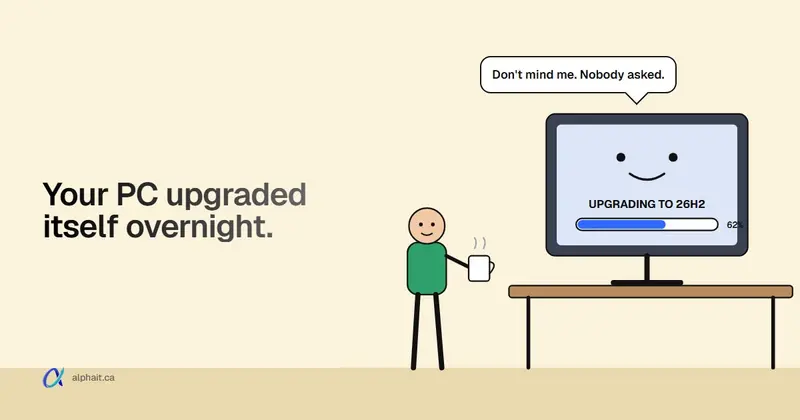
Starting November 18, 2026, Microsoft began installing Windows 11 version 26H2 automatically on PCs running 24H2 or 25H2 that aren’t managed by an IT department. That covers home PCs and unmanaged business PCs. If your office has no IT company and no device management, your PCs are almost certainly in that group. The rollout is gradual, so some PCs will get it this week and others in a few weeks. It’s a small enablement package with one restart, not a full reinstall. On Pro, 26H2 is supported until October 10, 2028.
My advice: let it happen, but spend 20 minutes checking a few things first. Most offices will notice nothing except a restart.
What exactly is Microsoft doing?
Here’s the timeline from Microsoft’s 26H2 release health page:
- September 29, 2026: 26H2 released, offered to PCs that asked for it.
- Late October 2026: any eligible Windows 11 PC could get it by selecting Check for updates.
- November 18, 2026: Microsoft started “gradually expanding automatic delivery, beginning with devices running Windows 11, versions 24H2 and 25H2, that are not managed by IT departments.”
Microsoft says this is “available for personal devices and non-managed business devices.” The PC downloads and installs it without anyone clicking Download & install. Windows then needs a restart, which it normally tries to schedule outside your active hours.
How does a 24H2 PC get it?
The same way as a 25H2 PC. Microsoft’s IT pro guide to 26H2 says 26H2 is “delivered as an enablement package for eligible devices running Windows 11, versions 25H2 or 24H2.” All three versions share the same code base. The package (KB5121794) just switches on features already sitting on the PC.
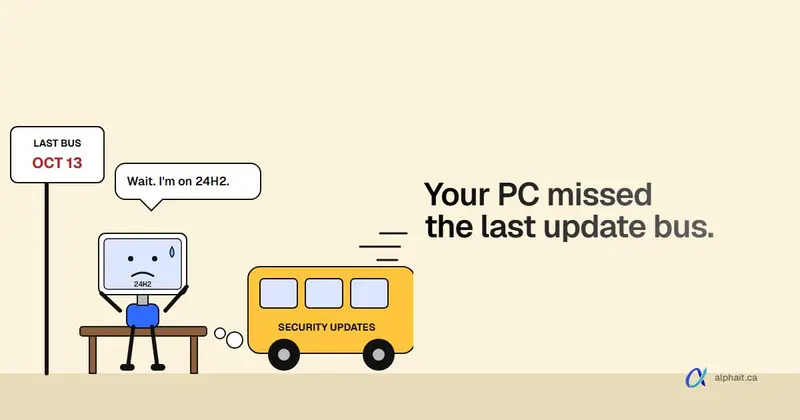
For 24H2 Home and Pro PCs, this is actually welcome. That version stopped getting security updates on October 13, 2026. If you still have some, our post on Windows 11 24H2 end of support covers why that matters and how to check versions with winver. I won’t repeat it here.
PCs with a known compatibility problem, called a safeguard hold, won’t get it until the problem is fixed. That’s on purpose.
Do your PCs count as “managed”?
Microsoft hasn’t published a precise checklist. Its wording is “not managed by IT departments.” In practice, a PC is managed when something other than its own Windows Update settings decides which version it gets. That usually means one of these:
- Microsoft Intune with update rings or feature update policies
- Group Policy from a Windows Server domain
- WSUS or Configuration Manager
- An RMM tool from an IT provider that controls patching
Here’s how to tell on a single PC. It takes two minutes.
- Go to Settings › Windows Update. If you see Some settings are managed by your organization in red text at the top, a policy is in charge. Microsoft’s Group Policy docs describe this exact message.
- Go to Settings › Accounts › Access work or school. If there’s a work account listed, select it. An Info button usually means the PC is enrolled in device management like Intune. No accounts listed, or only a plain sign-in, usually means it isn’t.
- Ask yourself: do you pay anyone who manages updates? If the answer is no, assume the PC is unmanaged.
One trap. Signing into Microsoft 365 with a work email does not make a PC managed. Plenty of offices have every PC signed in and none enrolled in Intune. Those PCs are in the rollout. For a read-only PowerShell check of update policies, see the 24H2 post.
What changes for your staff?
Not much on day one. Some features that were off by default on business PCs in 25H2 are now on by default, like app-specific taskbar actions and File Explorer navigation changes. Expect a “where did that button go” question or two.
There’s one change for PCs joined to Microsoft Entra: Windows settings backup is on by default. Our November Microsoft 365 and Windows roundup explains what it backs up and the policy to turn it off.
Known issues to check first
These come from the release health page as of November 19, 2026. Check it again before you act, because statuses change.
| Issue | Status | Does it affect a small office? |
|---|---|---|
| SQL Server linked server connections might remain open | Confirmed. Microsoft says an out-of-band fix will come “in the next few days” | Only if you run SQL Server with linked servers to Oracle, PostgreSQL or similar. Mostly a server problem |
| USB audio devices might fail to start (Code 10, no sound) | Resolved by the November 10 security update, KB5132061 | Some USB headsets and speakers. Install the latest update and it’s fixed |
| Remote Desktop fails for non-admin users (error 0xC000000D) | Resolved by KB5127936, October 28 | Only if Administrator protection is on. Rare in small offices |
Two notes on the SQL issue. It started with the October 13 security update, not with 26H2. It also lists 24H2, 25H2 and older Windows as affected. So blocking 26H2 won’t protect you from it. If your accounting or practice software runs on SQL Server, ask your vendor whether they use linked servers.
Memory integrity may switch on
This one isn’t on the 26H2 known issues list, but you should know about it. Since October 2026, Microsoft has been turning on memory integrity (also called HVCI) on eligible PCs through monthly updates. The October 28 preview, KB5127936, says supported PCs “may now have memory integrity (HVCI) enabled during updates,” while “respecting existing user or IT administrator choices.”
Memory integrity is a good security feature. It blocks tampered drivers from running in the core of Windows. The catch is old drivers. Microsoft’s memory integrity docs warn that incompatible drivers “can cause devices or software to malfunction and in rare cases may result in a boot failure (blue screen).”
Where we’d worry: a 10-year-old label printer, a scanner with a driver from 2017, a USB dongle for licensed software, or lab and dental equipment. It’s tied to monthly updates, not only 26H2, so it can happen on 25H2 too.
To check it, open Windows Security › Device security › Core isolation details and look at Memory integrity. Or run this read-only command in PowerShell:
# Read-only: shows whether memory integrity (HVCI) is running on this PC
(Get-CimInstance -ClassName Win32_DeviceGuard -Namespace root\Microsoft\Windows\DeviceGuard).SecurityServicesRunning
If the output includes 2, memory integrity is running. If a device stops working after it turns on, update that device’s driver first. Only turn memory integrity off as a last resort, and only on that one PC.
Before and after checklist for an office
Here’s what we’d do on each PC. It’s quick for a 5 to 15 PC office.
Before it installs
- Back up. Make sure files on each PC are in OneDrive, SharePoint or a real backup. If you’re not sure your backups work, that’s the first problem to fix, and it’s what backup and disaster recovery is for.
- Ask your software vendors. Email the companies behind your accounting, practice management, booking or lab software. Ask: “Do you support Windows 11 26H2?” Write down the answer.
- List your printers, scanners and USB gadgets. Note any driver older than about five years. Check the maker’s site for a current Windows 11 driver.
- Check free space. Settings › System › Storage. A few GB free on C: is too tight for monthly updates.
- Set active hours. Settings › Windows Update › Advanced options › Active hours. This stops a restart in the middle of the day.
- Pick a pilot PC. Let one non-critical PC update first, then use it for a day.
After it installs
- Run
winver. 26H2 shows as Version 26H2, OS build 26300. - Print a test page on every printer. Scan one page.
- Open each business app and do one real task.
- Check Device Manager for yellow warning icons, and test headsets on video calls.
- Check memory integrity status, as above.
If a PC won’t start properly after the update, don’t keep restarting it and hope. That’s when a computer repair visit is cheaper than lost time.
How to delay it on Windows 11 Pro
You have two tools. Neither one stops security updates if you use them properly.
Option 1: Pause updates (any edition)
Go to Settings › Windows Update and pick a date on the Pause updates control. Microsoft’s pause updates article says you can pause for up to 35 days from today. You can extend it, but each new end date is still within 35 days of the day you set it. When the pause ends, updates resume and the PC installs what it missed.
The trade-off: pausing stops everything, including security patches. It’s fine for a few weeks during year-end or tax season. It’s a bad habit beyond that.
Option 2: Pin the version with Group Policy (Pro and up)
This holds a PC on 25H2 while monthly security updates keep flowing. It works on Pro, Enterprise and Education. It doesn’t work on Home.
- Sign in with an admin account. Press Windows key + R, type
gpedit.mscand press Enter. - Go to Computer Configuration › Administrative Templates › Windows Components › Windows Update › Manage updates offered from Windows Update.
- Open Select the target Feature Update version and set it to Enabled.
- Under Which Windows product version would you like to receive feature updates for? type
Windows 11. - Under Target Version for Feature Updates type
25H2. - Select OK, then restart or run
gpupdate /forcein an admin Command Prompt.
Three warnings from Microsoft’s Windows Update policy docs:
- If you type a version older than the PC already runs, it gets no feature updates at all until you fix it.
- Don’t pin a 24H2 PC to 24H2. It’s already out of support on Pro.
- A pinned PC that reaches end of service gets updated automatically 60 days later. That’s two months without patches.
Pinning a PC to 25H2 buys you time until October 12, 2027. Put a reminder in your calendar to remove the policy well before then. To undo it, set the policy back to Not Configured.
How long is 26H2 supported?
Installing 26H2 resets the support clock. Dates are from Microsoft’s Windows 11 release information page.
| Edition | 26H2 support ends | 25H2 support ends |
|---|---|---|
| Home, Pro, Pro Education, Pro for Workstations | October 10, 2028 (24 months) | October 12, 2027 |
| Enterprise, Education | October 9, 2029 (36 months) | October 10, 2028 |
Most small Alberta offices run Pro, so 26H2 means nearly two years of patches. That’s the main reason I’d take it rather than fight it.
So what should you actually do?
Let it install. It’s a small update that adds a year of support and rescues 24H2 stragglers. Do the checklist first, though. If one business app or device is a real worry, pin only that PC to 25H2 and ask the vendor. Don’t pause the whole office for months.
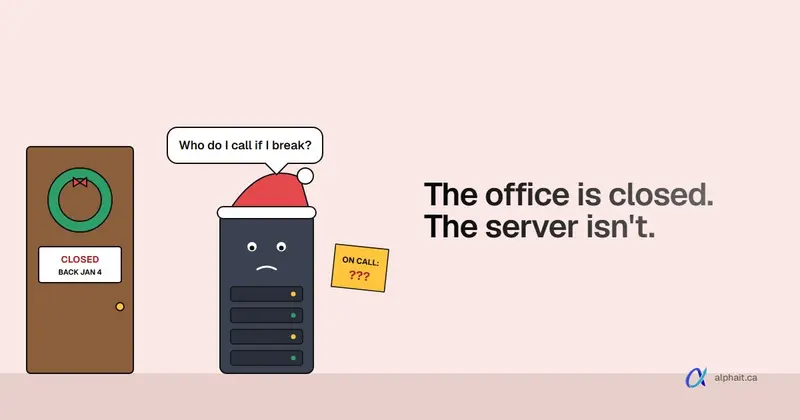
Timing matters too. If your office closes over Christmas, get 26H2 and the latest security update installed before you lock up. A PC that updates itself on December 24 with nobody around to test the printer is a January 4 problem. Our holiday office closure IT checklist covers the rest of what to do before the break.
And if this is the first time anyone has asked “are our PCs managed?”, that’s worth a bigger conversation. Keeping every PC on a supported version, tested and on schedule, is a core part of managed IT support.
Sources
- Windows release health: Windows 11, version 26H2 known issues and notifications (November 18 automatic delivery, known issues and statuses)
- Windows release health: Windows 11 release information (26H2 end of servicing dates by edition, build 26300)
- Microsoft Lifecycle: Windows 11 Home and Pro
- Microsoft Lifecycle: Windows 11 Enterprise and Education
- Windows IT Pro Blog: An IT pro’s guide to Windows 11, version 26H2 (enablement package from 24H2 and 25H2, 24/36 months, new defaults)
- KB5121794: Feature update to Windows 11, version 26H2 by using an enablement package
- KB5127936: October 28, 2026 preview update (memory integrity enabled during updates)
- KB5132061: November 10, 2026 security update
- Windows IT Pro Blog: Expanding memory integrity protection across Windows devices
- Microsoft Learn: Enable memory integrity (driver warning, Windows Security path, Win32_DeviceGuard check)
- Microsoft Learn: Configure Windows Update client policies via Group Policy (target version behaviour, 60-day rule, managed-by-organization message)
- Microsoft Learn: Update Policy CSP (Select the target Feature Update version path and editions)
- Microsoft Support: Pause updates in Windows (35-day limit)
Frequently asked questions
Is Windows 11 26H2 being installed automatically?
Yes, on PCs running 24H2 or 25H2 that aren’t managed by an IT department. Microsoft started this gradual rollout on November 18, 2026. It covers personal PCs and unmanaged business PCs. PCs managed through Intune, Group Policy, WSUS or similar tools are not included.
Can I stop the 26H2 update on Windows 11 Pro?
You can pause all updates for up to 35 days in Settings, Windows Update. Or you can use the Group Policy “Select the target Feature Update version” and set it to Windows 11, 25H2. That holds the PC on 25H2 while security updates keep installing. Home doesn’t support that policy.
How long is Windows 11 26H2 supported?
Home, Pro, Pro Education and Pro for Workstations get updates until October 10, 2028. Enterprise and Education get them until October 9, 2029.
Will 26H2 break my printer or business software?
For most offices, no. The bigger risk is an old driver once memory integrity switches on, which can happen through monthly updates on 25H2 as well. Check your vendors, test one PC first, and print a test page on each printer after the update.
Not sure whether your office PCs are managed, or who’s checking them after each update? AlphaIT’s managed IT support team can take that off your plate. Contact us.