Vishal Sharma
On this page
- What does Windows 10 ESU cost in Year 2?
- Where businesses buy Year 2
- Installing the Year 2 key
- How to check a PC is actually licensed and still getting updates
- What happens to Windows 10 PCs without a Year 2 licence?
- Can a business use the consumer ESU instead?
- Pay for ESU, upgrade in place, or replace?
- Sources
- Frequently asked questions
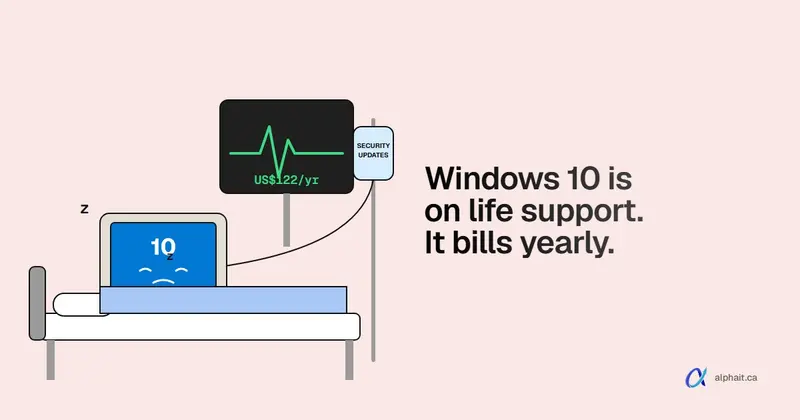
If you still have Windows 10 PCs in the office, here’s where things stand. Windows 10 Extended Security Updates (ESU) for businesses is now in Year 2. It started in mid-October 2026. Microsoft charges US$61 per device for Year 1, and the price doubles every year. So Year 2 is US$122 and Year 3 would be US$244. ESU is cumulative: a PC joining now pays for Year 1 and Year 2, US$183. A Year 1 licence does not carry over. Each PC needs a Year 2 key. Without one, it gets no Windows security fixes from the November 2026 Patch Tuesday on. The free or US$30 consumer ESU now runs to October 12, 2027. It can’t be used on business PCs that are domain joined, Entra joined or managed by Intune. If a PC can run Windows 11, upgrading beats another year of ESU almost every time.
This post is only about Year 2. For why Windows 10 end of support matters, read our earlier guide to Windows 10 end of life and upgrading to Windows 11.
What does Windows 10 ESU cost in Year 2?
Microsoft’s ESU page sells business ESU “at $61 USD per device for Year One.” It adds that “the price doubles every consecutive year, for a maximum of three years.” You can’t buy part of a year. And “if you decide to purchase the program in Year Two, you have to pay for Year One too, as ESUs are cumulative.”
So, per PC, in US dollars, before tax and reseller margin:
| When the PC joins ESU | Year 1 | Year 2 | Year 3 | Total to October 2028 |
|---|---|---|---|---|
| Joined in Year 1 (already paid $61) | $61 | $122 | $244 | $427 |
| Joining now, in Year 2 | $61 (back-paid) | $122 | $244 | $427 |
| Joining now, Year 2 only, then retiring the PC | $61 (back-paid) | $122 | none | $183 |
Notice the first two rows have the same total. Waiting never saved anyone money. It only meant a year without patches.
Year 3 at $244 is just Microsoft’s formula, doubled. I couldn’t find a separate Year 3 price list from Microsoft. Treat it as the expected price.
Intune and Autopatch discount. Microsoft’s first pricing announcement offered about 25% off to organizations that manage updates with Microsoft Intune or Windows Autopatch. That made Year 1 US$45. I couldn’t find a Microsoft page with the Year 2 price for that route. Some resellers estimate around US$90. Get a real quote from your licensing partner before you budget on it.
Free cases. ESU costs nothing extra for Windows 10 virtual machines in Windows 365, Azure Virtual Desktop and Azure. There’s one more case. Microsoft says physical Windows 10 PCs used to connect to a Windows 365 Cloud PC get ESU for up to three years, while the Windows 365 licence is active. That’s the only “free ESU” route for a normal business PC.
ESU is security only: no new features, no non-security fixes, and no general tech support. And it needs Windows 10 version 22H2. Older builds can’t take it.
Where businesses buy Year 2
There are three practical routes for a small office:
- Volume Licensing. Buy the ESU licences. Then go to the Microsoft 365 admin center › Billing › Your products › Volume licensing › View contracts. Pick the contract and choose View product keys. That’s where the Multiple Activation Key (MAK) lives. Your account needs the Product Key Reader or VL Administrator role.
- A Cloud Solution Provider (CSP). ESU is also sold through CSP partners, and most small businesses buy it this way. Year 2 is a separate product from Year 1. Make sure the order says Year 2 (2026–2027), plus Year 1 for any PC that never had it.
- Windows 365. Moving those users to Cloud PCs anyway? Then the entitlement above covers the old Windows 10 PC they connect from.
Minimum purchase is one licence, so a single PC tied to a piece of lab or shop equipment is fine.
Installing the Year 2 key
Microsoft’s documented steps, run in an elevated Command Prompt on each PC:
slmgr.vbs /ipk <your ESU MAK>
slmgr.vbs /ato 1043add5-23b1-4afb-9a0f-64343c8f3f8d
The first line installs the key. The second activates it using the Year 2 activation ID. The IDs are the same on every PC:
| ESU year | Activation ID |
|---|---|
| Year 1 | f520e45e-7413-4a34-a497-d2765967d094 |
| Year 2 | 1043add5-23b1-4afb-9a0f-64343c8f3f8d |
| Year 3 | 83d49986-add3-41d7-ba33-87c7bfb5c0fb |
The key won’t install until the PC has two updates. First the October 2025 update KB5066791 (or later). Then the ESU Licensing Preparation Package KB5072653. A PC that hasn’t been patched in a long time may need catching up first. PCs with no internet can be activated by phone (slmgr.vbs /dti and /atp). Microsoft documents that too.
With more than a few PCs, push it through your RMM tool or Intune and keep a list of which PCs got a key.
How to check a PC is actually licensed and still getting updates
Most offices skip this part. It’s where the money gets wasted: you pay for 20 licences and only 14 PCs are activated.
The official check. In an elevated Command Prompt:
slmgr.vbs /dlvMicrosoft says the output should show the name of the ESU program and License Status: Licensed. A PC that only shows the Year 1 entry isn’t covered for Year 2.
A quicker read-only PowerShell check. This changes nothing. It shows:
- any ESU keys on the PC and their status,
- the current Windows build,
- the most recent updates.
Run it in PowerShell as administrator:
# Read-only: ESU licence status, Windows build and recent updates on this PC
$esu = @{
    'f520e45e-7413-4a34-a497-d2765967d094' = 'ESU Year 1'
    '1043add5-23b1-4afb-9a0f-64343c8f3f8d' = 'ESU Year 2'
    '83d49986-add3-41d7-ba33-87c7bfb5c0fb' = 'ESU Year 3'
}
$states = 'Unlicensed','Licensed','OOBGrace','OOTGrace','NonGenuineGrace','Notification','ExtendedGrace'

$found = Get-CimInstance SoftwareLicensingProduct -Filter "PartialProductKey IS NOT NULL" |
    Where-Object { $esu.ContainsKey($_.ID) } |
    ForEach-Object { [pscustomobject]@{ Program = $esu[$_.ID]; Status = $states[$_.LicenseStatus]; KeyEndsWith = $_.PartialProductKey } }
if ($found) { $found | Format-Table -AutoSize } else { Write-Warning 'No ESU key installed on this PC.' }

$cv = Get-ItemProperty 'HKLM:\SOFTWARE\Microsoft\Windows NT\CurrentVersion'
"Windows build: $($cv.CurrentBuild).$($cv.UBR)  (version $($cv.DisplayVersion))"

Get-HotFix | Sort-Object InstalledOn -Descending | Select-Object -First 5 HotFixID, Description, InstalledOn
What each part does:
- The
$esutable holds Microsoft’s three ESU activation IDs. So the script only reports ESU licences, not the normal Windows licence. Get-CimInstance SoftwareLicensingProductreads the Windows licensing service.LicenseStatus1 means Licensed, 0 means Unlicensed, per Microsoft’s class documentation.- The registry line prints the full build number (for example
19045.7807). Compare it with the Version 22H2 table on Microsoft’s Windows 10 release information page. Get-HotFixshows the last five updates and their install dates.
How to read the result today (November 7, 2026): the last regular monthly update for Windows 10 was October 13, 2026 (KB5126657, build 19045.7807). Microsoft’s release page also lists an out-of-band update on October 26 (KB5134125, build 19045.7811). The first Year 2 monthly update is due on Patch Tuesday, November 10, 2026.
So right now, a healthy PC shows ESU Year 2: Licensed and a build of 19045.7807 or later. Check again after November 10. A PC with a Year 2 licence should move to the November build within a few days. One that stays on the October build has a problem.
I’ve tested that the script parses and runs on Windows PowerShell. I haven’t run it on a PC with a live Year 2 key. If ESU comes through a Windows 365 entitlement rather than a MAK, the licence may not show up this way. Use slmgr.vbs /dlv and Windows Update history for those.
What happens to Windows 10 PCs without a Year 2 licence?
They keep working. Microsoft is clear about that. They just stop getting critical and important security fixes. A missed month doesn’t come back unless the PC gets licensed and catches up.
An unlicensed PC:
- stays on the last build it installed. Every new Windows flaw found after October 2026 stays open on it;
- still runs Microsoft 365 apps and your browser. Those have their own updates, but they don’t patch Windows underneath;
- becomes a problem on paper too. Many cyber insurance and client security forms ask if any device runs an unsupported operating system. Our cyber insurance security checklist covers how insurers ask that question.
If a PC isn’t worth US$183 to keep patched, it’s usually not worth keeping on the network either.
Can a business use the consumer ESU instead?
No. This is where a lot of articles get confusing.
Microsoft’s consumer ESU page now says enrolment and updates run “through October 12, 2027.” Older articles (and Microsoft’s original announcement) said October 13, 2026. The extension to 2027 was added quietly around June 2026. That’s why you’ll find both dates online. Trust Microsoft’s own consumer page. It says 2027.
But the same page says “the consumer ESU program can’t be used in commercial scenarios.” It also excludes PCs that are:
- joined to an Active Directory domain or Microsoft Entra ID,
- enrolled in an MDM like Intune,
- running in kiosk mode.
Consumer ESU is free with settings sync, 1,000 Microsoft Rewards points, or a one-time US$30. Fine for your home laptop. Not for the office PC that signs in to your company tenant. Pulling a business PC out of management to qualify costs you more in security than the licence saves.
Want the numbers for your own office? Our free Windows 10 ESU cost calculator compares ESU with upgrading and replacing, in Canadian dollars.
Pay for ESU, upgrade in place, or replace?
Start with one question per PC: can it run Windows 11? Microsoft’s minimums:
- a supported 64-bit processor (1 GHz, 2 or more cores),
- 4 GB RAM and 64 GB storage,
- UEFI with Secure Boot capability,
- TPM 2.0.
The PC Health Check app tells you in a minute. Older PCs usually fail on the processor or TPM.
| Situation | What I’d do | Cost per PC (USD) |
|---|---|---|
| PC meets Windows 11 requirements | Upgrade in place to Windows 11 Pro. No ESU. | $0 licence (free upgrade from Windows 10 Pro), plus an hour or two of setup and testing |
| PC fails requirements and is 5+ years old | Replace it now | Price of a new business PC, minus nothing. ESU money spent on it is gone at retirement |
| PC fails requirements but runs software or hardware that only works on Windows 10 | Pay ESU for Year 2 and set a replacement date | $183 if new to ESU, $122 if it had Year 1 |
| Users are moving to Windows 365 anyway | Windows 365 covers the old PC’s ESU while it’s used to connect | Windows 365 subscription; ESU included |
| PC isn’t really used | Retire it, wipe it, recycle it | $0 |
The rough maths: two more years of ESU costs $122 + $244 = $366 more (US) for a PC that had Year 1. It’s $427 for one that’s new to the program. Put that next to a quote for a replacement. For many older office desktops, two years of ESU covers a good share of a new PC. And the new PC comes with a warranty and years of updates. ESU makes sense for specific machines with a specific reason. It’s not a plan for the whole office.
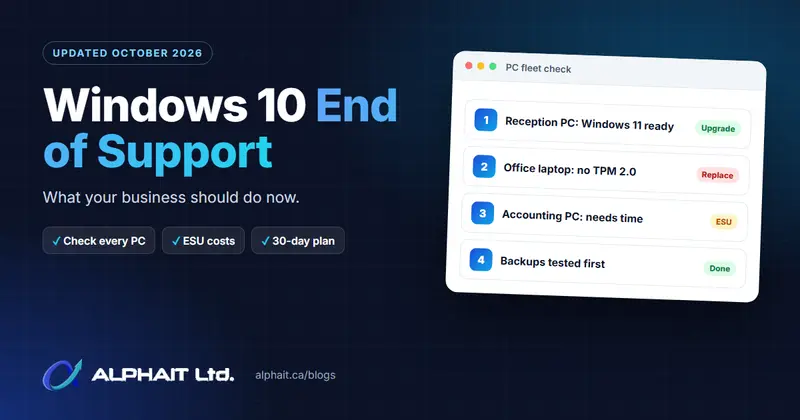
If you only do one thing this week: list every Windows 10 PC, run the check above on each, and mark it upgrade, replace or ESU. That list is the whole plan.
For other Microsoft changes this month, see our Microsoft 365 and Windows changes for November 2026 roundup. Rather hand the whole thing off? Our managed IT support tracks patches across every PC. Our office IT setup team handles replacements and Windows 11 rollouts. Not sure where to start? Our free IT assessment is a quick way to see what you’ve got.
Sources
- Microsoft Learn: Extended Security Updates (ESU) program for Windows 10 (pricing, cumulative rule, Windows 365 and Azure entitlement, limitations)
- Microsoft Learn: Enable Windows 10 Extended Security Updates (prerequisite KBs, MAK location, slmgr commands, activation IDs)
- Microsoft Tech Community: When to use Windows 10 Extended Security Updates (Intune/Autopatch discount, CSP availability)
- Microsoft: Windows 10 Consumer Extended Security Updates program (October 12, 2027 end date, commercial and domain/Entra/MDM exclusions)
- Microsoft Learn: Windows 10 release information (22H2 builds and KB numbers for 2026)
- Microsoft Learn: SoftwareLicensingProduct class (LicenseStatus values)
- Microsoft Learn: Windows 11 requirements
- Microsoft Q&A: Windows 10 support and update extension for businesses (community answer listing $61 / $122 / $244)
- BleepingComputer: Microsoft quietly extends free Windows 10 ESU support to October 2027 (timing of the consumer extension)
Frequently asked questions
How much is Windows 10 ESU Year 2 for a business?
US$122 per device. Microsoft’s price is US$61 for Year 1 and doubles each year. ESU is cumulative, so a PC that didn’t have Year 1 pays for it too. Joining now costs US$183 per PC, before tax and reseller pricing.
Does my Year 1 ESU licence cover Year 2?
No. Each year is a separate licence with its own activation ID. Buy Year 2 and install the Year 2 key. Then activate it on each PC with slmgr.vbs /ato 1043add5-23b1-4afb-9a0f-64343c8f3f8d. Run slmgr.vbs /dlv to confirm it shows as Licensed.
Can my business PCs use the free consumer ESU until 2027?
No. Microsoft’s consumer ESU page says it can’t be used in commercial scenarios. It also excludes PCs joined to Active Directory or Microsoft Entra ID, or enrolled in device management like Intune. The consumer program now runs to October 12, 2027, but that only helps personal PCs.
How do I know if a Windows 10 PC is still getting security updates?
Run slmgr.vbs /dlv in an elevated Command Prompt. Look for the ESU Year 2 program with License Status: Licensed. Then check the build number with winver, and compare it with Microsoft’s Windows 10 release information page. After the November 10, 2026 Patch Tuesday, a covered PC should move past build 19045.7811.
Is ESU cheaper than buying a new PC?
For one year, usually yes. Over two years, ESU costs US$366 to US$427 per device. That’s a real share of a new business PC, which comes with a warranty and full updates. If a PC can run Windows 11, upgrading in place costs nothing in licences. It beats ESU outright.
Still have Windows 10 PCs in the office? Not sure which to upgrade, replace or cover? AlphaIT’s managed IT team can check every PC’s ESU status and build a replacement plan with you. Contact us.