Vishal Sharma
On this page
- What exactly ended on October 13?
- Why do Enterprise PCs get an extra year?
- How do you check which version a PC is running?
- What should you update to: 25H2 or 26H2?
- How to update a 24H2 PC, step by step
- What blocks the update?
- Quick decision table
- What this means for a small office
- Sources
- Frequently asked questions
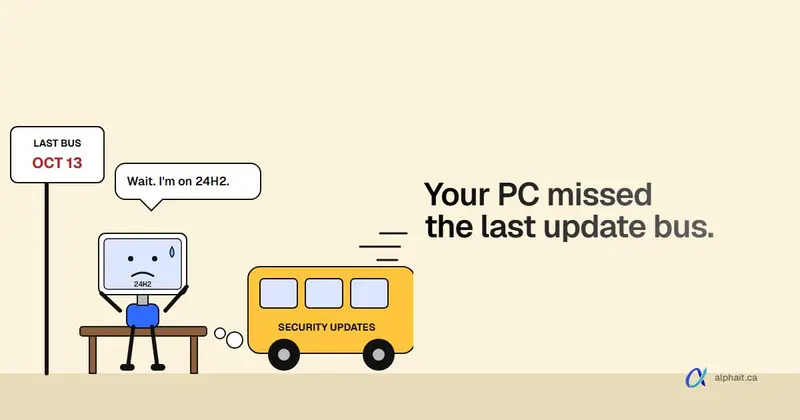
Windows 11 version 24H2 Home and Pro got its last security update on October 13, 2026. The same date applies to Pro Education and Pro for Workstations. A PC still on 24H2 with one of those editions won’t get today’s November security update, or any after it. Enterprise and Education editions on 24H2 are fine until October 12, 2027. The fix is small for most PCs. A 24H2 machine can move to 25H2 or 26H2 with one small download and one restart, through Windows Update.
Most small offices run Windows 11 Pro. So if you have a few PCs nobody has looked at in a while, this one is worth ten minutes this week.
What exactly ended on October 13?
Microsoft’s Windows message center put it plainly on October 13, 2026. The October security update was the last update for 24H2 Home and Pro. These PCs no longer get monthly security updates or the optional preview updates. Microsoft recommends moving them to 26H2 or 25H2.
Windows itself keeps working. Nothing turns off. The PC just stops getting fixes for new security holes. Over the next few months, every Patch Tuesday adds to the list of known bugs it will never be patched against.
Our November Microsoft 365 and Windows roundup covers the rest of this month’s patch. This post is about finding and fixing the 24H2 stragglers.
Why do Enterprise PCs get an extra year?
Windows 11 has one feature update a year. Each one gets 24 months of updates on Home, Pro, Pro Education and Pro for Workstations. Enterprise and Education get 36 months. Same version, same code, different clock.
Here are the dates from Microsoft’s lifecycle pages and Windows 11 release information:
| Version | Released | Home, Pro, Pro Education, Pro for Workstations | Enterprise, Education |
|---|---|---|---|
| 24H2 | Oct 1, 2024 | Ended Oct 13, 2026 | Oct 12, 2027 |
| 25H2 | Sept 30, 2025 | Oct 12, 2027 | Oct 10, 2028 |
| 26H2 | Sept 29, 2026 | Oct 10, 2028 | Oct 9, 2029 |
Microsoft lists these dates in Pacific Time. The lifecycle page shows the 24H2 Home and Pro end as “10/14/2026 6:59:59 AM”. That’s the last minute of October 13 in UTC terms, so the two pages agree.
Two side notes. Version 26H1 exists, but it’s only for certain new PCs sold in 2026. Microsoft says it isn’t offered as an update to existing 24H2 or 25H2 machines, so ignore it. And Windows 11 SE stopped at 24H2 for good.
If you’re on a Microsoft 365 plan that includes Enterprise (like Microsoft 365 E3), check the edition before you panic. A PC licensed for Enterprise shows Enterprise in Settings, not Pro.
How do you check which version a PC is running?
Three ways. Pick whichever suits you.
1. winver (10 seconds). Press Windows key + R, type winver and press Enter. The box shows “Version 24H2” (or 25H2, 26H2) and the OS build. Builds starting with 26100 are 24H2. 26200 is 25H2. 26300 is 26H2.
2. Settings. Go to Settings › System › About. Under Windows specifications, look at Edition and Version. You need both. “Pro” plus “24H2” is the combination that needs action.
3. PowerShell (read-only). This reads the same values from the registry. It changes nothing.
# Read-only: show this PC's Windows version, edition and build
Get-ItemProperty 'HKLM:\SOFTWARE\Microsoft\Windows NT\CurrentVersion' |
    Select-Object DisplayVersion, EditionID, CurrentBuild, UBR
What it shows: DisplayVersion is the version, like 24H2. EditionID is the edition, like Professional or Enterprise. CurrentBuild and UBR together make the full build number. Use EditionID, not ProductName. On many Windows 11 PCs, ProductName still says “Windows 10 Pro”, which confuses people.
Checking several PCs at once
If your office PCs are on a domain with PowerShell remoting turned on, you can ask them all at once. Run this from an admin account. Replace the names with your own PCs.
# Read-only: ask several PCs for their version and edition (needs PowerShell remoting / WinRM)
$pcs = 'FRONTDESK-01', 'ACCOUNTING-02', 'OWNER-LAPTOP'
Invoke-Command -ComputerName $pcs -ErrorAction Continue -ScriptBlock {
    Get-ItemProperty 'HKLM:\SOFTWARE\Microsoft\Windows NT\CurrentVersion' |
        Select-Object DisplayVersion, EditionID, CurrentBuild
} | Select-Object PSComputerName, DisplayVersion, EditionID, CurrentBuild |
    Format-Table -AutoSize
PCs that are off or don’t allow remoting will show an error and get skipped. That’s normal in a small office. Most small offices don’t have remoting set up, and that’s fine. Walk around with winver, or check your Intune or RMM device list instead. Both show the OS build.
What should you update to: 25H2 or 26H2?
Both work from 24H2, and both are offered the same way. Each is an enablement package: a tiny download that switches on features already sitting on the PC. Microsoft says it’s one restart. It’s not the hour-long reinstall people remember from Windows 10 upgrades.
- 25H2 (KB5054156) is supported on Pro until October 12, 2027. That’s eleven months from now.
- 26H2 (KB5121794) came out September 29, 2026. It’s supported on Pro until October 10, 2028.
My take: go to 26H2 unless you have a reason not to. It’s the same small update and buys you an extra year. The reason not to is a line-of-business app (accounting, practice management, a lab instrument) whose vendor hasn’t said 26H2 is fine. In that case go to 25H2 now, and plan 26H2 for spring.
One thing to know about 26H2. Microsoft is rolling it out gradually, and availability “will expand over the next few months”. So some PCs won’t see the 26H2 offer yet. If that happens, take 25H2. Don’t stay on 24H2 waiting.
Also note: on work PCs joined to Microsoft Entra, 26H2 turns on Windows settings backup by default. Our November roundup explains that change and the policy to control it.
How to update a 24H2 PC, step by step
This is for a PC that updates directly from Windows Update, which covers most small offices.
- Save work and plug in the laptop. You’ll need one restart.
- Go to Settings › Windows Update and select Check for updates. Install the latest cumulative update first if one is waiting. Both enablement packages need a recent monthly update as a starting point. Restart if asked.
- On the same page, turn on Get the latest updates as soon as they’re available. Microsoft says 26H2 is offered first to PCs with this toggle on.
- Select Check for updates again. Look for a box that says Windows 11, version 26H2 is available (or 25H2). Select Download & install.
- Restart when it asks. Then run
winverto confirm the new version.
If neither version shows up, check Settings › Windows Update › Advanced options › Optional updates. Then work through the blockers below.
Want to turn the toggle back off afterwards? That’s fine. It only affects how early you get new features and optional fixes. Security updates arrive either way.
What blocks the update?
These are the usual suspects.
Paused updates. Someone hit Pause updates on the Windows Update page, maybe before a busy week, and forgot. The page says “Updates paused” with a Resume updates button. Select it.
A safeguard hold. Microsoft holds back the update from PCs with a known compatibility problem, often a driver. The Windows Update page says the update “is on its way” but isn’t ready for your device. Microsoft’s safeguard holds page recommends waiting it out rather than forcing it. Usually that’s the right call. You can check from PowerShell, read-only:
# Read-only: 0 means a safeguard hold is in effect, 2 means it isn't
Get-ItemProperty 'HKLM:\SOFTWARE\Microsoft\Windows NT\CurrentVersion\AppCompatFlags\Appraiser\GWX' -ErrorAction SilentlyContinue |
    Select-Object GStatus
Look up the hold on the Known issues page for your version on Windows release health. A driver or firmware update from the PC maker often clears it.
Low disk space. The enablement package itself is tiny. But the monthly update you need first is not, and a nearly full drive makes updates fail. Check Settings › System › Storage. If the C: drive has only a few GB free, run Cleanup recommendations there first.
Policies from Intune, Group Policy, WSUS or an RMM tool. If Settings › Windows Update says Some settings are managed by your organization, a policy is in charge. The common culprit is Select the target feature update version set to 24H2. That pins the PC to 24H2 on purpose. A feature update deferral of up to 365 days can also hold it back. On WSUS, the 25H2 and 26H2 updates only sync if you’ve selected the Upgrades classification for Windows 11. This read-only check shows what’s set locally:
# Read-only: show Windows Update policies that can hold a PC on an old version
Get-ItemProperty 'HKLM:\SOFTWARE\Policies\Microsoft\Windows\WindowsUpdate' -ErrorAction SilentlyContinue |
    Select-Object TargetReleaseVersion, ProductVersion, TargetReleaseVersionInfo,
                  DeferFeatureUpdatesPeriodInDays, WUServer
Blank output means no Group Policy or local policy is set there. Intune and RMM tools can also manage updates through their own settings, so check the console too. One fallback: Microsoft’s docs say a PC pinned to a target version gets updated automatically 60 days after its edition reaches end of service. Don’t plan around that. It leaves a PC without patches for two months.
Unsupported hardware forced onto Windows 11. Some PCs got Windows 11 through a registry trick or a tool that skips the TPM and CPU checks. Microsoft’s own support article says these PCs “won’t be entitled to receive updates”. You’ll often see a “System requirements not met” watermark on the desktop. Don’t try to force another version on. Plan to replace the PC.
Quick decision table
| Your situation | What to do |
|---|---|
| Pro (or Home) on 24H2, updates from Windows Update | Update to 26H2 this week. If 26H2 isn’t offered yet, take 25H2 |
| Pro on 24H2, managed by Intune, GPO, WSUS or RMM | Change the target version or feature update ring to 26H2 (or 25H2), then confirm the PC picks it up |
| Enterprise or Education on 24H2 | You’re covered to Oct 12, 2027. Plan the move to 26H2 in your normal cycle |
| Already on 25H2 | You’re patched until Oct 12, 2027. Move to 26H2 sometime in 2027 |
| Already on 26H2 | Nothing to do |
| Update says “on its way”, not ready | Safeguard hold. Update drivers and firmware, then wait |
| Watermark says “System requirements not met” | Budget a replacement PC. Don’t force updates |
| Still on Windows 10 | Different problem. See below |
What this means for a small office
Pro is the edition almost every small business buys. So in a typical Edmonton office of 5 to 25 PCs, this deadline applies to every machine that didn’t pick up 25H2 on its own over the past year. Think of the reception PC, a spare laptop, or the one PC where someone paused updates.
If you only do one thing this week, do this. Check Settings › System › About on every PC and write down the version. Anything that says 24H2 and Pro gets updated before Friday.
Then ask the bigger question. Who checks this every month? Patching gaps are how attackers get in, and so is a convincing phone call. This week we also wrote about fake IT help desk phone calls, which pair badly with an unpatched PC. Making sure every PC stays on a supported version is a core part of managed IT support. If you’re not sure where your PCs stand, our free IT assessment includes a version and patch check.
Still have Windows 10 PCs? That’s a separate deadline with its own costs. Read Windows 10 ESU year 2 for Alberta businesses and run the numbers in our Windows 10 ESU cost calculator.
Sources
- Microsoft Lifecycle: Windows 11 Home and Pro (editions covered, version end dates, 26H1, SE note)
- Microsoft Lifecycle: Windows 11 Enterprise and Education
- Windows release health: Windows 11 release information (24/36 month servicing, build numbers, 26H1 note)
- Windows release health: Windows message center (October 13, 2026 end of updates notice, 26H2 availability)
- Message center MC1454882 (24H2 Home and Pro end of updates, Enterprise and Education to October 12, 2027)
- Windows Experience Blog: How to get the Windows 11 2026 Update
- KB5121794: Feature update to Windows 11, version 26H2 by using an enablement package
- KB5054156: Feature update to Windows 11, version 25H2 by using an enablement package
- Microsoft Learn: Safeguard holds for Windows
- Microsoft Learn: Configure Windows Update client policies via Group Policy (target version, deferrals, optional updates toggle)
- Microsoft Support: Installing Windows 11 on devices that don’t meet minimum system requirements
Frequently asked questions
When did Windows 11 24H2 support end?
For Home, Pro, Pro Education and Pro for Workstations, the last update came on October 13, 2026. Enterprise and Education editions on 24H2 keep getting security updates until October 12, 2027.
Will my 24H2 PC stop working?
No. It keeps running normally. It just stops getting security fixes, so it gets riskier with every month that passes. Moving to 25H2 or 26H2 fixes that with one restart.
Should I install 25H2 or 26H2?
26H2, if Windows Update offers it and your key business apps support it. It’s supported on Pro until October 10, 2028. 25H2 is supported until October 12, 2027. Both install as a small enablement package from 24H2.
Why doesn't Windows Update offer my PC the new version?
The most common reasons are paused updates, a safeguard hold for a known driver issue, a policy from your IT tools that pins the PC to 24H2, or hardware that doesn’t meet Windows 11 requirements. 26H2 is also rolling out gradually, so try 25H2 if 26H2 isn’t offered yet.
How do I check my Windows 11 version?
Press Windows key + R, type winver and press Enter. Or go to Settings, System, About and read the Edition and Version lines. You need both to know whether the October 2026 deadline applies.
Not sure which of your PCs are still on 24H2, or who’s meant to keep them patched? AlphaIT’s managed IT support team can check every machine and keep them on a supported version. Contact us.