Vishal Sharma
On this page
- What is happening
- Indicators of compromise
- Step 1: check the sign-in logs in the Entra portal (no scripts)
- Step 2: search with PowerShell (Microsoft Graph)
- Step 3: find apps with a failed secret followed by a success
- Step 4: list every app secret in your tenant
- For Sentinel or Defender users: KQL queries
- Step 5: if you find a hit
- How to stop this happening again
- Sources
- Frequently asked questions
In short: since November 1, 2026, an unknown attacker has been signing into Microsoft Entra ID as companies’ own applications, using stolen client secrets (app passwords). An app sign-in has no user, so there is no password and no MFA prompt, and Conditional Access policies written for users don’t apply. Once in, the attacker goes after Azure Resource Manager, Key Vault, Microsoft Graph, SharePoint and mailboxes to collect more credentials. MSPs are the main target, because one MSP app can reach many client tenants. If you run a Microsoft 365 or Azure tenant, check your service principal sign-in logs for the IP addresses below today.
This is still an active incident. The details below come from the security firms investigating it (Todyl, Field Effect and Huntress) as of November 5, 2026. Check their pages for updates.
What is happening
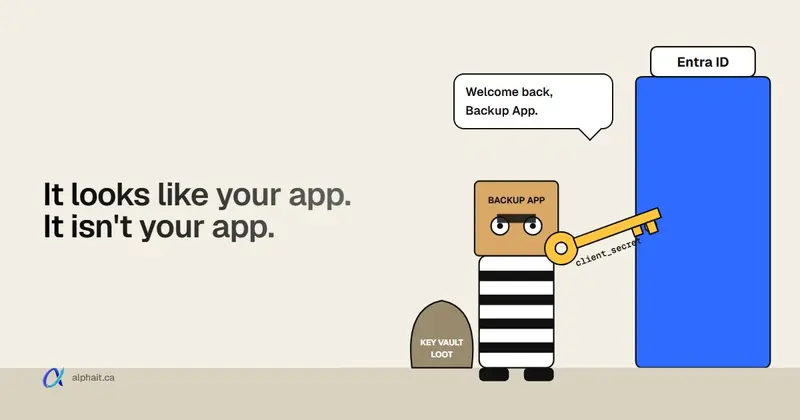
Most businesses have app registrations in Entra ID: a backup tool, an RMM or PSA integration, a reporting script, a security product, a DevOps pipeline. Many of these apps log in with a client secret, a long password stored somewhere: in a config file, a script, a Key Vault, a password manager or a ticket.
If someone gets that secret, they can request a token as the app. Microsoft sees a valid app logging in, not a person, so:
- there is no MFA prompt to approve or deny;
- user-based Conditional Access (location, device, sign-in risk) doesn’t apply unless you have workload identity policies;
- the app keeps whatever permissions it already has, often Mail.Read, Files.Read.All or Azure roles.
According to Todyl, the attacker in this campaign:
- requested an Azure Resource Manager token first, then Key Vault within seconds, to read stored secrets and find more credentials;
- ran wildcard Microsoft Graph searches and bulk SharePoint downloads (about one file per second), focusing on files with passwords, keys, VPN profiles, RMM and backup credentials;
- used MSP multi-tenant apps to reach client tenants;
- after detections fired, switched to spoofed browser user agents and replayed users’ refresh tokens (Conditional Access blocked those replays);
- kept retrying disabled or rotated apps in loops of about 11 seconds.
As of Todyl’s latest update, at least 27 organizations were reached, including MSP clients. They describe this as a minimum. How the secrets were stolen is not confirmed yet, and the attacker hasn’t been identified.
Indicators of compromise
| Indicator | Type | Confidence | Notes |
|---|---|---|---|
199.19.77.84 |
IP (AS203662, Poland hosting) | High | The main operator IP. All confirmed malicious activity came from it. |
199.19.77.18 |
IP (same hosting range) | Low to moderate | Azure CLI password spraying, Nov 1–3 |
65.87.223.26 |
IP (same ASN) | Low to moderate | Azure CLI password spraying, Oct 4–27 |
AADSTS7000215 |
Sign-in error | Signal | Invalid client secret. Matters when followed by a success. |
AADSTS7000222 |
Sign-in error | Signal | Expired client secret. Same thing. |
task177-f2267/1.0, sait-tenant-deep/37346 |
User agent | High | Unique to this actor, per Todyl |
Don’t block 20.20.34.96, 20.20.34.160 or 20.231.130.224. They show up in the logs but they’re Microsoft service addresses. Todyl also advises blocking the exact IP, not the whole /24 or ASN, because other customers use that hosting range.
The error codes on their own are normal. Apps with expired secrets fail all the time. What matters is a failed secret from an unfamiliar IP followed by a success for the same app, or failures from hosting provider IPs that you don’t recognize.
Step 1: check the sign-in logs in the Entra portal (no scripts)
- Go to entra.microsoft.com › Monitoring & health › Sign-in logs.
- Open the Service principal sign-ins tab.
- Set the date range to the longest available (the portal shows up to 30 days).
- Add filters › IP address, and enter
199.19.77.84. Repeat for199.19.77.18and65.87.223.26. - Do the same on the User sign-ins (non-interactive) tab, because replayed tokens show up there.
- On the service principal tab, clear the IP filter, set Status = Failure, and look for
7000215or7000222errors from IP addresses that aren’t yours or your vendors’.
Log retention matters. Entra ID Free keeps sign-in logs for 7 days. P1 and P2 keep them for 30 days. If you don’t send logs to Log Analytics or Sentinel, older activity is gone, so check now, and export what you find (the Download button on the logs page).
Step 2: search with PowerShell (Microsoft Graph)
This script checks service principal and non-interactive user sign-ins for all three IPs and saves any hits to a CSV. It only reads data; it changes nothing.
You need the Microsoft Graph PowerShell module (Install-Module Microsoft.Graph -Scope CurrentUser), an account with Security Reader or Reports Reader access, and an Entra ID P1 or P2 licence. Reading sign-in logs through Graph needs one. Service principal sign-ins are only on the Graph beta endpoint.
# Read-only: search Entra sign-in logs for the known IPs of the stolen-app-secret campaign
Connect-MgGraph -Scopes 'AuditLog.Read.All','Directory.Read.All' -NoWelcome

$ips   = '199.19.77.84', '199.19.77.18', '65.87.223.26'
$types = 'servicePrincipal', 'nonInteractiveUser'
$hits  = foreach ($type in $types) {
    foreach ($ip in $ips) {
        $uri = "https://graph.microsoft.com/beta/auditLogs/signIns?`$filter=signInEventTypes/any(t:t eq '$type') and ipAddress eq '$ip'&`$top=500"
        do {
            $page = Invoke-MgGraphRequest -Method GET -Uri $uri
            foreach ($s in $page.value) {
                [pscustomobject]@{
                    Time      = $s.createdDateTime
                    Type      = $type
                    IP        = $s.ipAddress
                    App       = $s.appDisplayName
                    AppId     = $s.appId
                    User      = $s.userPrincipalName
                    Resource  = $s.resourceDisplayName
                    ErrorCode = $s.status.errorCode   # 0 = success
                    UserAgent = $s.userAgent
                }
            }
            $uri = $page.'@odata.nextLink'
        } while ($uri)
    }
}

if ($hits) {
    $hits | Sort-Object Time | Format-Table Time, Type, IP, App, Resource, ErrorCode -AutoSize
    $hits | Export-Csv "$env:USERPROFILE\Desktop\entra-ioc-hits.csv" -NoTypeInformation
    Write-Warning "$(@($hits).Count) sign-ins found. Saved to entra-ioc-hits.csv on your Desktop. Go to Step 5."
} else {
    Write-Host 'No sign-ins from the known IPs in the retained logs.' -ForegroundColor Green
}
What it does: for each sign-in type and each IP, it asks Graph for matching sign-ins, follows the @odata.nextLink pages until there are none left, and keeps only the useful fields. ErrorCode 0 means the sign-in succeeded, so pay attention to those rows. An empty result only covers the days your logs still hold.
Step 3: find apps with a failed secret followed by a success
This is the pattern that catches the attacker even from a new IP. It looks back 7 days. Change -7 to -30 if you have P1/P2.
# Read-only: apps that failed with a bad/expired secret and then signed in successfully from the same IP
Connect-MgGraph -Scopes 'AuditLog.Read.All' -NoWelcome
$since = (Get-Date).ToUniversalTime().AddDays(-7).ToString('yyyy-MM-ddTHH:mm:ssZ')
$uri   = "https://graph.microsoft.com/beta/auditLogs/signIns?`$filter=signInEventTypes/any(t:t eq 'servicePrincipal') and createdDateTime ge $since&`$top=999"

$all = do {
    $page = Invoke-MgGraphRequest -Method GET -Uri $uri
    $page.value
    $uri = $page.'@odata.nextLink'
} while ($uri)

$all | Group-Object { "$($_.appId)|$($_.ipAddress)" } | ForEach-Object {
    $badSecret = $_.Group | Where-Object { $_.status.errorCode -in 7000215, 7000222 }
    $success   = $_.Group | Where-Object { $_.status.errorCode -eq 0 }
    if ($badSecret -and $success) {
        [pscustomobject]@{
            App         = $_.Group[0].appDisplayName
            AppId       = $_.Group[0].appId
            IP          = $_.Group[0].ipAddress
            BadSecret   = @($badSecret).Count
            Successes   = @($success).Count
            FirstFail   = ($badSecret.createdDateTime | Sort-Object)[0]
            LastSuccess = ($success.createdDateTime | Sort-Object)[-1]
        }
    }
} | Sort-Object LastSuccess -Descending | Format-Table -AutoSize
Every row is an app that got a wrong or expired secret and then a right one from the same IP. That can be harmless: someone updated a script after rotating the secret. Check each IP. If it’s your office, a server or a known vendor, fine. If it’s a hosting provider you don’t recognize, treat it as a compromise.
Step 4: list every app secret in your tenant
Most tenants have app secrets nobody remembers. This lists every app registration that has a client secret, certificate or federated credential, and when each secret expires. Old apps with long-lived secrets are the ones to remove first.
# Read-only: inventory of app registrations and their credentials
Connect-MgGraph -Scopes 'Application.Read.All' -NoWelcome
$now = Get-Date

Get-MgApplication -All -Property Id, DisplayName, AppId, SignInAudience, PasswordCredentials, KeyCredentials |
ForEach-Object {
    $fed = Get-MgApplicationFederatedIdentityCredential -ApplicationId $_.Id -ErrorAction SilentlyContinue
    if ($_.PasswordCredentials -or $_.KeyCredentials -or $fed) {
        [pscustomobject]@{
            App          = $_.DisplayName
            AppId        = $_.AppId
            MultiTenant  = $_.SignInAudience -ne 'AzureADMyOrg'
            Secrets      = @($_.PasswordCredentials).Count
            ActiveSecret = @($_.PasswordCredentials | Where-Object EndDateTime -gt $now).Count
            NewestSecret = ($_.PasswordCredentials.StartDateTime | Sort-Object)[-1]
            LastExpiry   = ($_.PasswordCredentials.EndDateTime | Sort-Object)[-1]
            Certificates = @($_.KeyCredentials).Count
            Federated    = @($fed).Count
        }
    }
} | Sort-Object ActiveSecret -Descending | Format-Table -AutoSize
Look for: multi-tenant apps (MultiTenant = True), apps with several active secrets, secrets that expire years from now, and apps nobody on your team can explain.
To see whether anyone added a secret or certificate recently, check the audit log (also read-only):
Connect-MgGraph -Scopes 'AuditLog.Read.All' -NoWelcome
$since = (Get-Date).ToUniversalTime().AddDays(-30).ToString('yyyy-MM-ddTHH:mm:ssZ')
Get-MgAuditLogDirectoryAudit -All -Filter "category eq 'ApplicationManagement' and activityDateTime ge $since" |
    Where-Object ActivityDisplayName -match 'Certificates and secrets|credentials' |
    Select-Object ActivityDateTime, ActivityDisplayName,
        @{n='By';     e={ if ($_.InitiatedBy.User.UserPrincipalName) { $_.InitiatedBy.User.UserPrincipalName } else { $_.InitiatedBy.App.DisplayName } }},
        @{n='Target'; e={ $_.TargetResources[0].DisplayName }} |
    Format-Table -AutoSize
Any line here you didn’t expect, especially a secret added to an app by an account or app you don’t recognize, needs a closer look.
For Sentinel or Defender users: KQL queries
If your sign-in logs go to Microsoft Sentinel / Log Analytics, you can look back as far as your retention allows:
// Any sign-in from the campaign IPs (service principals + non-interactive users)
union isfuzzy=true AADServicePrincipalSignInLogs, AADNonInteractiveUserSignInLogs
| where TimeGenerated > ago(90d)
| where IPAddress in ("199.19.77.84", "199.19.77.18", "65.87.223.26")
| project TimeGenerated, IPAddress, AppId, ServicePrincipalName, UserPrincipalName,
          ResourceDisplayName, ResultType, UserAgent
| order by TimeGenerated asc
// Bad or expired secret, then success, same app and same IP
AADServicePrincipalSignInLogs
| where TimeGenerated > ago(30d)
| summarize BadSecret = countif(ResultType in ("7000215", "7000222")),
Success = countif(ResultType == "0"),
FirstFail = minif(TimeGenerated, ResultType in ("7000215", "7000222")),
LastOk = maxif(TimeGenerated, ResultType == "0")
by AppId, ServicePrincipalName, IPAddress
| where BadSecret > 0 and Success > 0 and LastOk > FirstFail
| order by LastOk descIn Microsoft Defender XDR advanced hunting, service principal sign-ins are in the AADSpnSignInEventsBeta table (Timestamp, IPAddress, ApplicationId, ServicePrincipalName, ErrorCode). Defender customers should also check Threat analytics for Microsoft’s own report on this activity.
Step 5: if you find a hit
Act in this order. Field Effect and Todyl both stress that rotating a secret isn’t enough, because tokens already issued stay valid until they expire, and the attacker keeps retrying.
- Disable the service principal (Entra › Enterprise applications › the app › Properties › Enabled for users to sign in = No). Disable it rather than deleting it, so you keep the evidence.
- Remove every secret, certificate and federated credential on the app registration, including any you don’t recognize. Then issue a new one only where it’s needed, and store it properly.
- Block the IP. Create a named location for
199.19.77.84/32(not trusted) and a Conditional Access policy for workload identities, assigned directly to the service principals (group assignment doesn’t work for them). This needs Workload Identities Premium. Also add the IP to a user-scoped block policy to stop replayed sessions. - Find out what the app could reach: its API permissions, directory roles, Azure RBAC roles, Key Vault access, and for MSPs, Partner Center and GDAP relationships.
- Rotate everything it could read. Every secret in Key Vaults the app could access, plus any passwords, VPN profiles, RMM or backup keys in SharePoint files or mailboxes it reached.
- Revoke sessions for affected users (Entra › Users › Revoke sessions), reset their passwords, and revoke Azure DevOps personal access tokens and SSH keys.
- Search the other logs for the IP: Azure Activity log, Key Vault and Storage diagnostics, Entra audit, Azure DevOps audit, and the Microsoft 365 unified audit log (Purview).
- MSPs: check your client tenants and notify affected clients under your contracts. In Alberta, a breach involving health information may also need to be reported under the Health Information Act, and Canadian businesses have breach notification duties under PIPEDA.
How to stop this happening again
- Get rid of client secrets where you can. Microsoft’s own order of preference: managed identities (Azure resources), then workload identity federation (GitHub, Azure DevOps and others), then certificates kept in a vault. Use app management policies to block new secrets or cap their lifetime.
- Never keep secrets in scripts, documentation, tickets, shared drives or wikis. That’s where this attacker went looking.
- Delete apps you don’t use and secrets that have expired. Review app registrations every quarter.
- Give apps the smallest permissions they need. An app that only sends email doesn’t need Mail.Read on every mailbox.
- Alert on new credentials. Any secret, certificate or federated credential added to an app should create an alert.
- Restrict Key Vault and Storage to selected networks or private endpoints, and turn on their diagnostic logs.
- Keep sign-in logs longer than 7 days. Send them to Log Analytics, or at least keep an Entra ID P1 licence for 30 days.
- Protect admin and developer PCs from infostealers. Stolen secrets usually come from a compromised machine. EDR on those PCs is not optional.
Sources
- Todyl: Stolen App Credentials, Real Access (timeline, IOCs, user agents, detection and remediation guidance)
- Field Effect: Application identity abuse targets MSPs and customer environments
- Huntress on X (sign-ins from 199.19.77.84 in four customer tenants)
- Microsoft Learn: Conditional Access for workload identities
- Microsoft Learn: Sign-in log retention
Frequently asked questions
Does MFA protect against stolen app secrets?
No. MFA protects people signing in. An app that signs in with a client secret has no user and no MFA prompt, and user-based Conditional Access policies don’t apply to it. To control app sign-ins, use Conditional Access for workload identities, and replace secrets with managed identities, workload identity federation or certificates.
What do AADSTS7000215 and AADSTS7000222 mean?
AADSTS7000215 means an app sent an invalid client secret. AADSTS7000222 means the secret has expired. Both happen normally when a secret is rotated or expires. They become suspicious when they come from an unfamiliar IP address and are followed by a successful sign-in for the same app.
Which IP addresses are linked to the Entra ID stolen secret campaign?
199.19.77.84 is the main operator IP (high confidence). 199.19.77.18 and 65.87.223.26 are linked with low to moderate confidence and were used for Azure CLI password spraying. Block the exact addresses, not the whole range, and don’t block the Microsoft addresses 20.20.34.96, 20.20.34.160 and 20.231.130.224.
Where do I see service principal sign-ins in Entra ID?
In the Microsoft Entra admin center, go to Monitoring & health › Sign-in logs and open the Service principal sign-ins tab. Entra ID Free keeps 7 days of sign-in logs; P1 and P2 keep 30 days. For longer history, send the logs to Log Analytics or Microsoft Sentinel.
Is rotating the client secret enough?
No. Tokens that were already issued stay valid until they expire, and this attacker retries rotated apps. Disable the service principal, remove every secret, certificate and federated credential, block the IP with Conditional Access, then rotate every credential the app could reach.
Not sure what apps and secrets are in your Microsoft 365 tenant? AlphaIT’s cybersecurity and Microsoft 365 teams can run these checks for you and clean up risky app registrations. Contact us.