Vishal Sharma
On this page
- What were the companion apps, and how did they get on your PCs?
- What changes, and when?
- Why bother removing apps that are about to die anyway?
- Will anyone lose data?
- How do you tell if a PC has them?
- How to remove them from one PC
- How to remove them across the whole office
- What should staff use instead?
- Where this fits this month
- Sources
- Frequently asked questions
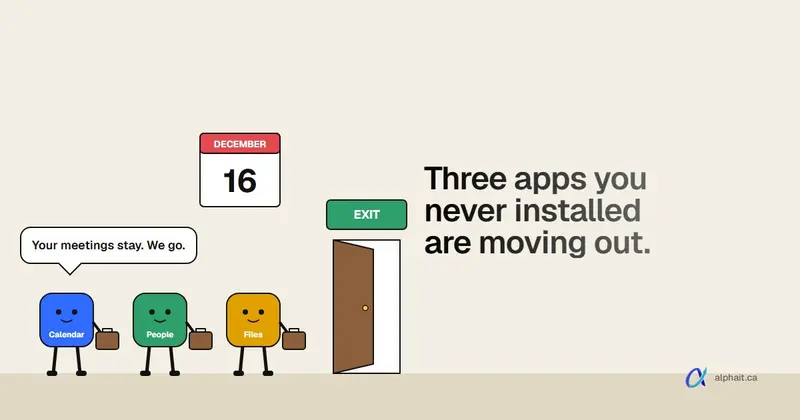
Microsoft is retiring the Microsoft 365 companion apps: Calendar, People and Files. They’ll be fully retired and non-functional by December 16, 2026. Microsoft has already stopped shipping updates and fixes for them, including security fixes. Your data is not affected. Meetings, contacts and files live in Microsoft 365, not in these apps. Microsoft also says admins must remove the apps from every device where they’re installed. On a single PC, that’s one uninstall under Settings > Apps > Installed apps (look for Microsoft 365 companions). Removing one removes all three.
The announcement went out as Message Center item MC1474111 on September 18, 2026. Microsoft’s retirement article on Learn has the admin steps and an uninstall script. We read both on November 17, 2026. Everything below comes from them.
What were the companion apps, and how did they get on your PCs?
Microsoft describes them as “taskbar-integrated apps”. They are three small windows that pop up from the Windows 11 taskbar:
- Calendar showed your day’s meetings.
- People let you look up a colleague’s contact card and org chart.
- Files listed recent Word, Excel and PowerPoint files from OneDrive and SharePoint.
They came free with eligible Microsoft 365 licences. Most people never asked for them. Microsoft’s Learn article lists three ways they got installed:
- Automatically on eligible Windows 11 PCs through Microsoft 365 Apps updates, unless an admin had opted out. This is how most small offices ended up with them.
- Pushed by Intune or another software deployment tool.
- Installed by the user.
They were also set to launch automatically when the PC starts. That’s why staff may remember three new icons appearing one morning and never touching them again.
What changes, and when?
| What | When | Source |
|---|---|---|
| Automatic install through Microsoft 365 Apps updates stops | Already stopping (phased out after the September announcement) | MC1474111 |
| Updates and fixes, including security fixes | Already ended | MC1474111, Learn troubleshooting section |
| Apps stop working | By December 16, 2026 | Learn article, MC1474111 |
| Admins remove the apps from managed devices | Before December 16, 2026 | MC1474111 |
One small wording difference. The Learn article says the apps will be non-functional before December 16. The Message Center post says they stop working after that date. Either way, plan to have them gone by mid-December.
Why bother removing apps that are about to die anyway?
Two reasons, and the first one is the real one.
No more security fixes. Microsoft’s wording in the Message Center post is plain: “Updates and fixes, including security fixes, are no longer being provided.” An app that signs in to Microsoft 365, sits on every taskbar and starts with Windows, and will never be patched again, is not something I want on a client PC for another month. Microsoft’s own fix for any problem with them during the retirement window is: uninstall.
Microsoft says it’s your job. The Learn article states that tenant admins must remove the apps from all devices. Microsoft is stopping the automatic installs. It is not promising to clean up what’s already there.
We haven’t seen a published vulnerability in these apps. This is housekeeping, not an emergency. But it’s ten minutes of work for a small office, so do it now rather than in the week before Christmas. Clearing out unsupported software is a standard item on any small business cybersecurity checklist, and this one is easy.
Will anyone lose data?
No. Microsoft is clear on this: your files, calendar events and contacts live in your Microsoft 365 services, not in the companion apps. Nothing is deleted.
The apps did keep a small local cache on the PC. Microsoft’s support page says they stored your name and email in a config file (removed 15 minutes after the app closes) and cached contacts’ profile photos (cleared after an hour of not being used). Uninstalling removes those files.
If you want a refresher on what Microsoft 365 does and doesn’t keep safe for you, read does Microsoft 365 back up your data. That’s a separate question, and a more important one.
How do you tell if a PC has them?
The quick way: look at the taskbar. Separate Calendar, People or Files icons next to Outlook and Teams are the companion apps. They may also be unpinned but still installed, so check properly:
- Open Settings > Apps > Installed apps.
- Type companions in the search box.
- If you see Microsoft 365 companions, they’re installed.
For admins who want to check a PC without clicking through Settings, this PowerShell line only reads. It changes nothing.
# Read-only: lists the companion apps package for every user on this PC
Get-AppxPackage -AllUsers -Name Microsoft.M365Companions | Select-Object Name, Version, PackageFullName
What it does: it asks Windows for any installed app package named Microsoft.M365Companions, for all user profiles on the PC. Run it in PowerShell as administrator (the -AllUsers switch needs it). No output means the apps aren’t installed for anyone. The package name is the one Microsoft’s own uninstall script uses.
If you manage devices in Intune, the Microsoft 365 companion apps Win32 app entry under Apps > Windows shows where Intune deployed them. If that entry doesn’t exist in your tenant, Intune never deployed them.
How to remove them from one PC
This is for a single PC or a small office where nobody manages devices centrally. The user can usually do it themselves. Microsoft gives two ways.
Option 1: Settings
- Open Settings > Apps > Installed apps.
- Search for Microsoft 365 companions.
- Click the … menu next to it and choose Uninstall. Confirm.
Option 2: Start search
- Type Calendar, People or Files in the Windows search box.
- When the companion app shows up, right-click it and choose Uninstall. If the right-click menu doesn’t appear, keep typing the name and switch to the Apps tab.
Uninstalling one removes all three. You don’t need to do it three times.
If you’ve got several PCs and no Intune, walk around and do it, or send staff the steps. Microsoft’s Learn article includes a ready-made email template you can copy.
How to remove them across the whole office
Microsoft’s admin checklist has six steps. Here’s the order I’d follow, and what each one means in practice.
1. Turn off automatic installation in the Microsoft 365 Apps admin center
Microsoft has stopped the automatic installs, but its change doesn’t clear the old setting. Clear it yourself so nobody gets confused later:
- Go to the Microsoft 365 Apps admin center.
- Open Device Configuration and select the Modern App settings tab.
- Select Microsoft 365 companion apps.
- Uncheck Enable automatic installation of Microsoft 365 companion apps.
2. Remove the Intune assignments, or the apps will come back
This is the step people miss. If the apps were deployed through Intune and you uninstall them, Intune reinstalls them while a Required assignment exists.
- In the Intune admin center, go to Apps > Windows.
- Select Microsoft 365 companion apps Win32 app, then Manage > Properties. (No entry means no assignments. Skip ahead.)
- Under Assignments, select Edit.
- Delete the Required assignment. This stops Intune installing them.
- Delete the Available for enrolled devices assignment. This stops staff installing them from Company Portal.
Also pull any install links out of internal how-to documents or software lists.
3. Run Microsoft’s uninstall script through Intune
Microsoft publishes a PowerShell uninstall script on the retirement page. Copy it from there rather than from a blog, including this one, so you always get Microsoft’s current version. In plain terms, the script:
- removes the provisioned package (
Remove-AppxProvisionedPackage), so new user profiles on the PC don’t get the apps; - removes the apps for every existing user on the PC (
Remove-AppxPackage -AllUsers); - checks that nothing is left, and fails with an error if it is;
- deletes one leftover inventory key in the registry, under
HKLM:\SOFTWARE\Microsoft\XPD\Inventory\, that belongs only to the companion apps package; - does nothing if the apps aren’t installed.
It changes the PC, so it needs admin rights. To deploy it with Intune, Microsoft’s settings are:
- Go to Devices > Scripts and remediations > Platform scripts > Add > Windows 10 and later.
- Name it something like “Uninstall Microsoft 365 Companion apps”.
- Upload the saved
.ps1file. - Run this script using the logged on credentials: No (it must run as system).
- Enforce script signature check: No.
- Run script in 64-bit PowerShell host: Yes.
- Assign it to the Entra groups that hold your devices, then Create.
The script runs when each device next checks in. Watch Device status on the script’s page. Intune retries a failed script three times, then stops until you change it.
No Intune? An admin can run the same script by hand on each PC, in PowerShell as administrator. Use a remote tool that runs PowerShell as system if you have one. We published a similar walk-through for pushing a fix to every PC in our Alberta and BC time zone script post, if you want to see how we explain a script line by line before running it.
4. Tell staff, then check
Send a short note before the icons disappear. Microsoft’s template is fine, or use the version at the end of this section. Then re-run the read-only check above on a few PCs, or check the Intune report, until the apps are gone everywhere.
PCs nobody manages (a home laptop someone uses for email, a contractor’s machine) need the person to remove the apps themselves. Send them the one-PC steps.
What should staff use instead?
Microsoft’s own list, which matches what I’d tell a team:
| Companion app | Use instead |
|---|---|
| Calendar | Outlook calendar, or the Calendar tab in Teams |
| People | Outlook or Teams: search a name to get the contact card and org chart |
| Files | File Explorer (OneDrive and SharePoint folders), the Windows search box, OneDrive, SharePoint, or the recent files list in Word, Excel and PowerPoint |
Microsoft also suggests Copilot for finding things when you only half-remember them. Whether that’s useful depends on your licences. Copilot licensing is shifting in December, and our post on the December 2026 Copilot licensing changes covers that.
Here’s a short note you can send:
The Calendar, People and Files icons on your taskbar are being retired by Microsoft on December 16. We’re removing them. Nothing is lost: your meetings, contacts and files are all still in Outlook, Teams and OneDrive. If they’re still on your PC after [date], go to Settings > Apps > Installed apps, search “Microsoft 365 companions” and choose Uninstall.
Where this fits this month
This is one of several Microsoft changes landing at once. For the rest of the month’s list, see what changed in Microsoft 365 and Windows in November 2026. The one that is urgent this week is the Outlook zero-day from November’s Patch Tuesday. If you haven’t patched yet, read our Outlook zero-day post before you deal with the companion apps.
If you only do one thing for the companion apps, remove the Intune assignment first, then uninstall. Doing it the other way round just means doing it twice.
Sources
- Microsoft Learn: Microsoft 365 companion apps retirement (updated November 2026: retirement date, user and admin removal steps, Intune settings, uninstall script, no further fixes)
- Message Center MC1474111: Retirement of Microsoft 365 Companion apps (published September 18, 2026)
- Microsoft Support: Get started with Microsoft 365 companions (what the apps are, auto-start, local data storage notice)
Frequently asked questions
When do the Microsoft 365 companion apps stop working?
Microsoft says the Calendar, People and Files companion apps will be fully retired and non-functional by December 16, 2026. They may disappear sooner if your IT admin removes them first. Updates and fixes, including security fixes, have already stopped.
Will I lose my calendar, contacts or files when the companion apps are removed?
No. The companion apps only displayed information stored in Microsoft 365. Your meetings, contacts and files stay in Outlook, Teams, OneDrive and SharePoint. Uninstalling also clears the small local cache the apps kept on the PC.
How do I uninstall the Microsoft 365 companion apps?
Open Settings > Apps > Installed apps, search for “Microsoft 365 companions”, click the … menu and choose Uninstall. Or type Calendar, People or Files in Windows search, right-click the app and choose Uninstall. Removing one removes all three.
Why did the companion apps come back after I uninstalled them?
Usually because Intune still has a Required assignment for the “Microsoft 365 companion apps Win32 app” entry. Delete that assignment (and the Available for enrolled devices one) in the Intune admin center, then uninstall again.
Is there a PowerShell script to remove the companion apps?
Yes. Microsoft publishes one on its companion app retirement page on Microsoft Learn. It removes the app for all users and for new profiles, checks the result, and does nothing if the apps aren’t present. Deploy it as an Intune platform script running as system, or run it as administrator on each PC.
Not sure which of your PCs still have the companion apps, or whether Intune will put them back? AlphaIT’s Microsoft 365 team can check every device and clean them up for you. Contact us.