Vishal Sharma
On this page
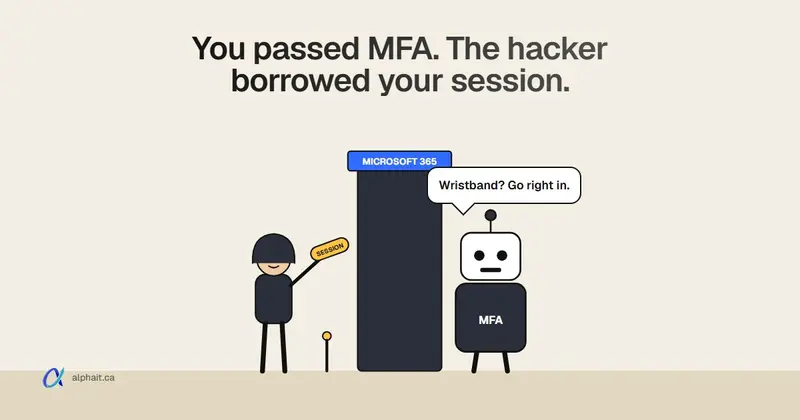
“We have MFA” doesn’t protect you from this kind of phishing. In a browser-in-the-middle attack, your staff member types their password and approves the MFA prompt as usual. They’re doing it inside a browser the attacker controls. Once sign-in finishes, the attacker is holding a fully signed-in Microsoft 365 session. The newest named example is PhantomDOM, documented by email security firm ZeroBEC on November 5, 2026. Three things actually stop it: phishing-resistant sign-in (passkeys, FIDO2 keys, Windows Hello for Business), Conditional Access that only lets managed devices in, and an admin who knows how to revoke sessions fast.
None of this is new in principle. Microsoft warned in 2022 that an adversary-in-the-middle campaign had gone after more than 10,000 organizations by stealing session cookies after MFA. What PhantomDOM changes is how convincing the screen looks.
What is PhantomDOM, and what did researchers actually find?
ZeroBEC says it detected and stopped a targeted phishing attempt against one of its customers. It then pulled apart the code and replayed the attack against a dummy Microsoft 365 account. So far there’s one write-up from one vendor. Nobody has published victim counts, target industries or countries. Treat any article quoting those numbers with suspicion.
Here’s the chain ZeroBEC described:
| Step | What happens | What the victim sees |
|---|---|---|
| 1. Email | A message with an empty body and a PDF attachment, sent from a likely compromised legitimate domain. The subject is about benefits and compensation | An HR-looking email with an attachment |
| 2. PDF | Imitates a SharePoint sharing notice with a “View & Enroll” button and a three-day expiry | A familiar SharePoint document share |
| 3. Redirects | Bounces through several unrelated sites that fingerprint the browser (screen, time zone, graphics card) to weed out security scanners | A brief loading page |
| 4. “Verify it’s you” | A Microsoft-branded check page with a Cloudflare Turnstile box | A normal-looking human check |
| 5. Sign-in | The real Microsoft sign-in runs in a remote browser on the attacker’s server. The victim’s tab only shows a live copy of that page, rebuilt piece by piece over a WebSocket. Every keystroke is passed back | The genuine Microsoft sign-in, MFA included |
| 6. Exit | Waits three seconds, then lands on a real DocuSign error page | “Huh, broken link.” They move on |
The detail that matters: the attacker never needs to steal a cookie. Older kits copy the session cookie and import it into another browser. PhantomDOM keeps the signed-in session where it was created, in the attacker’s own browser. ZeroBEC also says it supports live operator control and copes with slow MFA hand-offs.
In ZeroBEC’s controlled test, the hijacked session did what you’d fear. It opened Microsoft 365 search and read mail items. It requested tokens for Copilot Chat and set up a personal OneDrive. It even asked for passkey creation options, though no passkey was registered. That last one tells you something. An attacker who adds their own sign-in method keeps access after you reset the password.
Why doesn’t regular MFA stop it?
Because the employee really did complete MFA. They just did it for the attacker. Microsoft’s own 2022 write-up put it plainly: the attacker “gets authenticated to a session on the user’s behalf, regardless of the sign-in method the latter uses.”
That covers text codes, authenticator app codes and push approvals. We’ve already covered why SMS codes are the weakest of these in our post on moving from SMS codes to passkeys, so I won’t repeat it here.
What about number matching?
Number matching is now on for every Microsoft Authenticator push. Users can’t opt out. It stops MFA fatigue, where an attacker spams prompts until someone taps Approve to make them go away. The victim has to type a number shown on the sign-in screen, so random approvals don’t work.
It doesn’t help against PhantomDOM. The number is shown on the sign-in screen, and here the victim is looking at that screen. They read it, type it into Authenticator, and approve a sign-in they started on purpose. Number matching proves a human is present. It can’t tell which browser they’re signing in to.
Keep number matching. It’s free and it closes a different hole. Just don’t count it as protection against this.
What actually stops browser-in-the-middle phishing?
In order of how much they help, for a typical 5-to-50-person office.
1. Phishing-resistant sign-in
Passkeys (in Microsoft Authenticator or on a phone), FIDO2 security keys and Windows Hello for Business are tied to the real Microsoft sign-in address. The key is on the employee’s own device. The sign-in happens in the attacker’s remote browser on another machine. That browser has no access to your staff member’s key, and the copied page in their tab is on the wrong domain. The sign-in simply fails.
This is the single biggest fix. ZeroBEC recommends origin-bound FIDO2 passkeys. Microsoft has recommended them since its first AiTM write-up. Our passkey rollout guide has the admin steps and a four-week plan. No MFA at all yet? Start with setting up MFA in Microsoft 365 and come back.
One trade-off to admit: a passkey only protects you if it’s the only way in. If a staff member can still pick “send me a code instead”, the attacker’s page will offer that option. With Business Premium you can close that gap with a Conditional Access rule. It requires the built-in Phishing-resistant MFA authentication strength. Start with admins, finance and payroll.
2. Conditional Access: only managed devices get in
PhantomDOM’s sign-in runs on the attacker’s server. That machine isn’t enrolled in your Intune. A Conditional Access policy that says “Require device to be marked as compliant” blocks it, even with a perfect password and MFA. Microsoft notes that Conditional Access is checked every time an attacker tries to use a stolen session.
Two practical points:
- Personal phones. Most offices let staff check email on their own phones. Use app protection policies (Intune MAM) for those instead of a block, so Outlook mobile still works.
- Location rules help less than you’d think. Blocking sign-ins from outside Canada stops lazy attackers. Many use proxies in your own country, though. Treat a country block as a speed bump, not a wall.
What Business Standard vs Business Premium gives you
This is where licensing decides what you can do. From Microsoft Learn:
| Feature | Business Standard | Business Premium |
|---|---|---|
| Microsoft Entra ID | Free (security defaults) | P1 |
| Conditional Access | No | Yes |
| Require compliant device | No | Yes (Intune Plan 1 included) |
| Phishing-resistant authentication strength rule | No | Yes |
| Passkeys, Windows Hello for Business | Yes | Yes |
| Defender for Office 365 (Safe Links, Safe Attachments) | No | Plan 1 |
| Entra ID Protection risk policies | No | No (needs P2, via the Defender Suite add-on) |
Business Standard users can still register passkeys and stop using SMS. What they can’t do is force them, or block unmanaged devices. If you handle payroll, client money or health records, I’d move at least the finance, payroll and admin accounts to Premium. You don’t have to switch everyone at once. Our Microsoft 365 plan picker shows what the jump costs in Canadian dollars.
3. Token protection and continuous access evaluation
These two get mentioned a lot. Here’s how they apply to a small tenant.
Token protection is a Conditional Access session control. It only accepts sign-in tokens bound to a registered device. It needs Entra ID P1, so Business Premium qualifies. It’s generally available for native apps (desktop Outlook, Teams, OneDrive/SharePoint) on Windows, iOS and macOS. Browser support is only in preview and only for Azure management web apps. So it doesn’t protect Outlook on the web in a browser. It’s also built for stolen tokens replayed elsewhere. PhantomDOM keeps the session in its own browser instead. Worth piloting later. It’s not your fix for this attack.
Continuous access evaluation (CAE) is more useful, and it’s on in every tenant. Its critical events don’t depend on Conditional Access. Exchange, SharePoint and Teams react within minutes when you:
- revoke a user’s sessions;
- reset or change their password;
- disable the account;
- or ID Protection flags the user as high risk.
Microsoft says to expect up to 15 minutes. Without CAE, a stolen access token could keep working for up to an hour. Don’t turn CAE off.
4. Risky sign-in alerts
You can’t revoke a session you don’t know about. In the Entra admin center, go to ID Protection › Dashboard › Users at risk detected alerts. Set the risk level (the default is High; I’d use Medium) and add whoever actually reads email. Global Administrators, Security Administrators and Security Readers get it by default if they have an email address on file. The Weekly digest setting sits on the same dashboard.
Licensing caveat: Microsoft says full ID Protection features need Entra ID P2. On Business Premium (P1) you still see risky sign-ins, with less detail. For where to look in the sign-in logs, see the admin checks in our payroll pirate post.
5. Email filtering and the “PDF with a button” habit
PhantomDOM arrived as an empty email with a PDF attachment. Defender for Office 365 (in Business Premium) scans attachments and rewrites links. ZeroBEC suggests flagging PDF-only emails from unexpected senders that pretend to be SharePoint shares. A good email security setup catches some of these. Filters don’t catch everything. Teach staff one rule: a SharePoint share arrives as a link from someone you know, not as a PDF from a travel company. The same instinct helps with the fake “account suspended” bank emails doing the rounds this month.
Someone clicked. How do you check for a hijacked session and kill it?
Speed matters most. Do these in order, the same hour. You need at least the User Administrator role. For an admin account, you need Privileged Authentication Administrator.
- Revoke sessions. In the Entra admin center, go to Entra ID › Users › All users and select the user. On the Overview page, select Revoke sessions. This kills refresh tokens. CAE-aware apps like Outlook and Teams drop the session within minutes.
- Disable the account if the attacker is still active. On the same user, under Account status, select Edit, clear Account enabled and save. Re-enable once you’ve finished steps 3 to 5.
- Reset the password. Use Reset password on the user’s Overview page. Give the new one to the user by phone, not email. Their mailbox may still be watched.
- Check MFA methods. Open the user’s Authentication methods. Delete any phone number, authenticator app or passkey they don’t recognize. PhantomDOM’s test session went looking for passkey setup, so check that list carefully. Then have the user re-register.
- Check inbox rules and forwarding. Look for rules that move, delete or forward mail, especially anything mentioning invoices, payments or banking. Our payroll pirate post has a read-only PowerShell script that also finds hidden rules.
- Check what else they touched. Look at Sent Items for emails the user didn’t write. Under Entra ID › Enterprise apps, look for apps the user consented to recently. Check recent OneDrive and SharePoint sharing.
- Look at the sign-in log. In Entra ID › Monitoring & health › Sign-in logs, check both the interactive and non-interactive tabs for the user. Sign-ins from unfamiliar IPs right after the click are the attacker.
One timing detail: Microsoft says that after you revoke, apps that only use access tokens can keep working until the token expires. That’s up to an hour. CAE shortens it for Outlook, Teams and SharePoint. It’s another reason to disable the account in step 2 if you see live activity.
For the staff member’s side of things (what to tell them, what to do on their own PC), point them to our I clicked a phishing link guide. It walks through the first hour without IT jargon. If the mailbox held client or patient information, you may have a reportable breach. Check that before closing the ticket.
If you only do three things this month
- Get every admin, finance and payroll account onto a passkey or security key. Then remove their SMS and voice options.
- If you’re on Business Premium, turn on two Conditional Access policies. One requires compliant devices. The other requires phishing-resistant MFA for those same accounts. Run them in report-only mode for a week first.
- Write the “someone clicked” steps above on one page. Make sure two people can do them. It shouldn’t depend on the one admin who happens to be on holiday.
Ordinary MFA still blocks most password attacks, so don’t take it away from anyone. It just isn’t the finish line any more.
Sources
- ZeroBEC: PhantomDOM browser-in-the-middle phishing against Microsoft 365 (November 5, 2026: attack chain, remote browser, controlled test findings, defences)
- The Hacker News weekly recap, November 9, 2026 (where PhantomDOM was first summarized)
- Microsoft Security blog: From cookie theft to BEC, attackers use AiTM phishing sites (July 12, 2022)
- Microsoft Learn: How number matching works in Authenticator push notifications
- Microsoft Learn: Microsoft 365 for business security overview (Business Standard vs Premium)
- Microsoft Learn: Conditional Access overview and licence requirements
- Microsoft Learn: Token protection in Conditional Access
- Microsoft Learn: Continuous access evaluation
- Microsoft Learn: Configure ID Protection notifications
- Microsoft Learn: Revoke user access in an emergency
Frequently asked questions
Can hackers bypass MFA in Microsoft 365?
Yes, with adversary-in-the-middle or browser-in-the-middle phishing. The employee completes MFA on a page that passes everything to the real Microsoft sign-in. The attacker ends up with the signed-in session. Passkeys, FIDO2 security keys and Windows Hello for Business don’t complete on these pages, so they stop it.
What is a browser-in-the-middle attack?
The real sign-in page runs in a browser on the attacker’s server. The victim’s tab shows a live copy of it and passes their typing back. The victim signs in normally, MFA included. The session then belongs to the attacker’s browser. PhantomDOM, reported by ZeroBEC in November 2026, works this way.
Does number matching stop session hijacking?
No. Number matching stops people approving random push notifications they didn’t start. In a phishing attack the victim starts the sign-in on purpose, sees the number and types it in. Keep it on, but use passkeys and Conditional Access to stop session theft.
Do I need Microsoft 365 Business Premium to stop this?
You can register passkeys on any plan. To force phishing-resistant sign-in and block unmanaged devices with Conditional Access, you need Entra ID P1. Business Premium includes it. Business Standard and Basic only have security defaults.
How do I sign a user out of all Microsoft 365 sessions?
In the Microsoft Entra admin center, go to Entra ID › Users › All users, select the user and choose Revoke sessions on the Overview page. Then reset their password and check their authentication methods and inbox rules. Outlook, Teams and SharePoint usually drop the session within about 15 minutes.
Not sure whether your Microsoft 365 plan can block this, or want passkeys and Conditional Access set up without locking anyone out? AlphaIT’s Microsoft 365 team can review your sign-in settings and roll them out with you. Contact us.