Vishal Sharma
On this page
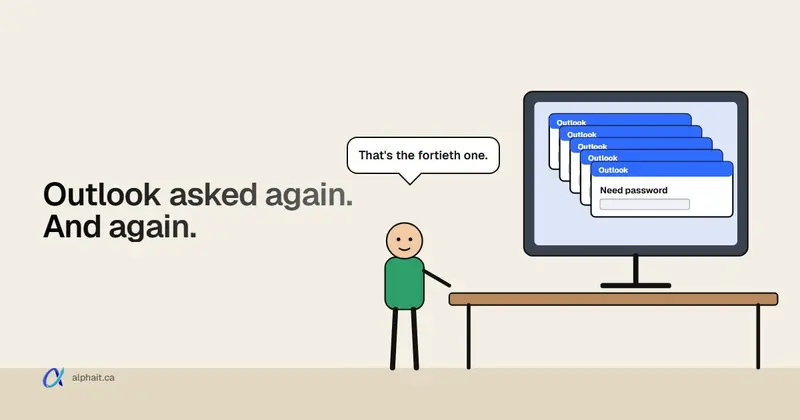
If Outlook keeps asking for your password after a move to Microsoft 365, the password is usually fine. The sign-in stored in Windows is the problem. Microsoft 365 apps on Windows don’t keep your password anymore. They ask a part of Windows called the Web Account Manager (WAM) for a sign-in token. If Windows is holding an old or broken work account, like one from before the migration, Outlook keeps getting turned away and shows “Need Password”. The quickest fix is in Windows, not Outlook: go to Settings › Accounts › Access work or school, disconnect any old account, then connect your current Microsoft 365 account. If that doesn’t do it, work down the list below. It runs from two-minute fixes to steps only an IT person should do.
We saw exactly this on a client’s PC after a Microsoft 365 migration. Outlook on the web worked. Desktop Outlook kept popping up the sign-in box. Adding the work account under Access work or school fixed it in minutes. Here’s why.
Why is Windows involved in signing in to Outlook now?
For years, Outlook stored your email password and sent it to the server every time it connected. That’s called Basic authentication. Microsoft has now turned Basic authentication off in every Exchange Online tenant, for Outlook, Autodiscover and the other mail protocols. The main cut-off date was October 1, 2022. Since the end of 2022, nobody, not even Microsoft support, can switch it back on for your tenant.
Outlook now uses Modern authentication. Instead of your password, it uses short-lived tokens issued by Microsoft Entra ID (the new name for Azure AD). That’s what lets MFA and Conditional Access work properly.
On Windows 10 and 11, Microsoft 365 apps don’t fetch those tokens themselves. Since Office build 16.0.7967, they hand the job to WAM, the token broker built into Windows. When you add a work account to Windows, Microsoft Entra issues a Primary Refresh Token. Think of it as a master key for that device. WAM uses it to get tokens for Outlook, Teams, OneDrive and Edge without asking you again. Microsoft says this token lasts 90 days and renews itself while you use the device.
So Outlook’s sign-in depends on what Windows has stored. An old tenant’s account, a disabled device record or a changed password means no token. Outlook shows “Need Password”, you type it, and the loop starts again.
What do the “add this account to Windows” choices actually do?
When Outlook or Teams first signs in, Windows often shows a screen asking whether to use the account everywhere. Microsoft started rolling out a redesigned version of this screen in late 2025. Depending on your PC, you’ll see one of these:
| Screen | What it does |
|---|---|
| Yes, all apps (older screen: Stay signed in to all your apps) | Adds the account to Windows. Desktop apps and the browser sign in with it automatically. The PC is registered in your organization’s Microsoft Entra directory. Your admin can see basic details: device name, OS version, owner, registration date, last active. |
| Device management prompt (older screen: the Allow my organization to manage my device checkbox) | Only shows up if your organization uses device management. Saying yes enrolls the PC (usually in Intune). IT can then push policies, install apps and wipe work data if the device is lost. |
| No, this app only (older screen: No, sign in to this app only) | Signs in to that one app. The account isn’t added to Windows, isn’t shown under Settings › Accounts, and the PC isn’t registered. |
Registration is not the same as handing over control. It just lets Windows prove “this is a known device.” Enrollment is what lets IT apply policies. One catch: if your tenant has Intune automatic enrollment on for a user (“MDM user scope” set to Some or All), Microsoft says the device enrolls automatically when that user registers it. That needs Entra ID P1 or P2 (included in Business Premium). On a personal laptop, ask IT before you say yes.
The screen only appears once per account. If someone picked “this app only” months ago, Windows won’t ask again until the account is signed out. Then you add it by hand (step 2 below).
The fix, in order: least invasive first
Test Outlook after each step before moving on.
Step 1: Check the account itself (2 minutes)
Open a browser and sign in at https://outlook.office.com.
- Web sign-in fails too? It’s not the PC. Skip to the section on account problems below.
- Web works, desktop Outlook doesn’t? It’s the PC’s stored sign-in. Keep going.
Did your password change recently? That kills the old master token, so Windows should ask once more and then settle down. Over and over? Keep going.
Step 2: Fix the work account in Windows (5 minutes)
This is the one that fixed our client’s PC, and the one we’d try first.
- Close Outlook, Teams and the other Office apps.
- Open Settings › Accounts › Access work or school.
- Look at every account listed. Expand any account that’s old: a previous tenant, an old domain, a former employer, a test account. Select Disconnect. Disconnecting doesn’t delete the account. It only removes its sign-in data from this PC.
- If your current Microsoft 365 account isn’t listed, select Connect and sign in with your work email. Complete MFA.
- Open Outlook. It should pick up the new sign-in silently.
What this fixes: an old tenant’s account still cached in Windows, a broken device registration, or the “this app only” choice made long ago. Adding the account from Settings gives WAM a fresh, working token.
Two cautions. If staff sign in to Windows itself with their work email, the PC is fully joined to the company, not just registered. Don’t disconnect that account yourself. Call IT. And if the PC is enrolled in management, Microsoft says disconnecting also un-enrolls it from management tools.
Step 3: Sign out of Office and back in (3 minutes)
In Outlook, go to File › Office Account › Sign out (in Word or Excel it’s File › Account). Close every Office app. Open Outlook and sign in again.
What this fixes: a stale account cached inside Office itself. Microsoft lists this early in its advice for “Need Password” loops.
Step 4: Clear old Office passwords in Credential Manager (5 minutes)
- Close all Office apps.
- Open Control Panel › Credential Manager › Windows Credentials.
- Expand each entry for Office or your old mail server and select Remove. Office entries usually have names starting with MicrosoftOffice16.
- Reopen Outlook and sign in.
What this fixes: saved credentials from the old setup that Office keeps trying first. Microsoft includes this step in its clean-up for tenant-to-tenant migrations.
Step 5: Build a new Outlook profile (10 minutes, plus download time)
Classic Outlook:
- Close Outlook.
- Open Control Panel and search for Mail. Open it.
- Select Show Profiles › Add, name the profile (say, “M365 2026”) and follow the wizard.
- Under Always use this profile, pick the new one and select OK.
The new profile downloads your mailbox again. Keep the old one for a week, then remove it.
New Outlook: there are no profiles. Go to Settings › Accounts, remove the account, then add it again.
What this fixes: a profile that still remembers the old mail server. Microsoft documents this exact case after migrations: the pre-migration Autodiscover server stays cached in the profile. Outlook keeps knocking on the old door.
Step 6: Run Microsoft’s sign-in troubleshooter
Microsoft’s Microsoft 365 Sign-in troubleshooter now runs in the Get Help app in Windows. Old guides that say “download SaRA” are out of date: Microsoft removed the SaRA command-line tool from Windows in updates from March 10, 2026, and points admins to GetHelpCmd.exe instead.
Step 7: IT-person steps (back up first)
These change system packages or the registry. Have your IT person do them, and back up the registry first. If you get one wrong, you can break sign-in for every app on the PC.
- Check the device state. In an elevated command prompt, run
dsregcmd /status. Under User State,WorkplaceJoined : YESmeans the account is registered. Under Device State,AzureAdJoinedandDomainJoinedshow whether the PC is joined. - Re-register the Entra WAM plugin. If the broker package is missing, Microsoft’s fix is this command in an admin PowerShell. It only reinstalls the package if it’s gone:
if (-not (Get-AppxPackage Microsoft.AAD.BrokerPlugin)) { Add-AppxPackage -Register "$env:windir\SystemApps\Microsoft.AAD.BrokerPlugin_cw5n1h2txyewy\Appxmanifest.xml" -DisableDevelopmentMode -ForceApplicationShutdown } Get-AppxPackage Microsoft.AAD.BrokerPlugin- Clear Office’s cached accounts after a tenant move. Microsoft’s reset guide for tenant-to-tenant migrations says to delete
HKEY_CURRENT_USER\Software\Microsoft\Office\16.0\Common\Identity. Then run its signoutofwamaccounts.ps1 script as administrator. Microsoft says the script removes Office’s tokens and is safe on joined PCs. - Stop Outlook using the old Autodiscover address. Microsoft’s migration fix is a DWORD
ExcludeLastKnownGoodUrl= 1 underHKEY_CURRENT_USER\Software\Microsoft\Office\16.0\Outlook\AutoDiscover. Outlook also checkshttps://yourdomain.com/autodiscover/autodiscover.xmlbeforeautodiscover.yourdomain.com. If an old web host still answers there, admins sometimes addExcludeHttpsRootDomain= 1 under the same key. Microsoft documents that setting, but not as a password-prompt fix, so test it on one PC first. - Don’t disable WAM. Old forum posts suggest a registry value that turns WAM off. Microsoft says disabling ADAL or WAM is not supported as a fix for sign-in problems. It puts Office into a “legacy state.”
What should you tell staff?
Something short they can repeat to the next person. Here’s what we’d say:
“Your PC still had an old sign-in saved from before we moved to Microsoft 365. Outlook kept trying that old one and getting refused. We removed it and added your current work account to Windows. Now Outlook, Teams and OneDrive share one sign-in. If Windows asks whether to use your account in all apps, that’s normal and it’s safe to say yes on your work PC.”
Add one safety line. A real Outlook prompt opens from Outlook itself, on its own, with a Microsoft sign-in window. Never type your password into a page you reached from an email link, even if it looks identical. If that already happened, follow our what to do if you clicked a phishing link steps right away.
Migrating several PCs? Do this before cutover
Most of these prompts are avoidable with an hour of prep.
- List every PC and who uses it. Note which are company-owned and which are personal.
- Check each PC with
dsregcmd /status. Note any work accounts from the old tenant under Access work or school. - Update Office everywhere. Microsoft 365 Apps should be on a supported build. Outlook 2010 can’t do Modern authentication at all.
- Decide on device management first. Is Intune automatic enrollment on? Should personal laptops be enrolled? Settle it before staff see the “manage my device” prompt.
- Get MFA registration done in the new tenant before cutover day, not during it. Our MFA setup guide covers the rollout.
- Point Autodiscover at Microsoft 365 and check that the root domain doesn’t answer for the old host.
- On cutover day, per PC: disconnect the old work account, clear Office entries in Credential Manager, connect the new account, create a fresh Outlook profile.
If you’d rather not do this yourself, our Microsoft 365 migration help covers the move, PC clean-up and staff hand-holding. For ongoing care, see our managed IT support.
When it’s not the PC
If Outlook on the web also fails, the problem is the account or the service. Check these:
- A Microsoft outage. Your admin can check Health › Service health in the Microsoft 365 admin centre. During the November 12, 2026 Outlook outage, plenty of people chased password prompts that had nothing to do with their PCs.
- Account locked or password expired. An admin can check the user in the Microsoft 365 admin centre and reset the password.
- MFA not finished or lost phone. The user may need to re-register their methods. See setting up MFA in Microsoft 365.
- Conditional Access. If your tenant requires a compliant device, Microsoft says the PC must be registered in Entra and enrolled in Intune first. A PC that was signed in with “this app only” will keep failing until it’s added to Windows and enrolled. Your admin can see the exact reason in the Entra sign-in logs.
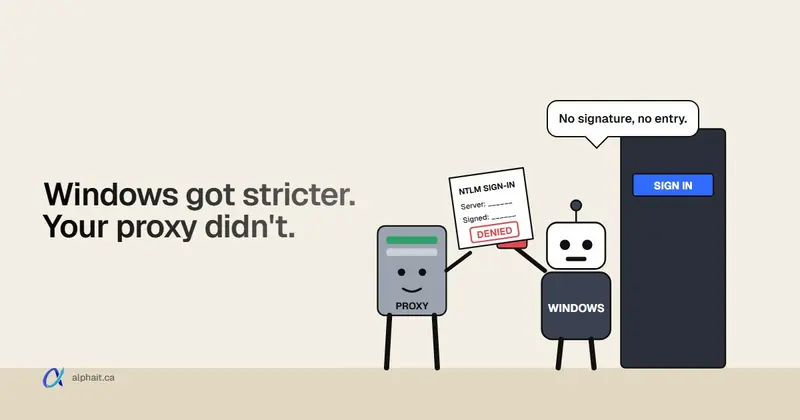
- Prompts on a server or file share, not Outlook? That’s a different problem. Our post on the November 2026 Windows update sign-in issues covers the NTLM changes behind it.
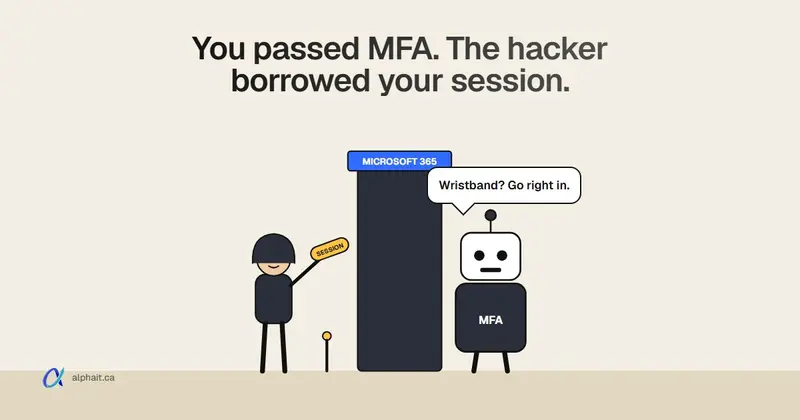
MFA requests nobody started are a different story: treat them as a possible attack. Our post on session hijacking in Microsoft 365 explains how to check.
Sources
- Microsoft Learn: Deprecation of Basic authentication in Exchange Online
- Microsoft Learn: Understanding Primary Refresh Token (PRT) in Microsoft Entra ID
- Microsoft Support: Add your work or school account to a Windows device
- Microsoft Learn: What are Microsoft Entra registered devices?
- Microsoft Learn: Enable MDM automatic enrollment for Windows (Intune)
- Microsoft Learn: Authentication automatically fails in Microsoft 365 services (WAM plugin re-registration)
- Microsoft Learn: Disabling ADAL or WAM to fix Microsoft 365 sign-in issues not supported
- Microsoft Learn: Reset activation state for Microsoft 365 Apps (tenant migration, Credential Manager, signoutofwamaccounts.ps1)
- Microsoft Learn: Outlook cannot connect after mailbox migrated to Microsoft 365 (cached Autodiscover, new profile)
- Microsoft Support: Outlook 2016 implementation of Autodiscover
- Microsoft Support: Sign out of Office
- Microsoft Support: SaRA command-line utility removal from Windows
- Microsoft Learn: Conditional Access grant controls
Frequently asked questions
Why does Outlook say "Need Password" when my password is correct?
Because Outlook doesn’t use your password directly anymore. It asks Windows for a sign-in token. If Windows holds an old, broken or missing work account, no token comes back and Outlook shows “Need Password”. Fix the account under Settings › Accounts › Access work or school, and the prompts usually stop.
Is it safe to add my work account under Access work or school?
On a company PC, yes. It registers the PC with your organization so apps can sign in for you. Your admin can see basic details like device name and OS version. Saying yes to device management is a separate step that gives IT more control. On a personal PC, ask IT first, because automatic enrollment may be switched on.
Should I choose "Yes, all apps" or "No, this app only"?
On a work PC, choose “Yes, all apps”. It gives Outlook, Teams and OneDrive one shared sign-in and fewer prompts. “This app only” signs in just one app and doesn’t register the PC. That can fail later if your organization requires registered or compliant devices.
Does creating a new Outlook profile delete my email?
No. With Microsoft 365, your mail lives on Microsoft’s servers. A new profile downloads it again, which can take a while on a big mailbox. The exception is local PST files, which you’d need to reattach. Keep the old profile for a week before removing it.
Moving your office to Microsoft 365, or stuck with password prompts after a move? AlphaIT’s Microsoft 365 team can plan the cutover and clean up every PC so staff aren’t fighting sign-in boxes on Monday morning. Contact us.