Every new hire needs the right accounts, a secure device and the right access on day one, and every person who leaves needs that access removed in the right order. This employee offboarding IT checklist, paired with an onboarding checklist, shows a 5 to 50 person business how to do both in Microsoft 365 without losing email, files or control of company data.
Key takeaways
- Set up access by role, not by copying another person’s account. Give each person only what their job needs.
- When someone leaves, reset their password and sign them out of all sessions first. Microsoft notes that blocking sign-in on its own can take up to 24 hours to take effect.
- Convert the mailbox to a shared mailbox before you remove the licence. Microsoft requires a licence to be assigned for the convert option to appear.
- Removing a licence starts a 30-day clock on email, contacts and calendar. Save or hand over what you need first.
- Microsoft 365 is only part of the job. Line-of-business apps, shared passwords, building access and phone numbers need the same attention.
Why onboarding and offboarding matter
Most access problems in small businesses come from everyday staff changes:
- Orphaned accounts. A former employee’s account that still works is a door nobody is watching.
- Shared passwords. If the office Wi-Fi, the supplier portal and the bank login are shared, every departure means those passwords are still in someone else’s head.
- Data walking out. Company email and files on a personal phone or laptop leave with the person unless you remove them.
- Licence waste. Licences assigned to people who have left keep costing money every month.
The Canadian Centre for Cyber Security’s baseline controls for small and medium organizations say organizations should give accounts the minimum functionality needed for their tasks and should remove accounts and functionality when employees no longer need them. In Alberta, PIPA requires organizations to make reasonable security arrangements to protect personal information, including personal employee information, against unauthorized access. A repeatable checklist helps you show you do that.
Employee onboarding IT checklist
Before day one
- Pick a consistent account name. Use one naming pattern for everyone, such as firstname.lastname@yourcompany.ca.
- Create the account and assign a licence. In the Microsoft 365 admin center, go to Users > Active users > Add a user, then choose the location and licence. Microsoft’s add users guide notes you can save these settings as a template for the next hire in the same role.
- Do not make new users admins. Microsoft recommends using roles with the fewest permissions. If the person needs admin rights, give them a separate admin account and use it only for admin work, as the Cyber Centre advises.
- Plan MFA registration. Decide how the person will register multifactor authentication. Microsoft Entra ID supports a Temporary Access Pass, a time-limited code a new user can use to sign in and register their methods. If MFA is not yet on for your business, start with our guide on how to set up MFA in Microsoft 365.
- Add groups and permissions by role. Add the person to the Microsoft 365 groups, Teams, SharePoint sites and shared mailboxes their role needs, and nothing more. Avoid “make them the same as Sarah”, which copies years of extra access.
- Prepare and enrol the device. Update the laptop, confirm encryption and security software, and enrol it in your device management tool (such as Microsoft Intune) so it can be managed or wiped later.
- Set up the password manager. Create the person’s vault and share only the team folders they need. If you do not have one yet, read our overview of business password managers.
- Line-of-business apps. Request accounts for accounting, scheduling, CRM or industry software, and record each one.
Day one
- First sign-in and MFA. Sit with them while they sign in, change the temporary password and register MFA, ideally with Microsoft Authenticator.
- Security basics briefing. Cover phishing, how to report a suspicious email, why passwords are never shared, and the rules for personal devices. The Cyber Centre’s baseline controls recommend investing in cyber security awareness and training for employees.
- How to get IT help. Give them one clear way to ask for help, and who to call if something looks wrong after hours.
First 30 days
- Check that MFA is registered and that the person is not still using their temporary password.
- Remove access granted “just to get started”.
- Confirm the device is managed and receiving updates.
- Note every system the person now uses in their record. That list becomes their offboarding checklist.
Employee offboarding IT checklist
Timing: planned versus urgent departures
For a planned departure, decide who takes over email and files, and remove access at the end of the final day.
For an urgent or hostile departure, remove access before or during the conversation, not after. Microsoft’s guidance on revoking access in an emergency is to disable the account and revoke sessions. It explains that some apps keep working briefly until their tokens expire, so order matters.
The Microsoft 365 sequence
This order follows Microsoft’s remove a former employee series, with the licence and data rules checked against current Microsoft Learn pages.
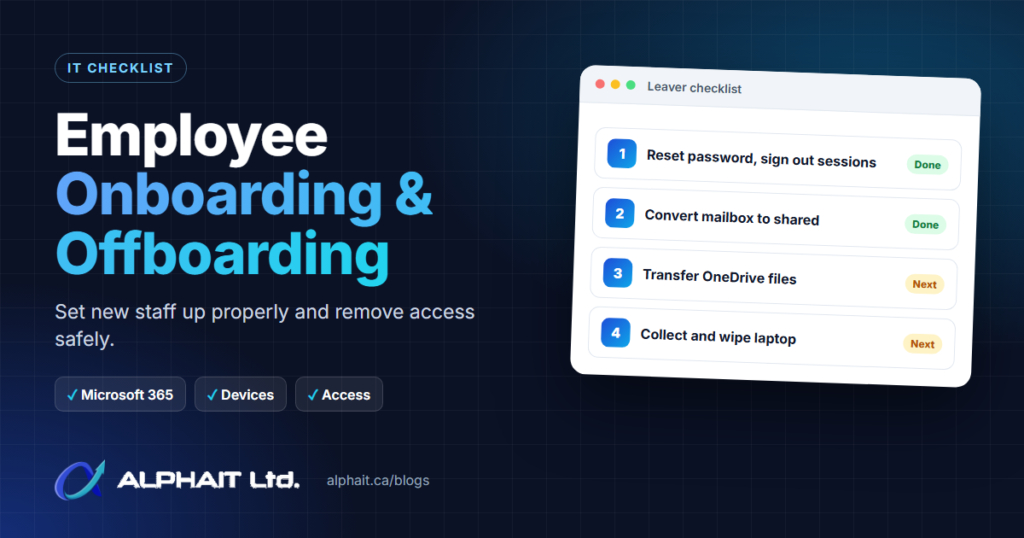
- Reset the password and sign out of all sessions. In Users > Active users, select the person, choose Reset password, then on the Account tab choose Sign out of all sessions. Microsoft says the user is prompted to sign in again within an hour, or sooner when they leave the page they are on.
- Block sign-in. Select Block sign-in on the same user. Microsoft notes blocking can take up to 24 hours, which is why the password reset comes first.
- Remove MFA methods and app passwords. In the Microsoft Entra admin center, under the user’s Authentication methods, Require re-register MFA deletes registered phone numbers and Authenticator apps. Delete any existing app passwords too.
- Wipe or retire mobile devices. For a phone using Exchange email, Microsoft describes using the Exchange admin center to choose Account Only Remote Wipe Device and Block access. For Intune-managed devices, see the device section below.
- Convert the mailbox to a shared mailbox, or set up forwarding. A shared mailbox keeps all existing email and calendar items and lets the right people open it. The licence must still be assigned when you convert. Forwarding only sends new email. Consider an automatic reply telling senders who to contact instead, and cancel the person’s meetings so rooms and equipment are freed up.
- Hand over OneDrive files. On the user’s OneDrive tab, choose Create link to files, then move or copy what you need to a shared library or the manager’s OneDrive. Only the latest version of each file moves.
- Remove the person from groups, Teams and shared mailboxes. Reassign ownership of any Team or site they own first.
- Remove the licence, after the data is handled. Microsoft says that when you remove a licence, the user’s data is held for 30 days, then content other than documents stored in SharePoint is permanently deleted. Remove any holds first. Then reduce your licence count under Billing > Your products if you will not reuse it.
- Decide whether to delete the account. Do not delete it if you converted the mailbox or set up forwarding. Microsoft says the account anchors both.
Retention details to know
- A shared mailbox does not need a licence while it is under 50 GB.
- If you do not reset the password, Microsoft warns that the original username and password keep working on the converted shared mailbox. Keep sign-in blocked.
- Deleting an account gives you about 30 days to restore it. By default, the person’s manager is automatically given access to their OneDrive when the account is deleted.
- According to Microsoft’s OneDrive retention page, OneDrive accounts without a valid licence are automatically archived on their 93rd unlicensed day. Move the files you need well before that.
- If litigation is possible, talk to your advisor before removing anything. Holds need specific Exchange Online licences.
Other systems to cover
- Line-of-business apps: accounting, payroll, CRM, scheduling and industry software that has its own login.
- Remote access: VPN accounts, remote desktop tools and any firewall user.
- Building access: keys, fobs, alarm codes and parking passes.
- Shared passwords: rotate every shared credential the person knew, starting with banking, domain and website, and Wi-Fi.
- Phone numbers: Microsoft notes a Teams Phone number assigned through PSTN connectivity is released when the licence is removed. Set up call forwarding or reassign the number first, and remove the person from call queues.
- Social media and vendor accounts: remove them as page admin, and change the contact email on supplier and software accounts.
Devices: collect, wipe or reassign
Collect company laptops, phones, keys and security tokens on the last day. In Intune, Wipe factory resets a company device, while Retire removes company data and keeps personal data, which suits a personal phone. Microsoft points out that a device must be online to receive these actions, so collect it in person where you can. Back up the BitLocker recovery key before retiring a Windows device.
Document it
Record the date, who did each step and what happened to the person’s email, files and devices. It helps if anyone asks how you protect personal information, and it shows which step was missed.
Printable onboarding and offboarding checklist
| Stage | Task | Done |
|---|---|---|
| Onboarding: before day one | Create account with standard name; assign licence | |
| Onboarding: before day one | Add groups, Teams, sites and shared mailboxes by role | |
| Onboarding: before day one | Prepare, encrypt and enrol device | |
| Onboarding: before day one | Create password manager vault; request app accounts | |
| Onboarding: day one | First sign-in, password change and MFA registration | |
| Onboarding: day one | Security briefing and how to get IT help | |
| Onboarding: 30 days | Review MFA, remove temporary access, record systems used | |
| Offboarding: Microsoft 365 | Reset password and sign out of all sessions | |
| Offboarding: Microsoft 365 | Block sign-in; remove MFA methods and app passwords | |
| Offboarding: Microsoft 365 | Wipe or retire devices | |
| Offboarding: Microsoft 365 | Convert mailbox to shared (licence still assigned) or forward | |
| Offboarding: Microsoft 365 | Move OneDrive files; remove from groups and Teams | |
| Offboarding: Microsoft 365 | Remove licence; reduce licence count | |
| Offboarding: other | Disable app, VPN and remote access accounts | |
| Offboarding: other | Rotate shared passwords; collect keys and fobs | |
| Offboarding: other | Forward or reassign phone number; update social and vendor accounts | |
| Offboarding: other | Record what was done, by whom and when |
Frequently asked questions
How quickly should I remove access when an employee leaves?
On their last working day for a planned departure, and immediately for an urgent one. Start with a password reset and sign-out of all sessions, because Microsoft notes blocking sign-in alone can take up to 24 hours.
Should I delete a former employee’s Microsoft 365 account?
Not if you converted their mailbox to a shared mailbox or set up forwarding. Microsoft says the account is needed to anchor both. Block sign-in and remove the licence instead.
What happens to their email when I remove the licence?
Microsoft says the email, contacts and calendar are kept for 30 days and then permanently deleted. Convert the mailbox to shared, or export what you need, before you remove the licence.
Can I wipe company data from an employee’s personal phone?
If the phone is managed with Intune, the Retire action removes company data and keeps personal data. For phones that only sync Exchange email, Microsoft describes an account-only remote wipe from the Exchange admin center.
Who should own this checklist in a small business?
One named person, usually the office manager or owner, working with whoever manages your IT. Our managed IT support team can run both checklists for you, and our Microsoft 365 services and cybersecurity services cover the settings behind them.
Not sure where your gaps are?
If you are unsure whether a former employee still has access somewhere, take our free 3-minute IT check, or call the AlphaIT team at 780-318-0149.