Passwords get guessed, reused and phished, and Microsoft itself calls them the most vulnerable way to sign in. Multifactor authentication (MFA) adds a second check at sign-in, so a password on its own is no longer enough. This guide explains how to set up MFA in Microsoft 365 for a small business, which option your licence supports, and how to roll it out without locking anyone out.
Key takeaways
- For most businesses on Microsoft 365 Business Basic or Business Standard, the answer is security defaults: free, built in, and switched on with one setting.
- Conditional Access needs Microsoft Entra ID P1, which is included in Microsoft 365 Business Premium. Use one or the other, not both.
- Before you switch MFA on, check shared mailboxes, scanners that send email, older apps and any account used by software. Security defaults blocks older sign-in methods.
- Create an emergency (break-glass) admin account protected with a passkey or FIDO2 security key, and store it safely.
- Tell staff a few days ahead, give them a short how-to, and plan the switch-on for a quiet morning.
What is MFA, in plain English?
MFA means proving who you are in two different ways when you sign in. Usually that is something you know (your password) plus something you have (your phone with the Microsoft Authenticator app, or a security key).
If a criminal tricks someone into typing their password into a fake login page, the criminal still does not have that person’s phone. You will also see it called two-factor authentication or 2FA. The Canadian Centre for Cyber Security recommends MFA for any service that holds sensitive information, which describes most business email accounts.
Security defaults or Conditional Access: which do you need?
Use security defaults unless you have Microsoft 365 Business Premium (or another plan that includes Microsoft Entra ID P1) and someone who will manage the policies. Microsoft says organizations with Entra ID P1 or P2 licences are usually better served by Conditional Access.
Security defaults is a fixed set of protections that is either on or off. It requires every user to register for MFA, requires admins to use MFA every time they sign in, prompts regular users when Microsoft sees a reason (for example, a new device), and blocks older sign-in methods that cannot do MFA. Microsoft 365 tenants created after October 2019 usually have it on already, so check before you assume you are unprotected.
Conditional Access lets you write your own rules, such as exempting an emergency account. It is more flexible, but easier to misconfigure.
| Security defaults | Conditional Access | |
|---|---|---|
| Licence needed | None (included with every Microsoft 365 plan through Entra ID Free) | Microsoft Entra ID P1 or higher, for example Microsoft 365 Business Premium |
| Setup | One switch | Policies you build, ideally from Microsoft’s templates |
| Exceptions for specific accounts | Not possible | Yes |
| Blocks older sign-in methods | Yes, automatically | Yes, with a policy |
| Best for | Most businesses on Business Basic or Standard | Business Premium tenants with someone to manage it |
One rule matters here: you cannot run both at once. If any Conditional Access policy exists, even one that is switched off, you cannot turn on security defaults. If you see the old “per-user MFA” setting, Microsoft calls it legacy and not recommended, and it should be turned off before you use either option.
Before you switch it on: four things to check
These are the accounts and devices that tend to get forgotten. Spend a few minutes on them first.
1. Create an emergency (break-glass) admin account
Microsoft recommends at least two emergency access accounts with the Global Administrator role, used only if your normal admin sign-in fails. They should be cloud-only accounts on your .onmicrosoft.com address, not tied to any one person or their personal phone.
Security defaults does not allow exclusions, and Microsoft’s mandatory admin-portal MFA applies to break-glass accounts too. Microsoft’s guidance is to protect these accounts with a passkey on a FIDO2 security key (or certificate-based authentication). Passkeys are available in every Entra ID edition, including the free one. Keep the keys in a secure location, and test the account at least every 90 days, as Microsoft recommends.
2. Shared mailboxes
Shared mailboxes like info@ or accounts@ should not be signed into directly. Staff open them through their own account, with their own MFA. Microsoft blocks sign-in on new shared mailboxes by default. If an older shared mailbox has a password that people log in with, give the right staff Full Access and Send As permissions, then block sign-in for the mailbox account in the Microsoft 365 admin center.
3. Scanners, printers and older apps
Security defaults blocks “legacy authentication,” meaning older ways of signing in that cannot do MFA. That includes very old Office versions (Microsoft gives Office 2010 as an example) and anything using IMAP, POP3 or SMTP with a plain username and password.
The usual casualty is a multifunction printer that emails scans. Microsoft documents other ways to send from those devices, such as a connector or direct send. Microsoft has also announced it is retiring basic authentication for SMTP sending (see its updated timeline), so these devices need attention either way. If your tenant is from before 2017, also confirm modern authentication is on in Exchange Online, which Microsoft warns can otherwise cause a sign-in loop.
4. Accounts used by software
Some businesses have a normal user account that a backup tool, scanner app or script signs in with. Once MFA is required, those sign-ins can fail. Microsoft recommends moving that kind of automation to proper app identities (service principals or managed identities) instead of user accounts. Ask the vendor whether their product supports modern authentication before you switch on MFA.
How to set up MFA in Microsoft 365 with security defaults
You need the Conditional Access Administrator, Security Administrator or Global Administrator role. These steps follow Microsoft’s current Entra documentation.
- Sign in to the Microsoft Entra admin center at entra.microsoft.com.
- Go to Entra ID > Overview, then open the Properties tab. (Some screens and older guides call this section Identity.)
- At the bottom, select Manage security defaults.
- Set Security defaults to Enabled.
- Select Save.
If the switch is unavailable, Conditional Access policies already exist, and those are what you should review.
There is no longer a 14-day grace period. Since July 2024, Microsoft asks users to register the next time they sign in. Microsoft also suggests signing users out of existing sessions after you enable it, so everyone is prompted to register.
If you have Business Premium
Microsoft’s recommended path is to turn off security defaults and recreate the same protections with its Conditional Access templates: require MFA for all users, require MFA (ideally phishing-resistant MFA) for admins, block legacy authentication, and require MFA for Azure management. Exclude only the emergency access accounts. Setting this up properly is part of Microsoft 365 setup and management, and it is worth getting a second pair of eyes on it before you switch policies on.
How staff register Microsoft Authenticator
Under security defaults, staff register using the Microsoft Authenticator app with notifications. Other authenticator apps that generate six-digit codes also work. Give your team these steps:
- Install Microsoft Authenticator on your phone from the App Store or Google Play.
- On a computer, go to mysignins.microsoft.com/security-info and sign in with your work email.
- Select Add sign-in method, choose Microsoft Authenticator, then select Add and Next until a QR code appears.
- In the app, tap the + icon, choose Work or school account, then Scan a QR code.
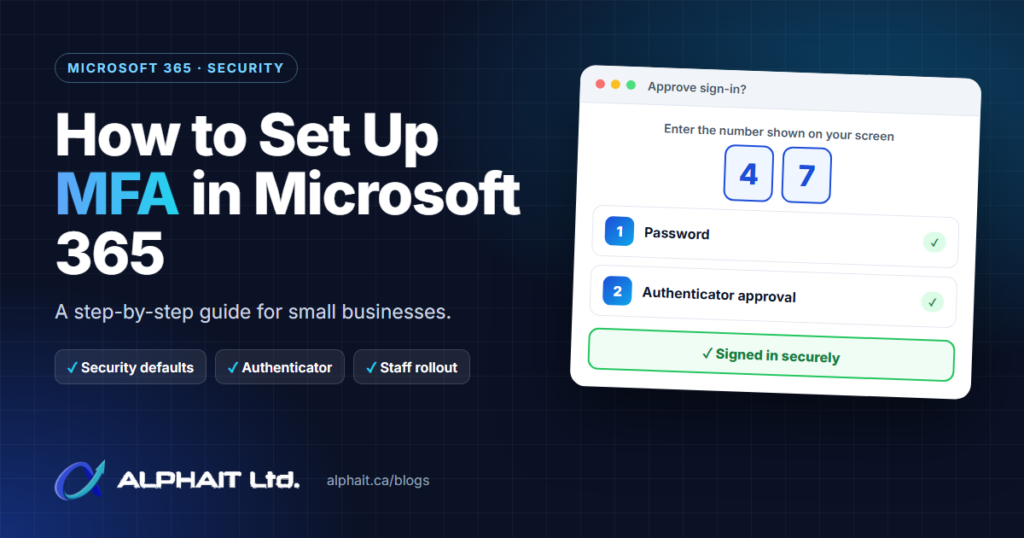
- Approve the test notification by typing the number shown on your computer screen.
That number step is called number matching. It stops people from approving a sign-in they did not start just to make repeated prompts go away. Tell staff plainly: if your phone asks you to approve a sign-in you did not start, deny it and tell us.
A simple rollout plan for staff
For a 5 to 50 person office, a short plan works better than a surprise.
- A week before: Do the four checks above. Create and test the emergency accounts.
- Three to five days before: Email staff explaining what is changing, why, and the date. Attach the five registration steps. Microsoft publishes communication templates you can adapt.
- Switch-on day: Pick a quiet morning early in the week, not a Friday afternoon or month-end. Have someone available to help anyone who gets stuck.
- The week after: Check that everyone has registered and that the scanner, shared mailboxes and any business apps still work.
Common mistakes to avoid
- Turning off security defaults “temporarily” because one device stopped working, then forgetting to turn it back on.
- Having one Global Administrator whose phone is the only way in. If that phone is lost, so is your admin access.
- Using the owner’s day-to-day account as the admin account. Microsoft recommends separate accounts for admin work and normal use.
- Leaving sign-in enabled on shared mailboxes with a password that half the office knows.
- Forgetting staff who leave. Remove their Authenticator registration and block their account on their last day.
- Treating MFA as the whole answer. It stops password theft, but phishing emails and fake login pages still need attention through email security and staff awareness.
Going further: passkeys and phishing-resistant MFA
Push notifications with number matching are a big step up from passwords alone. They can still be defeated by advanced fake login pages that relay the sign-in in real time. That is why the Canadian Centre for Cyber Security strongly recommends phishing-resistant options such as FIDO, and why CISA calls number matching an interim step.
Passkeys are the practical phishing-resistant option in Microsoft 365. A passkey can live on a FIDO2 security key, in Microsoft Authenticator, or in a passkey provider such as Apple Passwords or Google Password Manager. Admins turn them on in the Entra admin center under Entra ID > Security > Authentication methods > Policies > Passkey (FIDO2). Start with your admins and anyone who handles payments or payroll. MFA is one layer of a wider plan, which is where cybersecurity services come in.
Frequently asked questions
Is MFA already on in my Microsoft 365 account?
Possibly. Tenants created after October 2019 usually have security defaults on. Check in the Entra admin center under Entra ID > Overview > Properties. Separately, Microsoft now requires MFA to sign in to its admin portals, including the Microsoft 365 admin center, so your admins may already be using it even if staff are not.
Do I need to buy Business Premium to use MFA?
No. Security defaults is included with every Microsoft 365 plan at no extra cost. Business Premium adds Conditional Access, which gives you more control, such as exceptions and location-based rules.
Can staff use text messages instead of the app?
Not under security defaults, which uses Microsoft Authenticator or another code-generating authenticator app. The Canadian Centre for Cyber Security does not list SMS among its preferred methods, so the app is the better choice anyway.
What happens if someone loses their phone?
An admin can remove their old sign-in method in the Entra admin center so they can register a new phone. This is one reason to have more than one admin, plus an emergency access account that does not depend on anyone’s phone.
Will staff get an MFA prompt every time they open Outlook?
No. Under security defaults, regular users are prompted when Microsoft decides it is needed, such as a sign-in from a new device. Admins are prompted every time they sign in.
Related guides: How to test your backups, when to replace a firewall, a cybersecurity checklist for Alberta clinics.
Want a hand with it?
If you are not sure which option your licence supports, or whether your scanner and shared mailboxes will survive the switch, we can check for you. Take our free 3-minute IT check or call AlphaIT at 780-318-0149.