
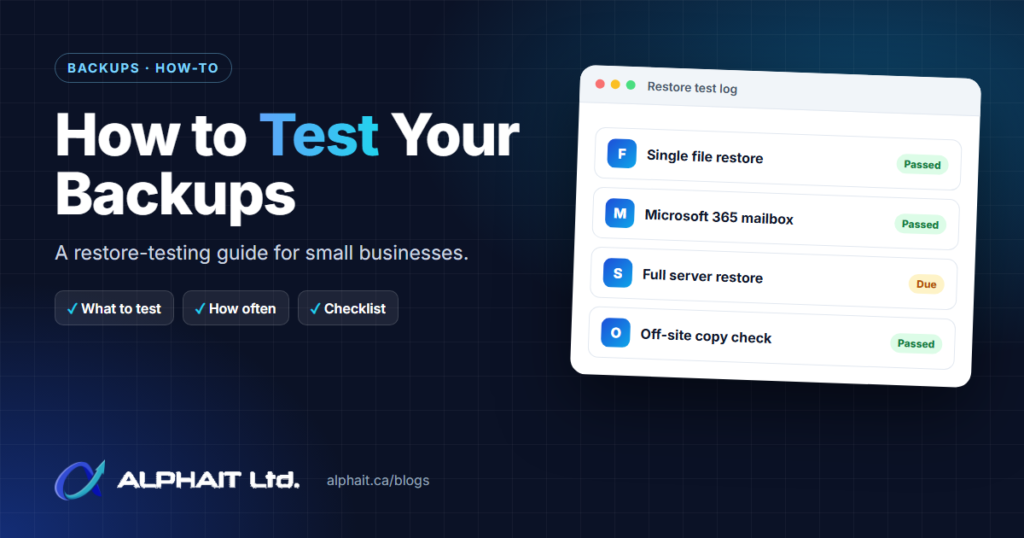
Most small businesses have a backup. Far fewer have proof that it works. This guide shows you how to test backups in a way an office manager can run and document, so you know what you can recover, how long it takes and how much work you would lose.
A backup you haven’t restored is a hope, not a plan. The Canadian Centre for Cyber Security puts it plainly in its backup guidance: test your backups to make sure they work.
Key takeaways
- A backup is only proven when you restore something from it and open the result.
- Most backup failures are silent: the wrong folders, failed jobs nobody reads, expired passwords, or ransomware reaching a connected copy.
- Microsoft 365 keeps deleted items for limited windows. Treat that as a recycle bin, not a backup.
- Test small restores monthly and a full machine twice a year. Record how long it took and how old the data was.
- Keep at least one copy offline or otherwise out of reach, and test that copy as well.
Why backups fail without anyone noticing
Backups rarely fail loudly. They fail quietly, and the business finds out on the day it needs a file back. These are the causes we look for first.
The backup covers the wrong things
Backups are often set up once and never revisited. Then the accounting data moves or staff start saving to their desktops. The job keeps reporting success because it backs up exactly what it was told to, which is no longer what matters. The Cyber Centre recommends that you identify and prioritize your business-critical data first, so the backup scope follows the business.
Failed jobs nobody reads
Backup tools send alerts when a job fails, but those alerts often go to a former employee or an inbox nobody watches. Weeks of failures can pile up unseen.
Expired or changed credentials
When a password changes, a subscription lapses or an encryption key is lost, the backup may stop running or become impossible to open. The Cyber Centre’s ransomware playbook warns organizations to make sure they are not changing any credentials that are required to restore your backup.
Ransomware reaches the backup
A backup drive that is always plugged in, or a network share the main server can write to, can be encrypted along with everything else. CISA notes that many ransomware variants attempt to find and subsequently delete or encrypt accessible backups. The Cyber Centre says the same: many variants are designed to locate, spread to and delete system backups.
Cloud apps are assumed to be backed up
Many owners assume Microsoft 365 is backing up their email and files. Microsoft does keep deleted data for a while, but those windows are limited:
- Exchange Online keeps deleted mail items for 14 days by default, adjustable to a maximum of 30 days. After that, the item is removed.
- Deleted SharePoint sites are retained for 93 days, then permanently deleted.
- The “Restore your OneDrive” feature lets you undo changes from the last 30 days.
Microsoft also sells Microsoft 365 Backup as a separate, pay-as-you-go service, which tells you the standard subscription and a dedicated backup are not the same thing. Whatever you use for Microsoft 365, it needs testing like everything else. Our Microsoft 365 services page covers how we set up and manage tenants for small businesses.
What to test
Test every type of data you would actually need back. For a typical 5 to 50 person office, that means five levels.
A single file
The quickest test. Restore a real file, such as last month’s invoice spreadsheet, to a different location and open it. This proves the backup exists and someone knows how to use it.
A whole folder
Restore a full shared folder, such as a client folder or the HR folder. Check that subfolders, file counts and permissions look right. Folder restores catch scope problems that single files miss.
A full computer or server
Restore an entire machine to spare hardware, never over the live system. This shows whether your software, databases and licences come back working, not just the files.
A Microsoft 365 item
Restore a deleted email, a OneDrive file and a SharePoint document. Use your backup tool, not only the Microsoft recycle bins, so you know the backup works beyond the built-in windows.
Bare-metal or virtual machine recovery
If you run a server, test bringing it back on blank hardware or as a virtual machine. CISA recommends keeping “golden images” of critical systems, preconfigured templates for quickly rebuilding a server or virtual machine. NIST’s contingency planning guide lists system recovery on an alternate platform from backup media as an area a recovery test should address.
How often to test backups
There is no single required schedule, and official guidance varies. The Cyber Centre’s ransomware playbook suggests testing backups on a regular basis, for example, monthly. Its cross-sector readiness goals set a floor of testing no less than once per year.
For most small offices, we recommend this rhythm:
- Weekly: read the backup report and confirm the last job succeeded.
- Monthly: restore a single file and one Microsoft 365 item.
- Quarterly: restore a full folder and check the offline or offsite copy.
- Twice a year: restore a full computer or server to spare hardware or a virtual machine.
- After any big change: new server, new software, office move or new backup tool.
A business that cannot run for an afternoon without its systems should test more often.
Step-by-step: how to run a backup restore test
Anyone with admin access to the backup tool can follow this process.
- Pick the target. Choose what you are testing (file, folder, mailbox item or machine) and write it down before you start.
- Note the time. Record the time you begin. This is the start of your recovery clock.
- Find the backup. Log in to the backup tool or connect the drive. If you can’t find the login, record that. It is a real finding.
- Choose a restore point. Pick the most recent backup and note its date and time.
- Restore to a safe location. Use a separate folder or spare machine. Never overwrite live data.
- Open and check it. Check dates, sizes and contents. For a full machine, log in and launch key applications.
- Stop the clock. Record the time when the data was usable, not when the progress bar finished.
- Record the results and clean up. Fill in your test log, then delete the test copy so you don’t end up with stray duplicates of sensitive files.
How to measure RTO and RPO in plain English
Two numbers tell you whether your backups are good enough for your business. NIST defines both in its Contingency Planning Guide (SP 800-34 Rev. 1).
RTO: how long until you are working again
Recovery Time Objective is the maximum time a system can be down before the impact becomes unacceptable. In practice: how long can your office go without email, files or your accounting software? Your restore test gives you the real number. If a server restore took longer than the business can afford, you have a gap to fix.
RPO: how much work you could lose
Recovery Point Objective is the point in time your data can be recovered to, based on your most recent backup. In plain terms: if the backup ran at 11 p.m. and the server died at 4 p.m. the next day, you lose a working day of changes. During each test, compare the restored data’s age to what the business can tolerate.
Document every backup test
A test that isn’t written down is hard to prove to an insurer or an auditor. The Cyber Centre recommends outlining how your recovery process will be performed, including roles and responsibilities. For each test, record:
- Date, who ran it and what was restored
- Restore point date and time (your actual RPO)
- Start and finish times (your actual RTO)
- Pass or fail, and what went wrong
- Fixes needed, who owns them and the due date
Keep the log somewhere reachable if your main systems are down, such as a printed copy.
Where 3-2-1 and offline copies fit
Testing proves a backup works. The way you store copies decides whether one survives a bad day. The Cyber Centre describes the 3-2-1 approach as keeping 3 copies of your information (1 original and 2 backups), saved on 2 different media types, with 1 copy kept off site. It also recommends an offline backup, because offline copies stay unconnected to your systems and are unaffected by threats like ransomware that can compromise everything on the network.
Immutable storage is the other option. Microsoft’s documentation defines immutability as storage that can’t be altered, deleted, or overwritten for a specified period of time. Include that protected copy in your restore tests. It is the one you are most likely to need after an attack. Our backup and disaster recovery service page explains how we design these layers, and our cybersecurity services cover the protections that keep attackers away from backups in the first place.
Printable backup testing checklist
| Check | How often | Pass looks like | Done (date / initials) |
|---|---|---|---|
| Backup report reviewed, last job succeeded | Weekly | No failed or skipped jobs | |
| Alerts go to a monitored inbox | Quarterly | Test alert received by a current staff member | |
| Backup scope matches where data now lives | Quarterly | All business-critical folders and systems listed | |
| Single file restored and opened | Monthly | File opens, content is current | |
| Microsoft 365 email, OneDrive and SharePoint item restored | Monthly | Item restored from the backup tool, not just the recycle bin | |
| Full folder restored | Quarterly | File count and permissions match | |
| Offline or offsite copy checked | Quarterly | Copy is disconnected or immutable and restores correctly | |
| Full computer or server restored to spare hardware or VM | Twice a year | Users can log in and key applications run | |
| Backup passwords and encryption keys verified | Twice a year | Stored securely, accessible to two authorized people | |
| Actual RTO and RPO recorded and compared to targets | Every test | Within targets, or a fix is scheduled |
Frequently asked questions
How do I test backups without risking my live data?
Always restore to a different location, such as a new folder or a spare computer, never over the original. Delete the test copy once you have checked it.
Is a “backup successful” message enough?
No. It only tells you the job ran, not that the right data was included or that the files open.
Does Microsoft 365 back up my email and files?
Not in the sense most people mean. Microsoft keeps deleted items for limited windows (see above) and sells Microsoft 365 Backup as a separate paid service. If you need longer or independent recovery, you need a backup, and you should test it.
How often should a small business test its backups?
The Cyber Centre gives monthly as an example. We suggest small monthly restores and a full machine restore twice a year, plus a test after any major change.
Related guides: How to set up MFA in Microsoft 365, when to replace a firewall, a cybersecurity checklist for Alberta clinics.
Find out where your backups stand
If you aren’t sure when your backups were last restored, start there. Take our free 3-minute IT check; it asks whether your backups have been tested and points out the gaps worth fixing first. Prefer to talk it through? Call the AlphaIT team at 780-318-0149.