Vishal Sharma
On this page
- What did the Cyber Centre warn about?
- Which law firms were hit?
- Why would they call a 12-person office?
- The other direction: callers who phone your help desk
- The one rule: hang up and call back
- What to agree with your IT provider
- What the Cyber Centre recommends for the tech side
- Someone already gave access. Now what?
- Staff phone rule: one-page checklist
- Sources
- Frequently asked questions
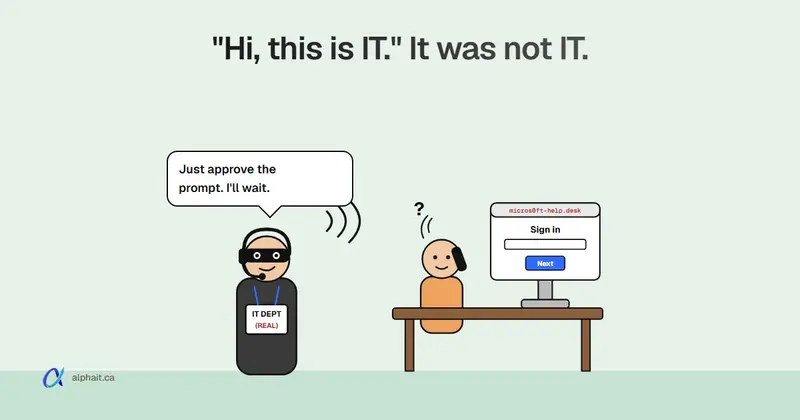
The phone rings. The caller says they’re from IT. They know your name, and maybe your manager’s. There’s an urgent passkey migration or MFA enrolment and you need to do it now. They send you to a sign-in page, or ask you to approve a prompt or read back a code. On October 28, 2026, the Canadian Centre for Cyber Security warned that this exact call is an ongoing campaign against Canadian organizations, mostly in legal and finance. Several Canadian law firms have since confirmed breaches. The fix is a habit, not a product: hang up and call IT back on a number you already have. Every time, for every request that touches a password, MFA or remote access.
What did the Cyber Centre warn about?
The alert is AL26-028, “Ongoing Help Desk Voice Phishing Campaign Targeting Canadian Organizations”. Voice phishing is often shortened to vishing. Here is what the Cyber Centre says the callers do:
- Pose as internal IT support. They claim an urgent passkey migration, MFA enrolment or password change is needed.
- Call any phone they can reach. Personal mobiles, office phones and Microsoft Teams calls are all used.
- Spoof the real help desk number. Your caller ID can show the right name and number and still be fake.
- Name real people. Callers may mention internal IT staff or a missed deadline to sound credible.
- Hang up if you try to verify. If the employee says “I’ll call you back”, the call often just ends.
The sign-in pages are built to look like yours. The Cyber Centre says they sit on company-branded subdomains or look-alike domains. The names mix action words like “activate”, “enroll” or “register” with “passkey”, “sso” or “mfa”. The page passes your password and MFA response straight through to the real Microsoft sign-in. The attacker ends up holding a signed-in session. That’s why ordinary MFA doesn’t save you here. We explained the session-stealing part in our payroll pirate post, so I won’t repeat it.
The alert also notes the attackers rotate domains, so blocklists only help so much.
What happens after they get in
The alert lists what the attackers did next:
- Add their own MFA method or device to your account, so they can come back.
- Delete the security emails about password resets and MFA changes, so you never see them.
- Reset passwords on other apps that don’t use your Microsoft sign-in.
- Copy data out of Microsoft 365, including SharePoint and OneDrive, using scripts and Microsoft Graph.
- Send an extortion demand after the data is gone.
Which law firms were hit?
Stick to what the firms themselves have said. Plenty of numbers are going around that no firm has confirmed.
- Bennett Jones posted a notice dated October 28. It says the accounts of two business services employees were compromised on October 19, as part of a wider campaign against Canadian law firms. The firm says its document management and accounting systems were not affected. The data involved included client revenue reports and, for some clients, general descriptions of mandates. It reported the incident to law enforcement.
- BLG (Borden Ladner Gervais) said in a statement that it found limited unauthorized access to part of its Microsoft cloud environment, also part of a wider campaign. It confirmed certain files, including client files, were accessed. It brought in Mandiant to investigate and notified regulators and law enforcement.
- McCarthy Tétrault published its own statement on October 29. Read it directly for the firm’s own account.
None of these statements name a phone call as the way in. The Cyber Centre alert is what ties help desk vishing to the legal sector this fall. Keep that distinction if you retell the story to your staff.
Why would they call a 12-person office?
Big firms make the news. Small offices make the easy targets.
- Everyone knows the IT person. In a small office, “Hi, it’s Mike from IT” sounds normal. Mike is real. The caller found his name on LinkedIn.
- Your IT is outsourced. Staff often don’t know who at your provider might call, or from which number. That gap is exactly what the caller uses.
- Nobody wants to be difficult. People are polite on the phone. Saying “I’ll call you back” to IT feels rude. It isn’t.
- The data is valuable. Law offices, accountants, clinics and mortgage brokers hold client files worth extorting. The alert names legal and finance, but nothing in the method is specific to big firms.
The other direction: callers who phone your help desk
The same trick works in reverse. The attacker calls your IT provider and pretends to be you or one of your staff. “I got a new phone and lost my authenticator. Can you reset my MFA?” If the help desk resets it, the attacker registers their own phone and walks in. No fake page needed.
The Cyber Centre’s fix applies here too: stronger verification for MFA resets, account recovery and new device enrolment. In practice, your provider should never reset MFA or a password just because a caller sounds right. They should call the person back on the number on file, or confirm with a named manager at your office. If your provider resets MFA on a cold call with no check, that’s a conversation to have this week.
The one rule: hang up and call back
If you only do one thing this week, do this. Tell every staff member, in writing:
Any call, Teams message or text about your password, MFA, passkeys or remote access gets the same answer. Hang up. Call IT back on the number you already have.
Not the number the caller gives you. Not a “call back” button in Teams. The number on the sticker, the intranet page or the contact card you saved last month. Caller ID proves nothing, because the alert says it can be spoofed.
A real IT person won’t mind. A fake one will push back, invent a deadline, or hang up. Both of those are your answer.
A script staff can read off the wall
Print this and tape it beside the phone. It works because nobody has to make a judgment call.
“Thanks. Our rule is that I call IT back on our saved number before I do anything with my sign-in. I’ll call you right back.”
If the caller pushes:
“I understand. I’m not allowed to make exceptions. If it’s urgent, I’ll call the help desk number right now.”
Then do it. Call the saved number and ask: “Did someone from your team just call me?” If the answer is no, report it straight away so the next person gets warned.
What staff should never do for a caller
- Read out a code from a text, email or authenticator app.
- Tap Approve on an MFA prompt they didn’t start.
- Type their password into a link the caller sent or read out.
- Install a remote support tool or join a screen share the caller asked for.
- Register a “new” passkey or security key on a page the caller sent.
What to agree with your IT provider
The rule only works if staff know what real IT looks like. Sit down with your provider (or your in-house IT person) and agree on these, in writing:
| Topic | What to agree |
|---|---|
| How IT contacts staff | Which numbers and email addresses they use. Put them in one place staff can find. |
| Codes and approvals | IT will never ask for a code, a password or an MFA approval. Ever. |
| Planned changes | MFA or passkey changes are announced by email from a known address, ahead of time. Never a surprise phone call. |
| Remote sessions | Staff start remote support themselves, from a tool IT already installed. IT doesn’t send links to new tools. |
| Resetting MFA and passwords | IT calls the user back on the number on file, or confirms with a named contact, before any reset. |
| Reporting | One number or address for “I got a weird call”. Nobody gets in trouble for using it. |
When AlphaIT runs your managed IT support, these are exactly the things we’d want written down with you before the first incident, not after.
What the Cyber Centre recommends for the tech side
The phone rule stops most of this. The settings make sure one slip doesn’t turn into a breach. These are the alert’s own recommendations, in plain words:
- Phishing-resistant MFA. FIDO2 security keys, device-bound passkeys or platform authenticators like Windows Hello. These won’t complete on a fake page, so the relay trick fails. Start with admins and the people who hold the most sensitive files. Our guide to moving your office from SMS codes to passkeys walks through the setup.
- Conditional access. Require managed devices, and block sign-ins from commercial VPNs, hosting providers and residential proxies. This needs Entra ID P1 (included in Microsoft 365 Business Premium).
- Tighter checks on MFA resets and new devices, plus shorter session lifetimes.
- Watch for warning signs: new MFA registrations nobody expected, scripted or high-volume file access in Microsoft 365, deleted security emails, and new look-alike domains.
- Lock down external Teams. Limit external chat and calls to the organizations you actually work with, and review guest access regularly. Callers use Teams because it looks internal.
- Keep the logs. Preserve your sign-in and Microsoft 365 audit logs. You’ll need them if something happens.
Our cybersecurity services cover these settings for small Microsoft 365 offices. The trade-off is real: phishing-resistant MFA takes a few weeks to roll out and some staff will grumble. It’s still the change I’d make first.
Someone already gave access. Now what?
Speed beats everything. Don’t wait to be sure.
- Call IT right away, on the saved number. Say exactly what happened: link clicked, code read out, prompt approved, or tool installed.
- IT should revoke the user’s sessions, reset the password and remove any MFA method the user doesn’t recognize. The alert specifically calls out attacker-added MFA methods.
- Check for deleted security emails and new inbox rules on the account.
- Review recent file activity in SharePoint and OneDrive for mass downloads.
- Report it. The Cyber Centre takes reports through My Cyber Portal or at contact@cyber.gc.ca. If client data may be involved, you may also have a breach reporting duty.
Our I clicked a phishing link guide gives the first-hour steps in order. Bookmark it before you need it.
Staff phone rule: one-page checklist
Print this. One copy per desk.
- IT will never ask me for a code, a password or an MFA approval.
- Any call, text or Teams message about my sign-in, MFA, passkeys or remote access: I hang up and call IT back on the saved number.
- Caller ID can be faked. A familiar name or number proves nothing.
- Urgency is a warning sign. Real IT changes are announced in advance by email.
- I never type my password into a link someone gave me on the phone.
- I never approve an MFA prompt I didn’t start.
- I never install a remote tool because a caller asked.
- If I already did any of the above, I call IT now. Nobody gets in trouble for reporting.
- IT help desk number: ______________________
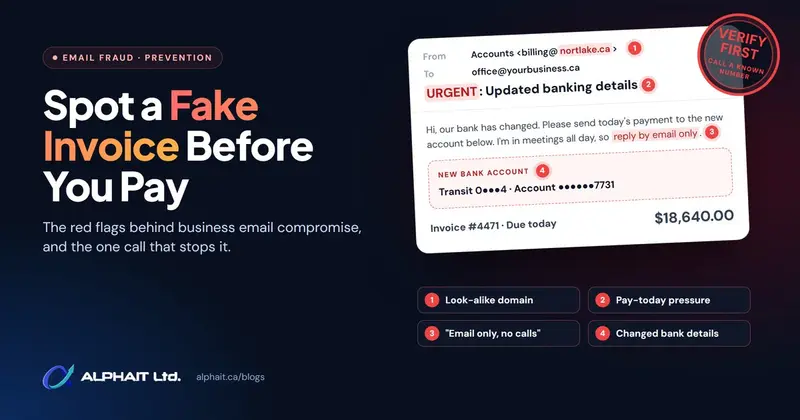
Want to see how your team does? Have them try our free Spot the Scam quiz. The same verify-first habit also stops fake invoices; see how to spot a fake invoice before you pay.
Also this week: if any office PCs are still on Windows 11 24H2 Home or Pro, read what the end of 24H2 support means.
Sources
- Canadian Centre for Cyber Security: AL26-028, Ongoing Help Desk Voice Phishing Campaign Targeting Canadian Organizations (October 28, 2026: tactics, targeted sectors, mitigations, reporting)
- Bennett Jones: Notice (October 28, 2026)
- BLG: Statement
- McCarthy Tétrault: Statement from McCarthy Tétrault (October 29, 2026)
Frequently asked questions
What is a help desk vishing scam?
It’s a phone scam where the caller pretends to be your internal IT support. They claim you need an urgent password, MFA or passkey change, then send you to a fake sign-in page or ask for a code or approval. The Canadian Centre for Cyber Security warned about an ongoing campaign like this in October 2026.
Can the scammer's caller ID show my real IT help desk number?
Yes. The Cyber Centre says these callers may spoof legitimate help desk numbers. That’s why the only safe check is to hang up and call IT back on a number you already have.
Does MFA stop a fake IT help desk call?
Ordinary MFA often doesn’t. The fake page passes your password and MFA response to the real sign-in, so the attacker gets a working session. Phishing-resistant MFA, like passkeys or FIDO2 security keys, won’t complete on a fake page, which is why the Cyber Centre recommends it.
Should my IT provider ever ask for my MFA code?
No. A legitimate IT provider never needs your code, password or an MFA approval. Agree on this with your provider in writing, and tell staff that any request for one is a scam.
Where do I report a vishing call in Canada?
Tell your IT provider first so they can check your accounts and warn other staff. You can report the activity to the Canadian Centre for Cyber Security through My Cyber Portal or by emailing contact@cyber.gc.ca.
Want your staff phone rule, MFA reset process and Teams settings checked before someone calls your office? AlphaIT’s cybersecurity team can set them up with you. Contact us.