
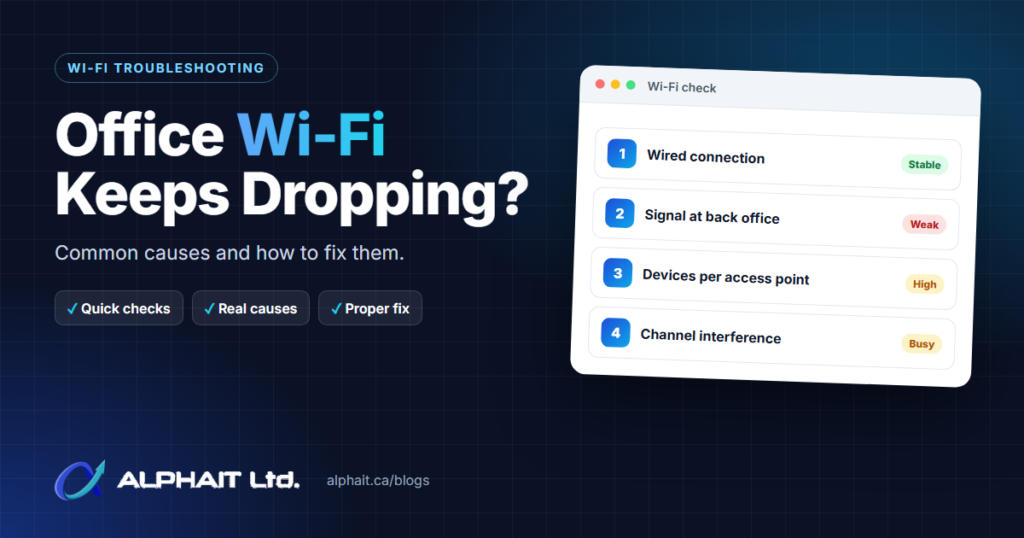
When the office Wi-Fi keeps dropping, the cause is usually one of a short list: the internet connection itself, too few access points, crowded channels, or a setting on the devices. This guide walks you through the quick checks first, then the common causes with plain-English fixes, and finally the point where tweaking stops paying off.
Key takeaways
- Start by working out whether it is the Wi-Fi or the internet. A wired test and a second device answer that in minutes.
- A single ISP router covering a whole office is the most common root cause of weak and dropping Wi-Fi in small offices.
- Channel crowding, too many devices per access point and “sticky” laptops cause most of the rest.
- Old drivers and power-saving settings explain drops that only hit some devices.
- If changes keep helping for a week and then the problems return, it is time for a site survey and a proper design.
Quick checks: is it the Wi-Fi or the internet?
Before changing settings, narrow down where the problem lives.
- Test wired vs wireless. Plug a laptop into the network with an Ethernet cable. If the wired connection also drops, the problem is the internet service, the modem or the firewall, not the Wi-Fi.
- Check one device vs all devices. Microsoft’s Windows troubleshooting guide suggests trying the same network on another laptop or phone: if that device connects fine, the problem is likely the first device.
- Check where and when. Note whether drops happen in one part of the office, in one meeting room, or at busy times like 9 a.m. or after lunch. Location points to coverage. Time of day points to capacity.
- Ping the router. Microsoft’s guide also uses a ping test: if you get a reply from your router but still cannot reach websites, the problem may be the modem or your internet provider.
Common reasons office Wi-Fi keeps dropping, and how to fix them
The ISP router is doing all the work
Many small offices still run on the single router the internet provider installed in the server closet or reception. It was never meant to cover a whole office, so the far rooms get a weak signal that drops easily.
Fix: Let the ISP equipment handle the internet connection and add dedicated business access points for the Wi-Fi. If you keep the ISP router’s Wi-Fi turned on as well, it becomes one more network competing for the same airspace, so turn it off once the new access points are in.
Too few access points, or in the wrong places
Wi-Fi signals weaken as they pass through walls, floors, glass, metal shelving, filing cabinets and the plumbing and tile around washrooms and kitchens. An access point hidden in a closet or on top of a cabinet loses a lot of its reach before it even leaves the room.
Ubiquiti’s UniFi guidance treats a signal of -70 dBm or better as the level needed for a stable connection, and Apple notes that iPhones and iPads hold onto their current access point until the signal drops past -70 dBm. Below that, expect drops.
Fix: Mount access points on the ceiling, in open areas, close to where people actually work.
Channel overlap and interference
Wi-Fi shares the air with your neighbours’ networks, and in a busy Edmonton office building there may be dozens of them. Each band behaves differently:
- 2.4 GHz travels further but has very little room, so neighbouring networks overlap and slow each other down.
- 5 GHz has much more room and is usually the better choice for laptops and phones, but it does not travel as far through walls.
- 6 GHz (Wi-Fi 6E and Wi-Fi 7) adds a large block of new spectrum. The Wi-Fi Alliance describes 1,200 MHz of 6 GHz spectrum opened for Wi-Fi. Only newer devices can use it.
Fix: Apple’s recommended settings are a good baseline: enable all bands, set channels to Auto, use 20 MHz channel width on 2.4 GHz, and use the same network name on every band. If you have more than one access point, Apple also advises giving each a different channel, especially when they are close together. In a dense office, Cisco Meraki’s high-density guidance favours narrower channels to reduce interference between access points.
Too many devices per access point
Every laptop, phone, tablet, printer, TV and smart thermostat takes a share of an access point’s airtime. Spec sheets list very large client limits, but Cisco Meraki states plainly that these are theoretical, and in real deployments interference between clients pushes the practical limit far lower. For high-density spaces, Meraki recommends planning for around 25 clients per radio, or 50 per access point.
Fix: Count devices, not just people, and add capacity where one access point is overloaded.
Sticky clients and poor roaming
The device, not the network, decides when to switch access points. Apple explains that its devices compare the current signal with a nearby access point’s. A laptop that connected at your desk may cling to that access point after you walk into the boardroom, even when a closer one is available. The result feels like the Wi-Fi dropping.
Fix: Business access points can encourage roaming. Cisco Meraki suggests setting a minimum bitrate (typically 12 or 24 Mbps in an enterprise office) so devices do not hang on at very slow speeds. Fast roaming features (802.11k, 802.11r and 802.11v) help supported devices move more smoothly; Apple lists support on iPhone, iPad and Macs with Apple silicon. Test changes with your own devices.
Old devices and outdated drivers
If one or two laptops drop all the time while everyone else is fine, look at the device. Microsoft recommends updating or reinstalling the network adapter driver, particularly if problems started after an update, and getting a backup driver from the PC maker’s website first.
Power-saving settings
Windows can turn off the Wi-Fi adapter to save power. Microsoft’s guide suggests unchecking “Allow the computer to turn off this device to save power” in the adapter’s power management settings.
DHCP address pool exhaustion
Every device needs an IP address from a DHCP server (usually the router or firewall), and the pool is limited. If phones, guests and IoT gadgets use up every address, new devices connect to Wi-Fi but get no internet.
Fix: Make sure only one device is handing out addresses, size the pool for the real device count, and keep lease times reasonable. Apple recommends an 8-hour lease for office networks and 1 hour for guest networks, so unused addresses are reclaimed sooner.
Failing switch, cabling or PoE budget
Business access points connect back to a network switch with a cable, and they usually get their power over that same cable (Power over Ethernet, or PoE). A damaged cable, a loose patch cord or an aging switch can make an access point reboot or drop users. If the switch cannot supply enough total power for all its access points and phones, some devices may not get full power. Cisco Meraki recommends PoE+ capable switches for high-performance access points.
Fix: Check the switch for ports showing errors or access points that keep restarting, and compare the switch’s PoE budget with what is plugged in.
ISP or modem problems
If the wired test also failed, the Wi-Fi is not the culprit. Microsoft’s guide suggests unplugging the modem and router, waiting at least 30 seconds, then powering on the modem first and the router second. If drops continue, call your provider with the times you noted. An overloaded or outdated firewall can also cause slowdowns, and our guide on when to replace a firewall covers the signs.
Troubleshooting table
| Symptom | Likely cause | What to try |
|---|---|---|
| Wired and Wi-Fi both drop | Internet service, modem or firewall | Restart modem then router; call ISP with times of outages |
| Weak or dropping in one area only | Too few access points or poor placement | Check signal there; add or move a ceiling access point |
| Slow or dropping at busy times | Too many devices per access point, crowded channels | Count devices; add capacity; review channel settings |
| Drops when walking between rooms | Sticky clients, roaming settings | Set a minimum bitrate; enable fast roaming; test with your devices |
| Only one or two laptops drop | Driver or power-saving setting | Update the driver; turn off adapter power saving |
| Connected but “No internet” for new devices | DHCP pool exhausted or two DHCP servers | Check pool size and lease times; keep one DHCP server |
| Access point keeps rebooting | Cabling, switch or PoE budget | Check cable, switch port and total PoE power |
When to stop tweaking and get a site survey
If drops keep coming back after the fixes above, or the office has grown or been renovated, a site survey is the next step. A survey measures signal and interference across your actual floor plan. Cisco Meraki’s high-density guidance calls for a minimum of 25 dB signal-to-noise ratio across the coverage area and spectrum analysis to spot interference before deployment.
What a proper business Wi-Fi design includes
- Ceiling-mounted access points placed from a survey, not wherever there was a free outlet.
- Wired backhaul. Each access point is cabled back to a switch rather than relying on wireless mesh links.
- Separate guest and IoT networks. The Canadian Centre for Cyber Security recommends that guest networks be kept from interacting with your main network, and that IoT devices be segregated onto a separate network.
- Modern security. The Cyber Centre calls WPA3 the newest and most secure Wi-Fi encryption and says it should be used for new deployments. It does not recommend a shared password (PSK) for business use because there is no identity management or audit trail, which is where WPA2-Enterprise or WPA3-Enterprise logins come in. Cisco notes WPA3 is mandatory in the 6 GHz band, and some older devices cannot join WPA3 networks, so plan for them.
- Central management through a controller or cloud dashboard, so you can see which devices are struggling and update firmware in one place.
- A small number of network names. Meraki recommends a maximum of three SSIDs, since each extra one adds overhead.
Our business network and Wi-Fi service covers this design work with UniFi, Meraki, Aruba and Ruckus equipment. If you are moving or opening a new location, it is easier to plan cabling and access points from the start as part of an office IT setup.
FAQ
Why does Wi-Fi keep disconnecting at work but not at home?
An office has more devices, walls and neighbouring networks than most homes. A router that suits a family can run out of range or airtime in an office.
Will a faster internet plan fix slow office Wi-Fi?
Only if the wired test is also slow. If wired speeds are fine and Wi-Fi is not, a faster plan will not help. The fix is in coverage, channels or capacity.
Should we switch to WPA3?
For new equipment, yes, as the Canadian Centre for Cyber Security recommends. Check your oldest devices first, as some cannot join WPA3-only networks.
How often should access point firmware be updated?
Keep it current. Apple recommends turning on automatic firmware updates where available because they bring stability, performance and security improvements.
Get a second opinion on your office Wi-Fi
If your office Wi-Fi keeps dropping and you would rather not spend another week changing settings, start with our free 3-minute IT check. Prefer to talk it through? Call our team at 780-318-0149.