Vishal Sharma
On this page
- What Microsoft actually announced, and for which accounts
- What is a passkey, in plain words?
- Which passkey option fits which person?
- Admin steps in the Entra admin center
- How a staff member registers a passkey
- Staff without a smartphone
- Shared front-desk PCs
- When someone loses their phone
- A four-week plan
- Sources
- Frequently asked questions
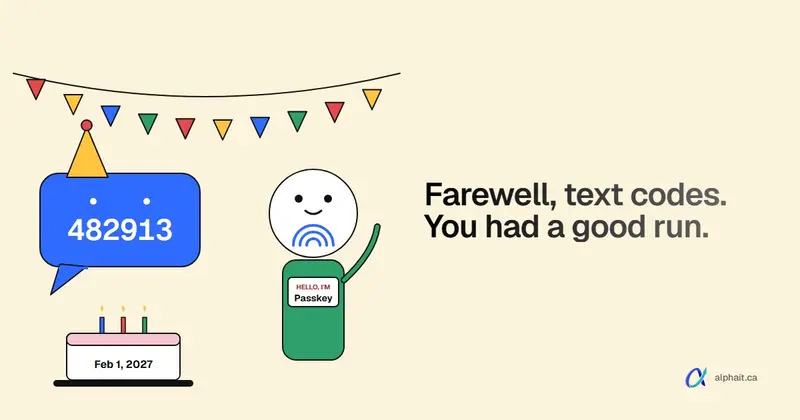
Put this date in your calendar. For Microsoft 365 work accounts (Entra ID), Microsoft stops sending its own SMS and voice sign-in codes on February 1, 2027. Global Administrators and external users follow on July 1, 2027. After that, anyone whose only MFA method is a text or phone call gets a blocking prompt to register a passkey. There’s no opt-out.
Microsoft has been switching on passkeys and nudging SMS users since September 1, 2026. Personal Microsoft accounts (Outlook.com, Xbox, consumer OneDrive) are losing SMS codes too, with no date yet. And from early November 2026, Windows Hello for Business counts as full MFA in Entra on its own.
If your staff still get a six-digit text when they sign in to Outlook, you have about twelve weeks. That’s plenty if you start now. It’s not much if you wait for the blocking prompt.
What Microsoft actually announced, and for which accounts
These are two separate changes that keep getting mixed up in the news. Here’s the split.
| Account type | What’s changing | Date | Source |
|---|---|---|---|
| Entra work accounts (Microsoft 365 business) | Passkeys turned on automatically for SMS/voice users, sign-in nudges start | September 1, 2026 (gradual rollout) | MC1426371, Microsoft Learn |
| Entra work accounts | Paid third-party SMS providers available through Microsoft Security Store | October 30, 2026 | Microsoft Learn |
| Entra work accounts | Windows Hello for Business and macOS Platform SSO count as standalone MFA | Rollout early November to late December 2026 | MC1450134 |
| Entra work accounts, most users | Microsoft-provided SMS and voice codes retired; blocking passkey prompt | February 1, 2027 | Microsoft Learn |
| Global Administrators and external users | Same retirement | July 1, 2027 | Microsoft Learn |
| Personal Microsoft accounts | SMS phased out for sign-in and account recovery, replaced by passkeys and verified email | No date given | Microsoft Support |
Two details people miss:
- Internal guest accounts follow the February date, not July. Only Global Admins and external users get the extra five months.
- SMS isn’t banned outright. You can buy delivery from a telephony provider (Soprano, Telesign or Infobip). It runs through an Azure Function in your own subscription. For a 10 to 30 person office, I wouldn’t. It’s a monthly bill and one more Azure part to look after, just to keep the weakest method alive.
For personal accounts, Microsoft’s support page says it “will start phasing out SMS as a method of authentication and account recovery for personal Microsoft accounts.” It points users to passkeys (a Sign in faster prompt) and a verified email for recovery. Some businesses still run things on a personal Outlook.com or Hotmail account, like an old billing login. Add a verified backup email to those now.
What about the old MFA and SSPR policies?
If your tenant was set up years ago, text codes may be on in the legacy MFA and self-service password reset settings. That’s separate from the newer Authentication methods policy. Microsoft stopped letting admins manage methods in the legacy policies on September 30, 2025. The September 2026 change looks at SMS and voice users in both places. You can’t hide from it there.
Check where you stand: Entra ID > Authentication methods > Policies > Manage migration. If it says Pre-migration or Migration in Progress, run the built-in migration guide on that page. It reads your old settings and copies them across. If something breaks, you can move back to “Migration in Progress”. While you’re there, turn SMS off for anyone who has a passkey.
What is a passkey, in plain words?
A passkey is a sign-in key that lives on a device you already have: your phone, your PC or a small USB key. You open it with your face, fingerprint or PIN, and that’s it. No code to type and nothing to read out over the phone.
Behind the scenes, the device holds a private key that never leaves it. Microsoft holds the matching public key. Each sign-in is a one-time signed answer to a challenge.
Why passkeys stop the fake login page attacks
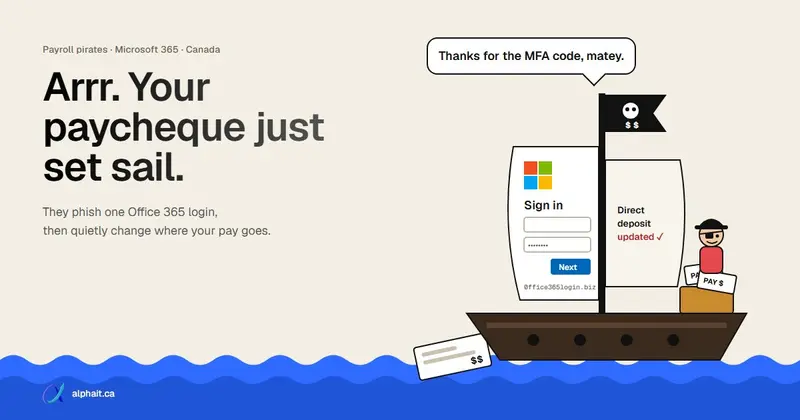
Text codes lose to adversary-in-the-middle phishing. A fake sign-in page passes your password and text code to the real Microsoft site as you type, then steals the session cookie. A passkey can’t be passed along like that. It’s tied to the real Microsoft sign-in address, and your browser won’t use it on a lookalike site. There’s no code to capture. That’s the trick behind the payroll direct-deposit scam hitting Canadian Microsoft 365 users. A passkey shuts it down. A text code doesn’t.
Still on passwords for some accounts? Check whether they’ve leaked with our password leak checker.
Which passkey option fits which person?
Passkeys in Entra are included in every edition, including Entra ID Free. No extra licence.
| Option | Best for | What they need | Watch out for |
|---|---|---|---|
| Passkey in Microsoft Authenticator | Most staff with a work or personal smartphone | iOS 17+ or Android 14+, a screen lock | Device-bound: a lost phone means a new passkey |
| Windows Hello for Business | Staff with their own company laptop that’s Entra joined | Face, fingerprint or PIN set up on that PC | Only works on that one PC |
| FIDO2 security key (USB or NFC) | No smartphone, shared PCs, admins, anyone handling payments | One key per person, a key PIN | Costs money, can be left at home |
| Synced passkey (Apple Passwords, Google Password Manager) | Staff who already live in one ecosystem | Allowed in your passkey profile | Synced to their personal cloud account; no attestation |
My default for a small office:
- Authenticator passkey for everyone with a smartphone.
- Windows Hello for Business on their own laptop as a second method.
- A security key for admins and anyone without a phone.
The Windows Hello change this month
Until now, Windows Hello for Business only counted as MFA when you first signed in to Windows. A step-up prompt could still ask for something else, such as opening an admin portal or a Conditional Access “authentication strength” rule. That changes under MC1450134, rolling out from early November to late December 2026. Windows Hello for Business and macOS Platform SSO now count as standalone MFA for step-up, authentication strength and sign-in frequency checks. They’ll show up in Security info as auto-registered passkeys. No admin setting is needed.
Microsoft flags the catch itself. A user whose only method is Windows Hello will no longer be prompted to add another one. But Windows Hello lives on one PC. The day that person signs in from a loaner laptop, a phone or home, they’re stuck. Make everyone register at least one method that travels: an Authenticator passkey or a security key.
Admin steps in the Entra admin center
You need at least the Authentication Policy Administrator role. Basic MFA should already be on. If it isn’t, start with our guide on how to set up MFA in Microsoft 365 and come back.
1. See who still uses text codes. Microsoft publishes a read-only SMS and voice usage analyzer script for this. It needs Global Reader, Authentication Policy Administrator or Security Reader. In a small tenant, you can also open Entra ID > Users, pick a person and check Authentication methods. Put the SMS users in a security group. You’ll target it below.
2. Turn on passkeys. Go to Entra ID > Authentication methods > Policies > Passkey (FIDO2). Some Microsoft docs put Security before Authentication methods. The menu has moved a few times.
- On the Configure tab, set Allow self-service set up to Yes. If it’s No, staff can’t register a passkey from Security info at all.
- If you see a banner about passkey profiles, opt in. Your current settings become the Default passkey profile. You can’t opt out afterwards, which is fine.
- In the profile, choose Passkey types. Allowing both Device-bound and Synced is the easiest start. If you want only Authenticator and security keys, pick device-bound.
- Leave Enforce attestation and Enforce key restrictions off unless you have a reason. With attestation on, staff can’t use the backup registration method in Authenticator.
- On Enable and Target, add All users (or your pilot group first) and Save.
3. Turn on Temporary Access Pass. Policies > Temporary Access Pass > Enable, include all users, save. The defaults are fine (1 hour lifetime, 8 hours max). This is your fix for lost phones and new hires.
4. Run the registration campaign. Entra ID > Authentication methods > Registration campaign > Edit.
- Microsoft managed targets passkeys with one-day snoozes and unlimited skips. If your tenant had SMS users, Microsoft may have set this on September 1.
- Enabled lets you pick Passkey as the method and set Days allowed to snooze (0 to 14). Turn on Limited number of snoozes and people can skip three times, then must register.
I’d use Enabled, passkey, 2 days, limited snoozes on. With unlimited skips, some people will tap “Skip for now” until February 1. Then they hit the blocking prompt at 8:55 on a Monday.
5. Turn SMS off. Once a person has a passkey, remove them from the SMS and Voice call policies (or exclude the group). Don’t leave SMS on “just in case.” A phisher will happily pick the weaker option.
6. Optional, with Business Premium: create a Conditional Access policy that requires the built-in phishing-resistant MFA authentication strength. Start with admin roles, then finance and payroll staff.
How a staff member registers a passkey
Send staff these steps. They take about five minutes.
Passkey in Microsoft Authenticator (recommended by Microsoft):
- Install Microsoft Authenticator on the phone. Make sure the phone has a screen lock.
- If the work account is already in Authenticator, tap it and tap Create a passkey. If not, tap Add account > Work or school account > Sign in.
- Approve the MFA prompt.
- When asked, tap Settings and allow Authenticator as a passkey provider. On iPhone (iOS 18), go to Settings > General > AutoFill & Passwords. Turn on AutoFill Passwords and Passkeys and select Authenticator. On Android, look under Passwords & accounts > Additional providers. The wording varies by phone maker.
- Go back to Authenticator and tap Done.
From a PC, at Security info:
- Go to mysignins.microsoft.com/security-info and sign in. You must have completed MFA in the last few minutes.
- Choose Add sign-in method, then Passkey in Microsoft Authenticator for a phone, or Passkey for a security key or this PC.
- For Passkey, pick where to save it. Choose Security key. If you don’t see it, try Use another device / More options. Plug in or tap the key, and set its PIN.
- Give it a name you’ll recognize, like “YubiKey blue”, and select Done.
If someone gets “This passkey already exists” in Authenticator, delete the passkey in the app and try again. Microsoft documents this as a known registration hiccup.
Staff without a smartphone
Some people don’t have one. Some won’t put a work app on their personal phone. Both are fair. Give them a FIDO2 security key on their keyring:
- Register it at Security info while they sit with you.
- Set a PIN they’ll remember.
- Register a second key and keep it in a locked drawer.
If they have their own Entra-joined PC, Windows Hello for Business makes a good second method.
What not to do: keep them on text codes “because it’s only one person.” After February 1 that stops working anyway, unless you pay for a telephony provider.
Shared front-desk PCs
Windows Hello is tied to one person on one PC. On a reception computer used by four people, each would enrol separately. I’d use one security key per person instead. It goes home on their keyring and works on any PC. Leaving staff hand it back. If you use a password manager for other logins, don’t leave the shared PC signed in to it.
When someone loses their phone
This used to mean “text me a code.” Now:
- Sign in to the Entra admin center as at least an Authentication Administrator.
- Entra ID > Users > the person > Authentication methods. Delete the lost phone’s Authenticator passkey and Authenticator entry.
- Add authentication method > Temporary Access Pass. Set a short lifetime and select Add. Give them the code in person or by phone. You can’t see it again after you close the panel.
- They sign in at Security info with the pass and register the new phone (or use their backup key).
- If the phone may have been stolen rather than lost, also select Revoke sessions on their account.
Confirm who you’re talking to before handing out a Temporary Access Pass. A phone call “from the boss” asking for one is the attack, not the emergency.
A four-week plan
- Week 1: passkeys and Temporary Access Pass on. Admins register two methods each.
- Week 2: order security keys and tell staff what’s coming.
- Week 3: registration campaign on. Take 15 minutes at a staff meeting to do it together.
- Week 4: rerun the usage script. Remove SMS and voice for everyone with a passkey, and chase the last few.
For the other Microsoft 365 and Windows changes landing this month, see our November 2026 Microsoft 365 and Windows roundup.
Sources
- Microsoft Learn: Passkeys by default and retirement of Microsoft-provided SMS and voice authentication (dates, scope, blocking prompt, opt-out)
- MC1426371 via mc.merill.net: Passkeys by default and SMS/voice retirement
- MC1450134 via mc.merill.net: Windows Hello for Business and macOS Platform SSO as standalone MFA factors
- Microsoft Entra Blog: What’s new in Microsoft Entra, November 2026
- Microsoft Support: Microsoft to stop sending SMS codes for personal accounts
- Microsoft Learn: Choose your own telephony provider for SMS and voice
- Microsoft Learn: Enable passkeys (FIDO2) in Microsoft Entra ID
- Microsoft Learn: Run a registration campaign
- Microsoft Learn: Register passkeys in Authenticator
- Microsoft Learn: Register a passkey with a FIDO2 security key
- Microsoft Learn: Configure a Temporary Access Pass
- Microsoft Learn: Manage authentication methods (legacy MFA and SSPR policy deprecation)
- Microsoft Learn: Migrate to the Authentication methods policy
Frequently asked questions
When does Microsoft stop sending SMS codes for Microsoft 365?
For Entra work accounts, Microsoft-provided SMS and voice codes are retired on February 1, 2027 for most users, and on July 1, 2027 for Global Administrators and external users. After that, anyone whose only method is SMS or voice must register a passkey before they can sign in. You can keep SMS only by paying a telephony provider through Microsoft Security Store.
Is Microsoft removing SMS codes for personal Outlook.com accounts too?
Yes, but on a separate track. Microsoft says it will phase out SMS for sign-in and account recovery on personal Microsoft accounts and use passkeys and a verified email instead. It hasn’t published a cut-off date, so add a passkey and a verified backup email now.
Does Windows Hello for Business count as MFA in Entra ID?
Yes. Under Message Center notice MC1450134, rolling out from early November to late December 2026, Windows Hello for Business and macOS Platform SSO count as standalone MFA for step-up prompts, authentication strengths and sign-in frequency checks. Because it only works on one PC, give each person a second method that travels, such as an Authenticator passkey or a security key.
Do passkeys cost extra in Microsoft 365?
No. Passkeys (FIDO2) are available in every Entra ID edition, including the free one that comes with Microsoft 365 business plans. The only cost is hardware security keys if you choose to buy them for staff without smartphones or for shared PCs.
What if an employee loses the phone with their passkey?
An admin deletes the old phone’s methods in the Entra admin center, then issues a Temporary Access Pass from the user’s Authentication methods page. The employee signs in with that pass and registers a new passkey on the replacement phone or a security key. Verify the person’s identity before giving out the pass.
Want your office moved off text codes before February 1 without a Monday-morning lockout? AlphaIT’s Microsoft 365 and cybersecurity teams can set up passkeys, security keys and recovery for your staff. Contact us.