Vishal Sharma
On this page
- Key takeaways
- What is OpenClaw, and is it the same as Moltbot?
- What can OpenClaw do?
- What do you need to run OpenClaw?
- What are the security and privacy risks for a business?
- How do OpenClaw’s approval controls work?
- Should a business use OpenClaw?
- When should you get professional setup?
- Frequently asked questions
- Need help?
OpenClaw is a free, open-source AI assistant that runs on your own computer or server and works through the chat apps you already use, such as WhatsApp, Slack, Microsoft Teams and Telegram. You message it, and it can carry out tasks: sorting email, managing a calendar, browsing the web or running commands. It was previously called Moltbot, and before that Clawdbot.
Because it can act on your accounts, it’s more powerful than a chatbot and needs more care. This guide explains what it is, what it needs and how a business can run it safely.
Key takeaways
- OpenClaw, Moltbot and Clawdbot are the same open-source project. It was renamed to Moltbot on January 27, 2026 and to OpenClaw three days later.
- It runs on hardware you control, connects to an AI model provider you choose, and takes instructions through chat apps.
- The software is free under the MIT licence, but you pay for the AI model you connect and any server you run it on.
- It can read messages, send email and run commands, so permissions, credentials and approval settings matter.
- Out of the box, command execution on the main host is permissive. Tighten it before connecting business accounts.
What is OpenClaw, and is it the same as Moltbot?
Yes, it’s the same project. The official OpenClaw repository on GitHub describes it as an open-source AI assistant that runs on your own computer and connects to the chat services you already use. According to Wikipedia’s OpenClaw article, the project was renamed from Clawdbot to Moltbot on January 27, 2026 after trademark complaints, then to OpenClaw on January 30, 2026. Older guides, videos and installs still use the earlier names.
Think of it in three parts:
- The Gateway: the OpenClaw software running on your computer or server. It holds the assistant’s settings, memory and credentials.
- The AI model: the “brain”, provided by a model provider you connect (hosted models such as Claude, or local models). The repository describes models as swappable plugins.
- The channels: the chat apps you use to talk to it, such as WhatsApp, Telegram, Slack, Teams, Discord, Signal or iMessage.
What can OpenClaw do?
The OpenClaw website describes it as an assistant that organizes your inbox, sends emails, manages your calendar and checks you in for flights. Its listed capabilities include:
- Email and calendar: triaging messages, drafting and sending replies, booking and moving meetings.
- Web browsing: looking things up, filling in forms and gathering information.
- Files and commands: reading and writing files and running shell commands, with full or sandboxed access.
- Memory: remembering preferences, projects and people across conversations.
- Skills and plugins: add-ons from the community, or ones you build, that connect it to other tools.
For a small business, realistic uses look like: “Summarize this morning’s unread email and flag anything from clients”, “Find a 30-minute slot with Sarah next week”, or “Pull last month’s figures from this spreadsheet into a short summary”. It can also be shared with a team, though that needs more planning, as explained below.
What do you need to run OpenClaw?
You need four things:
- A computer or server that stays on. It runs on macOS, Linux and Windows (including WSL2), according to the OpenClaw README. A single computer works for one person. A small private server or virtual machine suits an always-on assistant or a team.
- Node.js. The README lists Node.js 24 or later as the runtime, with Node 26 recommended. The official installer can set up a supported runtime for you.
- An AI model account. Most people connect a hosted model provider and pay that provider for usage. Local models are possible but need capable hardware.
- Chat app connections. Each channel (for example, a Slack app or a Telegram bot) has its own setup steps and tokens.
Installation itself is a short command or a desktop app download. The real work is in the configuration: which accounts it can reach, who is allowed to message it, and what it may do without asking.
What are the security and privacy risks for a business?
An assistant that can read your inbox and run commands is, in effect, a new staff member with keys to your systems. Treat it that way. The main risks fall into four areas.
Data access and privacy
OpenClaw keeps its state, memory and credentials on your own hardware, which is a genuine advantage. But the content of your requests, and any emails or files it reads to answer them, is sent to the AI model provider you connect. The Canadian Centre for Cyber Security advises organizations to avoid providing PII or sensitive corporate data in prompts and to make sure vendors have robust security practices for collecting, storing and transferring data. Check your model provider’s data terms before connecting client or patient information.
Credentials and accounts
Every connection needs a token, API key or password. If the machine running OpenClaw is compromised, those credentials are exposed too. Give it its own accounts where possible, with only the access it needs. A dedicated calendar or shared mailbox is safer than the owner’s full admin account.
Untrusted input and prompt injection
An AI agent that reads email or web pages can be tricked by instructions hidden in that content, a problem known as prompt injection. The OpenClaw security guide treats inbound content as untrusted and notes that most chat channels answer unknown direct-message senders with a pairing code instead of processing the message. Keep that pairing in place and approve only people you know. Be cautious with third-party skills too: Wikipedia’s article notes that security researchers found a community skill that exfiltrated data without the user knowing.
Who is allowed to use it
The official guidance assumes one trusted boundary per Gateway: a single operator, or a team whose members trust each other. If different people or departments shouldn’t see each other’s data, the docs recommend separate Gateways and credentials, ideally on separate operating-system users or hosts.
How do OpenClaw’s approval controls work?
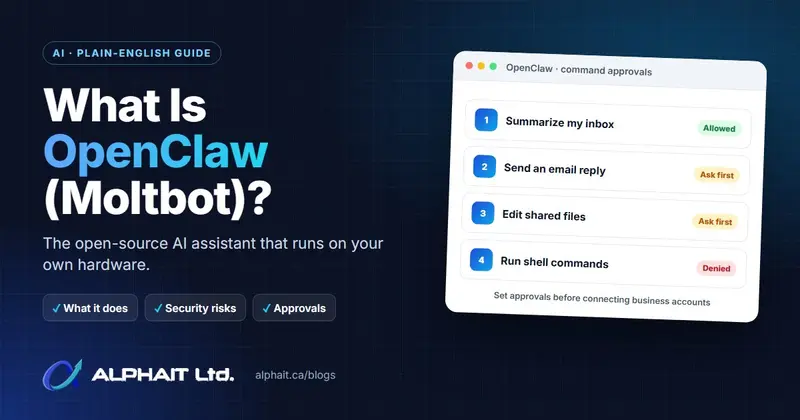
OpenClaw has a feature called exec approvals that decides whether the assistant can run commands on the host machine. In the docs’ words, commands run only when policy, allowlist and (optional) user approval all agree. The main modes are:
| Mode | What it does |
|---|---|
| deny | Blocks commands on the host entirely |
| allowlist | Runs only commands you have approved in advance |
| ask | Runs allowlisted commands and asks a person about anything else |
| full | Runs commands without the usual prompts |
The important detail for businesses: the docs state that the default security level is “full” for gateway and node hosts, and the default ask setting is “off”. In other words, command execution on the main host is permissive until you tighten it. For a business deployment, we recommend starting from allowlist or ask, turning on sandboxing for tools, and running the built-in openclaw security audit command, which the security guide says tells you if your settings have drifted from safe defaults.
Two more settings worth checking:
- Network exposure. The security guide says regular installs bind the Gateway to the local machine only, but container images default to an exposed bind and need authentication. Don’t put it on the internet without a deliberate plan.
- Cross-channel messaging. The docs note that agents with message-tool access can send across conversations and channel providers by default. Restrict this if the assistant should only reply in one place.
Should a business use OpenClaw?
It can be a good fit if you want a capable assistant that you control, you’re comfortable with the setup effort, and you start with low-risk tasks. A sensible rollout looks like this:
- Start with one person and read-mostly tasks, such as summaries and calendar lookups.
- Use dedicated accounts with the least access that works.
- Keep approvals on for anything that sends, deletes, pays or runs commands.
- Write down the rules. The Cyber Centre recommends organizations establish policies on how AI should be used. Our AI use policy template is a free starting point.
- Keep it updated and back up its configuration.
It’s not a good fit if nobody on the team is comfortable with a command line and there’s no IT support behind it. One project maintainer warned publicly that if you can’t run a command line, it is “far too dangerous” to use safely, as quoted in the Wikipedia article.
When should you get professional setup?
Consider professional help if any of these apply:
- It will connect to business email, calendars, files or client data.
- More than one person will use it, or it will run on an always-on server.
- You need remote access to it from outside the office.
- You handle personal information covered by Alberta or federal privacy law.
- You want someone to apply updates and review the security settings over time.
AlphaIT’s OpenClaw (Moltbot) installation service covers installation from the official source on Windows, macOS, Linux or a private server (including Docker where suitable), connecting your chat apps and AI model provider, and security hardening: least-privilege accounts, secrets kept out of plain text, restricted remote access and firewall rules. Optional monitoring and updates are available after handover. If you’re exploring AI more broadly, see our AI solutions for Edmonton businesses.
Frequently asked questions
Is Moltbot the same as OpenClaw?
Yes. Moltbot and OpenClaw are the same open-source project. It was known as Clawdbot, renamed to Moltbot on January 27, 2026, and renamed again to OpenClaw on January 30, 2026. Older tutorials, videos and existing installs may still use the earlier names, but current releases and documentation use OpenClaw.
Is OpenClaw free?
The software is free and open source under the MIT licence, and the project offers no paid tier or hosted service. You will usually still pay for the AI model provider you connect, based on usage, and for a server or virtual machine if you run it on one rather than on an existing computer.
Where does OpenClaw store my data?
OpenClaw keeps its state, memory and credentials on the computer or server where you install it. However, your requests, and any email or file content it reads to answer them, are sent to the AI model provider you configure, and messages pass through the chat platforms you connect. Review those providers’ data terms before using business data.
Can OpenClaw run on Windows?
Yes. According to the project’s README, the installer supports Windows (through PowerShell), macOS, Linux and WSL2, and desktop apps are available for macOS, Windows and Linux. It needs Node.js 24 or later, and the official installer can set up a supported runtime for you if one isn’t already installed.
Is OpenClaw safe for business use?
It can be, with careful setup. Because it can read messages and run commands, give it dedicated accounts with limited access, keep direct-message pairing on, set command approvals to allowlist or ask, avoid exposing the Gateway to the internet, vet third-party skills, and run the built-in security audit regularly. Start with low-risk tasks.
Need help?
AlphaIT is an Edmonton IT company, founded in 2019, with a Cisco CCNA and CCNP Switch certified team that supports businesses remotely and on-site across the Edmonton region. If you’d like OpenClaw installed and locked down properly, see our Moltbot and OpenClaw installation and setup service or book a free setup consultation with AlphaIT. We reply within 1 business day, often within 2 to 4 hours, or call 780-318-0149.