Vishal Sharma
On this page
- The week before you close (December 14 to 18)
- Out-of-office replies, forwarding and who’s on call
- Money rules while the office is empty
- On the last day: shut down or leave on?
- Laptops going home: check encryption first
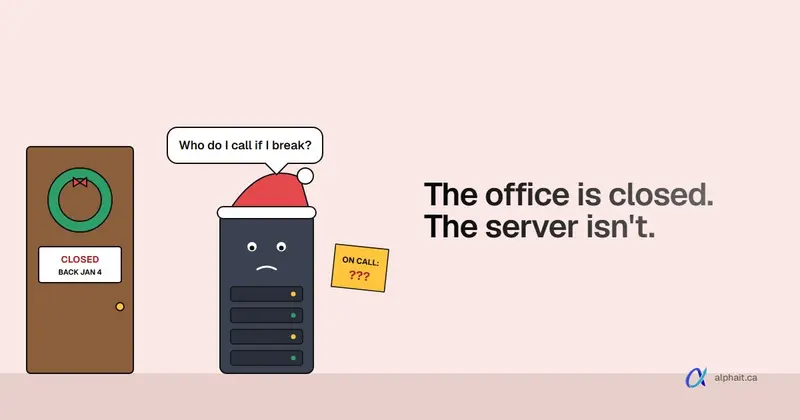
- Who to call if something breaks while you’re closed
- First day back in January: what to check
- The one-page version
- Sources
- Frequently asked questions
Do the risky IT work the week before you close, not on the last afternoon. That means installing updates and restarting every PC, confirming last night’s backup actually ran, and restoring one test file. On the last day, set automatic replies, agree who’s on call, and leave servers, the NAS and the firewall running. And while nobody’s in the office, no payment or bank-detail change gets approved by email alone.
This year the calendar is kind. Christmas Day is Friday, December 25, 2026, and New Year’s Day is Friday, January 1, 2027. Both are general holidays in Alberta. Boxing Day is an optional one. So a lot of offices will close Thursday, December 24 and open again Monday, January 4. That’s about ten days with nobody watching the screens.
Forward this to whoever locks up. Each item is something they can tick off.
The week before you close (December 14 to 18)
If a PC breaks during an update on December 16, someone’s there to fix it. On December 24, it sits broken until January.
Windows and Microsoft updates
- On every PC, go to Settings › Windows Update and select Check for updates. December’s Patch Tuesday is December 8, so the fixes should be waiting.
- Install them and restart. Don’t just shut down. With Fast Startup on, Shut down isn’t a full restart, so pending updates can sit there. Restart finishes them.
- Check that nobody left updates paused. The page shows “Updates paused” and a Resume updates button if they did.
- Check the server and NAS for firmware or OS updates too. Do these early in the week, while the vendor’s support line is open.
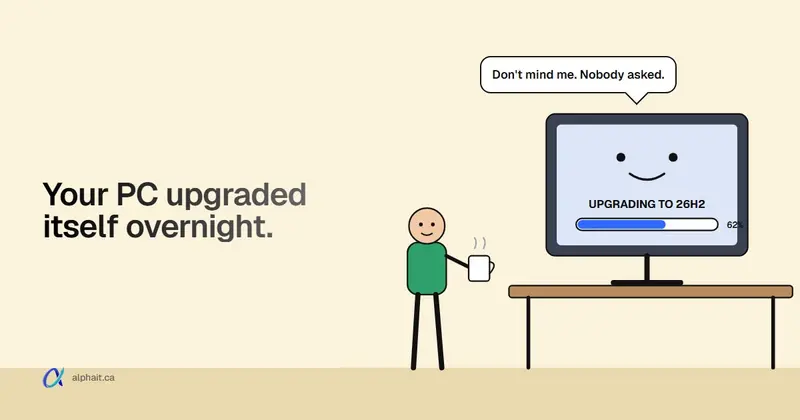
If a PC is offering or installing Windows 11 26H2 on its own, read our note on the 26H2 automatic upgrade and decide before you leave, not after.
Backups: confirm, then test one restore
- Open your backup tool or its email report. Confirm the last successful backup is from last night, for every server, NAS and cloud job.
- Look for jobs that “completed with warnings”. Treat them as failures until someone checks.
- Restore one real file to a different folder and open it. A green tick isn’t proof.
- Confirm the offsite or cloud copy is current too. A NAS in the same room won’t help if the room floods or the NAS gets encrypted.
- Check Microsoft 365 is in your backup plan (mail, OneDrive, SharePoint), not just the file server.
Our guide on how to test backups walks through a proper restore test in about 20 minutes. If you only do one thing this week, do that restore. If backups are shaky, that’s what our backup and disaster recovery service fixes.
Accounts and access
- Remove or block accounts for anyone who left this year. Old accounts nobody watches are an easy way in.
- Make sure at least two people know how to sign in to the Microsoft 365 admin center. Not the same account. Two people, each with their own admin account and MFA.
- Confirm the on-call person can sign in remotely, if they’ll need to. Test it from home before the break.
Out-of-office replies, forwarding and who’s on call
Set these on the last morning, not the last minute. Then send yourself a test email from a personal address to see what customers will see.
Automatic replies in Outlook
The steps depend on which Outlook you use. These are from Microsoft’s support page:
| Outlook version | Where to find it |
|---|---|
| New Outlook for Windows | View tab › View settings (gear) › Accounts › Automatic replies. Turn on the toggle, then Save |
| Outlook on the web | Settings (gear) › Account › Automatic replies. Turn on the toggle, then Save |
| Classic Outlook for Windows | File › Automatic Replies › Send automatic replies. Fill in both tabs, then OK |
Three tips:
- Tick “Send replies only during a time period” and set December 24 to January 4. Then nobody has to remember to turn it off.
- Be careful who gets the outside reply. Microsoft’s own page recommends replying to contacts only. Replying to everyone also tells spammers and scammers the office is empty. For a front-desk inbox, you’ll usually want everyone to get it. For staff inboxes, contacts only is often enough.
- Keep the message short. Dates closed, date back, one way to reach someone urgent. Skip staff names and cell numbers. Scammers read these too.
Shared mailboxes and staff who forgot
A shared mailbox like info@ or reception@ needs its own reply. So does the person who left without setting one.
An admin can set it in the Exchange admin center: Recipients › Mailboxes, select the mailbox, then Others › Manage automatic replies. Microsoft’s admin article lists other routes too.
Phones and the on-call person
- Change the phone system’s greeting to your holiday hours.
- Decide where calls go: voicemail only, or forwarded to an on-call cell. Test it by calling the main number from outside.
- If voicemail is emailed to a shared inbox, make sure someone checks that inbox.
- Write down who’s on call for each day of the break and share it with everyone. Two names per day is better than one.
Money rules while the office is empty
Fake invoices and “urgent” payment requests peak when nobody’s around to double-check.
Set these rules before you close and tell staff in writing:
- No payment and no change to anyone’s banking details gets approved by email alone. Not from a supplier, not from “the owner”, not from a staff member asking to change their direct deposit.
- Call back on a number you already have. Use the number from your files or an old invoice, never the one in the email.
- No gift card purchases for anyone, for any reason, based on a text or email.
- Pay known year-end bills before the break. Then any “overdue” notice that arrives on December 28 is easy to question.
- Ask your bank about payment alerts on the business account, so the owner sees any transfer the moment it happens.
Our post on how a fake invoice scam works has the full call-back rule. The one on holiday scams hitting Canadian offices has a printable staff cheat sheet. Send both to staff with this checklist. Good email security filtering also stops a lot of these before anyone sees them.
On the last day: shut down or leave on?
Here’s how we’d decide, device by device.
| Device | Our default | Why |
|---|---|---|
| Firewall, router, switches, Wi-Fi | Leave on | Remote access, alarm systems and VoIP phones often depend on them |
| Server or NAS | Leave on | Backups and remote access need it. Shutting down a server you rarely restart can bring surprises when it starts again |
| Backup appliance or USB backup drive | Leave on and connected | Backups keep running over the break |
| Workstations, if someone works remotely into them | Leave on, locked, with sleep turned off | Remote desktop needs a PC that’s awake |
| Workstations nobody needs | Shut down after the restart | Less power use, nothing to attack |
| Printers, monitors, coffee machine, space heaters | Off at the wall | No reason to leave them running for ten days |
Before you leave:
- Check the UPS. Look for warning lights or a “replace battery” message. If it beeps on a self-test, call someone this week, not in January.
- Plug anything left on into a UPS or surge protector, not straight into the wall.
- Lock every PC (Windows key + L) and sign out of shared PCs.
- Lock the server room or cabinet. Set the alarm. Check who has keys and alarm codes, and remove anyone who shouldn’t.
- Take nothing sensitive home on a USB stick. Use OneDrive or SharePoint instead.
Guest Wi-Fi
If nobody will use the guest network for ten days, turn it off or change its password. Every visitor this year has that password. And it should never share a network with your server and PCs. Not sure how yours is set up? Ask whoever runs your firewall.
Laptops going home: check encryption first
A laptop stolen from a car over the holidays is a nuisance. An unencrypted one with client files on it may be a privacy breach you have to report.
- Check encryption. On Windows 11 Pro, select Start, type BitLocker and open Manage BitLocker. The C: drive should say BitLocker on. If it says Suspended, it isn’t protecting anything yet. Some PCs, including many on Home, show Settings › Privacy & security › Device encryption instead.
- Know where the recovery key is. For work accounts, it’s in Microsoft Entra ID. Staff can see their own at aka.ms/aadrecoverykey under Devices. For a personal Microsoft account, it’s at aka.ms/myrecoverykey. If nobody can find a key, sort that out before the laptop leaves.
- Charge it, update it, restart it, same as the desktops.
- Don’t leave laptops in the car. Edmonton in late December is hard on batteries. If one has been out in the cold, let it warm up to room temperature before you open it and turn it on.
Who to call if something breaks while you’re closed
Print this and tape it inside the server cabinet door. Also save a copy outside the office network, like on the owner’s phone. If the network is down, a file on the server won’t help.
| Contact | Name and number |
|---|---|
| On-call staff member (by date) | |
| IT support (after-hours line) | |
| Internet provider support line and account number | |
| Phone system provider | |
| Alarm company | |
| Bank fraud line for the business account | |
| Cyber insurance claims line and policy number | |
| Building manager or landlord |
What counts as “call now”:
- A ransom note on screen, or files that suddenly won’t open. Unplug the network cable, don’t turn the PC off, and call. Our ransomware first-hour guide has the full steps.
- Someone says they paid an invoice or changed bank details after an email request. Call the bank first, then IT.
- An MFA prompt you didn’t ask for, or a “new sign-in” email for an account nobody’s using.
- The alarm company reports a break-in. Assume laptops or drives are gone and tell IT, so passwords can be changed and devices locked remotely if they’re managed.
Everything else, like a dead printer or a slow PC, can wait until January 4.
First day back in January: what to check
Before everyone gets back into email, have one person spend about an hour on this.
- Backups. Check every job ran over the break. Look for the first failed night and find out why.
- Updates. January’s Patch Tuesday is January 12, 2027. Make sure PCs that were off for ten days catch up on anything they missed, and plan for January’s patch the week after.
- Turn off automatic replies and phone forwarding, if you didn’t set end dates.
- Sign-in alerts. Look at the Microsoft 365 or Entra sign-in logs for odd countries or failed sign-ins on accounts that should have been idle. If you get Microsoft security alert emails, read the ones that came in over the break.
- Password reset or MFA requests. Be suspicious of anyone who “forgot their password over Christmas” and asks by email or phone. Verify who they are in person or on a known number before resetting anything. This is a common trick.
- Mailbox rules. Check for new rules that forward or delete mail, especially on finance and owner accounts.
- Hardware. UPS lights, server alerts, and anything that didn’t come back on.
While it’s quiet, it’s also a good week to plan next year’s spending. Our 2027 IT budget for a small business shows a worked example you can copy.
The one-page version
If you print nothing else, print this:
- Week before: updates installed, PCs restarted, backups confirmed, one file restored.
- Last day: automatic replies with end dates, phones forwarded, on-call list shared.
- Money rule: no payment or bank-detail change approved by email alone. Call back on a known number.
- Leave on: firewall, server, NAS, backups. Turn off: unused PCs, printers, anything else.
- Laptops home: BitLocker on, recovery key known, never left in the car.
- Contact sheet printed and saved off the network.
- First day back: backups, updates, sign-ins, mailbox rules, and suspicious reset requests.
If no one in the office owns this list, that’s normal for a small business. It’s also exactly the work managed IT support is meant to take off your plate.
Sources
- Microsoft Support: Send automatic out of office replies from Outlook (new Outlook, Outlook on the web and classic Outlook steps, contacts-only advice)
- Microsoft Learn: How to set automatic replies on a user’s mailbox in Microsoft 365 (admin and shared mailbox methods)
- Microsoft Learn: BitLocker operations guide (Manage BitLocker, status values, Get-BitLockerVolume)
- Microsoft Support: Device encryption in Windows
- Microsoft Support: Find your BitLocker recovery key
- Government of Alberta: General holidays and general holiday pay (Christmas Day and New Year’s Day as general holidays, Boxing Day optional)
Frequently asked questions
Should we shut down all computers over the Christmas break?
Not all of them. Leave the firewall, router, server, NAS and backup devices running so backups and remote access keep working. Restart workstations to finish updates, then shut down any that nobody needs to reach remotely. Turn printers and other extras off at the wall.
How do I set an out-of-office reply for the whole holiday closure?
In new Outlook, go to View, View settings, Accounts, Automatic replies. In Outlook on the web, go to Settings, Account, Automatic replies. In classic Outlook, use File, Automatic Replies. Tick the option to send replies only during a time period and set your closing and reopening dates, so it turns itself off.
Can an admin set automatic replies for a shared mailbox?
Yes. In the Exchange admin center, go to Recipients, Mailboxes, select the mailbox, then Others, Manage automatic replies. Microsoft also documents a Microsoft 365 admin center route and the Set-MailboxAutoReplyConfiguration PowerShell cmdlet.
How do I check if a laptop is encrypted before it goes home?
Select Start, type BitLocker and open Manage BitLocker. The C: drive should show BitLocker on. On some PCs you’ll find Device encryption under Settings, Privacy and security instead. Also confirm the recovery key is saved to the work account before the laptop leaves.
What should we check on the first day back after the holidays?
Check that every backup ran, catch up on Windows updates, turn off automatic replies, and review Microsoft 365 sign-in activity for anything odd. Treat any password reset request that comes by email or phone with suspicion until you’ve verified the person.
Want someone else to own this list every December? AlphaIT’s managed IT support covers updates, backups and after-hours problems for Edmonton offices. Contact us.