Vishal Sharma
On this page
- Key takeaways
- What does a server actually do in a small office?
- When does Microsoft 365 replace the server?
- When does an on-site server still make sense?
- On-premises vs cloud vs hybrid: how do they compare?
- What is virtualization, and why can one host run several servers?
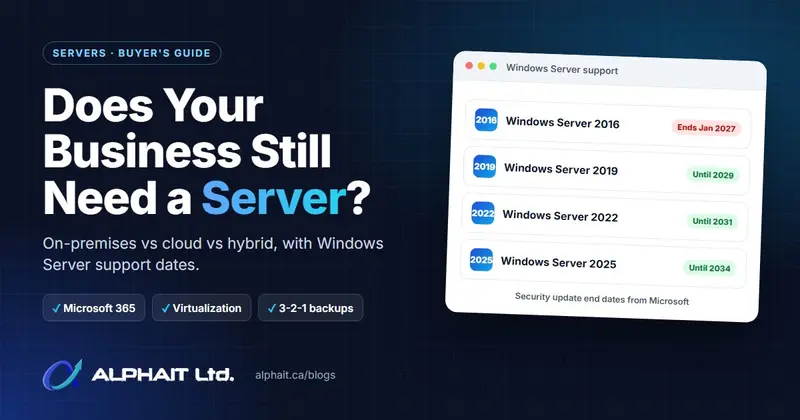
- Which Windows Server versions are still supported?
- How should you back up a server?
- Decision checklist: do you need a server?
- Frequently asked questions
- Need help?
Often, no. If your team works in email, Word, Excel and Teams, Microsoft 365 can replace the old file server for many small offices. A server still makes sense when your business software must be installed locally, when you work with very large files, or when you rely on Active Directory and Group Policy. Most offices end up somewhere in between: a hybrid setup.
This guide explains how to tell which camp you’re in, what virtualization changes, which Windows Server versions are still supported, and how to protect a server once you have one.
Key takeaways
- Microsoft 365 (Exchange, OneDrive, SharePoint and Teams) covers email, documents and collaboration for many small offices without any server.
- A server is still the right tool for on-premises business software, large CAD or photo files, and central identity and policy management.
- Virtualization lets one well-built physical host run several isolated servers, which cuts hardware and makes recovery faster.
- Windows Server 2016 stops receiving security updates on January 12, 2027. Check your version now.
- Whatever you choose, back it up using the 3-2-1 approach and test restores.
What does a server actually do in a small office?
In a typical 5 to 50 person office, “the server” is usually doing one or more of these jobs:
- File sharing: the shared drive with client folders, accounting exports and templates.
- Business software: a practice management, accounting, ERP or imaging database that every workstation connects to.
- Identity and policies: Active Directory accounts, Group Policy, and permissions for computers, printers and folders.
The question isn’t really “server or no server”. It’s which of those jobs can move to the cloud, and which still work better on hardware you control.
When does Microsoft 365 replace the server?
For a lot of small businesses, the server’s main job is file sharing and email. Both of those now fit well in Microsoft 365:
- Email moves to Exchange Online.
- Shared files move to SharePoint document libraries and Teams, with OneDrive for personal files.
- Sign-in can use Microsoft Entra ID (the cloud identity behind Microsoft 365), with multi-factor authentication.
If that describes your office, the best server project may be moving what’s left into Microsoft 365 and switching the old box off. You’ll swap a hardware purchase for a monthly subscription, and you’ll still need a proper backup. Microsoft 365 keeps deleted items only for limited windows; our guide on whether Microsoft 365 backs up your data explains the gap.
When does an on-site server still make sense?
A server, either physical or virtual, is still the right answer in four common situations.
Your business software needs one
Many dental, medical, accounting, legal and construction offices run software that the vendor still installs on a local Windows server. If the vendor’s requirements list a server, the decision is made for you. Ask the vendor whether a hosted or cloud version exists before you buy hardware. Sometimes it does, and sometimes it costs more or does less.
You work with large files
CAD drawings, engineering models, photo and video libraries, and large project folders can be slow to sync through OneDrive or SharePoint. A file server on a fast office network opens them in seconds. A common pattern is to keep everyday documents in Microsoft 365 and large working files on a local server or NAS.
You depend on Active Directory and Group Policy
If you manage computers, printers, mapped drives and folder permissions centrally through Active Directory, that environment runs on Windows Server. You can move to cloud-only identity over time, but it’s a project in itself, not a checkbox.
Your internet connection is a single point of failure
When everything lives in the cloud, an internet outage stops work. If you’re in an area with unreliable service, or your business can’t tolerate downtime, keeping critical files and applications on-site reduces that risk. A second internet connection is the other half of the answer.
On-premises vs cloud vs hybrid: how do they compare?
| On-premises server | Cloud (Microsoft 365 / Azure) | Hybrid | |
|---|---|---|---|
| Best for | Local business software, large files, central identity | Email, documents, remote or multi-site teams | Most small offices with one or two local applications |
| Cost model | Up-front hardware and licensing, then maintenance | Monthly subscription | Both, but a smaller server |
| Internet outage | Office keeps working locally | Work stops until it's back | Critical local apps keep running |
| Watch out for | Hardware age, patching, end-of-support dates | Ongoing cost, retention limits, internet dependence | Two environments to secure and back up |
There’s also a middle path: running your server as a virtual machine in Azure. You keep Windows Server and your applications, but there’s no hardware in the office. It suits remote teams and offices without a server room, as long as the business software vendor supports it and your internet connection is reliable.
What is virtualization, and why can one host run several servers?
Virtualization splits one physical server into several isolated “virtual machines” (VMs), each with its own operating system. Microsoft describes Hyper-V as a hypervisor that runs directly on the hardware, and lists server consolidation, simplified backup and disaster recovery, and strong workload isolation among its benefits.
For a small office, that usually means one well-built host running, for example:
- a VM for Active Directory and file shares,
- a VM for the line-of-business application and its database,
- and room for a future VM without buying new hardware.
Why bother, rather than running everything on one plain server? Because separating roles means a problem with one application doesn’t take down sign-in or file shares, and a whole VM can be backed up, restored or moved to new hardware as a single unit. That makes recovery much faster.
The main platforms:
- Microsoft Hyper-V is included with Windows Server. Microsoft’s documentation notes it is included with Windows Server, with the Datacenter edition providing unlimited virtual machine rights. Standard edition covers two VMs per fully licensed host, and every server needs at least 16 core licences.
- VMware vSphere still makes sense for existing environments, but production use is now subscription-only.
- Proxmox VE is an open-source option with optional paid support.
For most Windows-based small offices, Hyper-V is the most cost-effective choice. Our server installation and virtualization page compares all four options, including Azure, in more detail.
Which Windows Server versions are still supported?
Every Windows Server version follows Microsoft’s Fixed Lifecycle Policy: about five years of mainstream support, then five years of security-only updates. Once extended support ends, the server keeps running but new vulnerabilities aren’t fixed.
| Version | Mainstream support ends | Security updates end |
|---|---|---|
| Windows Server 2016 | Ended January 2022 | January 12, 2027 |
| Windows Server 2019 | Ended January 2024 | January 2029 |
| Windows Server 2022 | Ended October 2026 | October 2031 |
| Windows Server 2025 | November 2029 | November 2034 |
If you’re still on Windows Server 2016, you have about ten weeks of security updates left. Microsoft’s Extended Security Updates are a paid, temporary bridge, and as of October 2026 Microsoft has not published an ESU offer for Windows Server 2016. For most small businesses, the better investment is to upgrade, virtualize onto new hardware, or move the workload to Microsoft 365 or Azure. Anything older than 2016 is already unsupported and should be treated as urgent.
To check your version, press Windows + R on the server, type winver and press Enter.
How should you back up a server?
A server holds your most important data in one place, so it needs a backup plan designed with it, not added later. The Canadian Centre for Cyber Security recommends the 3-2-1 rule: keep 3 copies of your information (1 original and 2 backups), on 2 different media types, with 1 copy off site. It also recommends an offline backup, because offline copies stay unaffected by threats like ransomware.
In practice, for a small office server:
- Back up whole VMs (or the whole physical server) every night, not just selected folders.
- Keep a local copy on a separate NAS or backup appliance for fast restores.
- Keep an off-site or cloud copy that the server itself can’t overwrite or delete.
- Encrypt backups, and know where the cloud copy is stored. The Cyber Centre notes some organizations need data stored in Canada.
- Test restores. The Cyber Centre advises you to test your backups to make sure they work. Our guide on how to test backups walks through it step by step.
Our backup and disaster recovery service covers how we design these layers for small businesses.
Decision checklist: do you need a server?
Answer each question honestly. The more “yes” answers in the first group, the more likely you need a server, on-site or in Azure.
Signs you still need a server:
- Does your business software vendor require a local Windows server?
- Do staff regularly open files larger than a few hundred megabytes?
- Do you manage computers, printers and permissions through Active Directory and Group Policy?
- Would an internet outage stop work you can’t afford to stop?
- Do you have records you want stored on hardware you control?
Signs you can move to the cloud:
- Is the server mostly used for shared folders and email?
- Do staff work from home or several locations?
- Is the current server old, out of warranty or near end of support?
- Would you rather pay monthly than replace hardware every five to seven years?
Either way:
- Do you know which Windows Server version you run and when its support ends?
- Is everything backed up using 3-2-1, with a restore tested in the last few months?
If you answered “yes” to items in both groups, a hybrid setup is probably the right fit: Microsoft 365 for email and documents, plus a smaller server or Azure VM for the application that needs it.
Frequently asked questions
Do we still need a server if we use Microsoft 365?
Not always. Many smaller offices can move email, shared files and collaboration entirely into Microsoft 365. You may still need a server, on-site or in Azure, for line-of-business software the vendor installs locally, very large working files, or Active Directory and Group Policy. A short assessment of what the current server does usually answers the question.
What happens when Windows Server 2016 reaches end of support?
The server keeps running, but after January 12, 2027 Microsoft stops releasing security updates for it. New vulnerabilities won’t be fixed, which makes it an easier target. Microsoft’s Extended Security Updates are a paid, temporary bridge, and no ESU offer for Windows Server 2016 had been published as of October 2026, so plan an upgrade or migration now.
Can one physical server run several servers?
Yes. With virtualization, one physical host runs several isolated virtual machines, each with its own operating system, such as one for files and sign-in and another for your business application. Hyper-V is included with Windows Server; Standard edition licenses two virtual machines per fully licensed host, and Datacenter licenses unlimited virtual machines.
Can a Synology or QNAP NAS replace our server?
For simple file sharing and as a backup target, often yes. A NAS isn’t a replacement for application servers, Active Directory or databases that need Windows Server. Many small offices use both: a server or Azure VM for the business application, and a NAS for large files and local backup copies.
Is it cheaper to move our server to the cloud?
It depends. The cloud replaces an up-front hardware purchase with a monthly cost, which suits some budgets better, but running a server full-time in Azure can cost more over five years than owning one. Compare the total cost over the hardware’s expected life, including licensing, backup, support and internet, before deciding.
Need help?
AlphaIT is an Edmonton IT company, founded in 2019, with a Cisco CCNA and CCNP Switch certified team that supports businesses remotely and on-site across the Edmonton region. If you’re not sure whether to upgrade, replace, virtualize or retire your server, see our server installation and virtualization services in Edmonton or contact AlphaIT for a free server assessment. We reply within 1 business day, often within 2 to 4 hours, or you can call 780-318-0149.