Does Microsoft 365 back up email and files? Not in the way most business owners mean. Microsoft keeps your email, OneDrive and SharePoint running on redundant systems, and it holds on to deleted items for a while. But a true backup lets you go back to any point you choose, long after a mistake, an attack or a departed employee’s account is gone. That part is your job, and Microsoft’s own documentation says so.
This guide explains where Microsoft’s responsibility ends and yours begins, what the built-in safety nets actually cover, how long each one lasts, and what to look for if you decide you need a separate backup.
Key takeaways
- Microsoft’s shared responsibility model says you own your data and identities in every type of cloud service, including Microsoft 365.
- Recycle bins, version history and retention policies are safety nets with time limits. They are not independent copies you control.
- When a user account is deleted, their mailbox and OneDrive are kept for 30 days by default before cleanup begins.
- Ransomware on a synced computer, a compromised admin account or a mistake noticed too late can all get past the built-in windows.
- Microsoft sells Microsoft 365 Backup as a separate pay-as-you-go service, and third-party tools exist too. Choose based on where data is stored, how long it is kept, how finely you can restore and who can delete it.
Who is responsible for what: the shared responsibility model
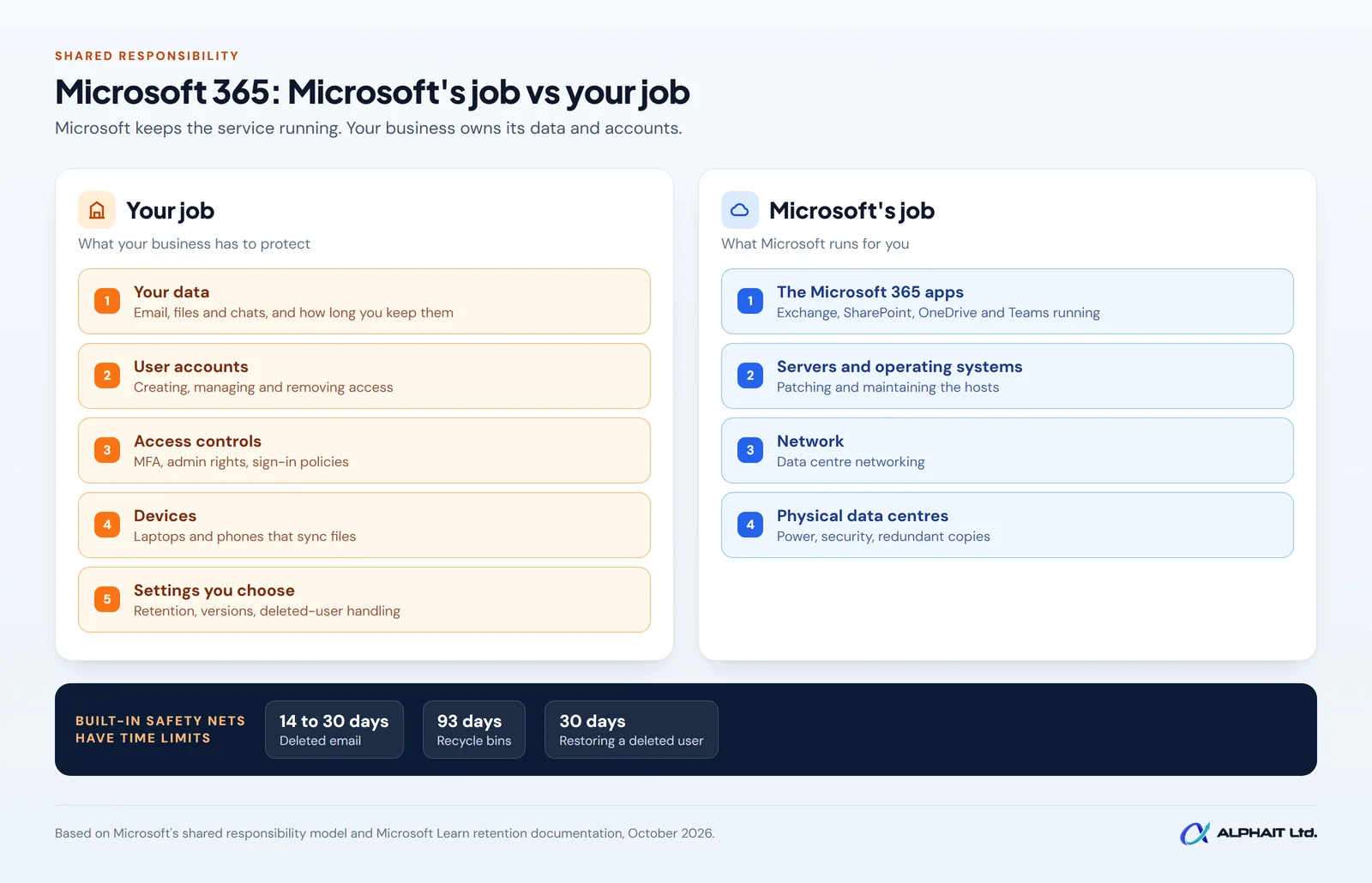
Every cloud service splits the work between the provider and the customer. Microsoft calls this the shared responsibility model. In its Microsoft Learn article on the model, Microsoft lists Microsoft 365 as software as a service (SaaS) and states that “for all cloud deployment types, you own your data and identities”.
In practice, the split looks like this:
- Microsoft’s job: the physical data centres, network, servers and the software platform that runs Exchange Online, SharePoint, OneDrive and Teams.
- Your job: your data, your user accounts, who has access, the devices people sign in from, and the settings you choose.
The same page says you are always responsible for “managing user accounts, including creating, managing, and removing user access” and for access controls such as multifactor authentication. If a staff member deletes a folder, a former employee’s account is removed, or someone signs in with a stolen password, that falls on your side of the line.
What Microsoft’s built-in features do cover
Microsoft 365 is not careless with your data. It has several layers of protection, and it helps to know what each one is for.
Redundancy across data centres
Microsoft designs Microsoft 365 to keep separate copies of customer data in different fault zones, so a failed server or data centre doesn’t lose your email. This keeps the service running. It does not let you roll back to last Tuesday. Microsoft’s data resiliency overview is candid about where losses usually come from: “Most data loss results from customer actions.”
Recycle bins and recoverable items
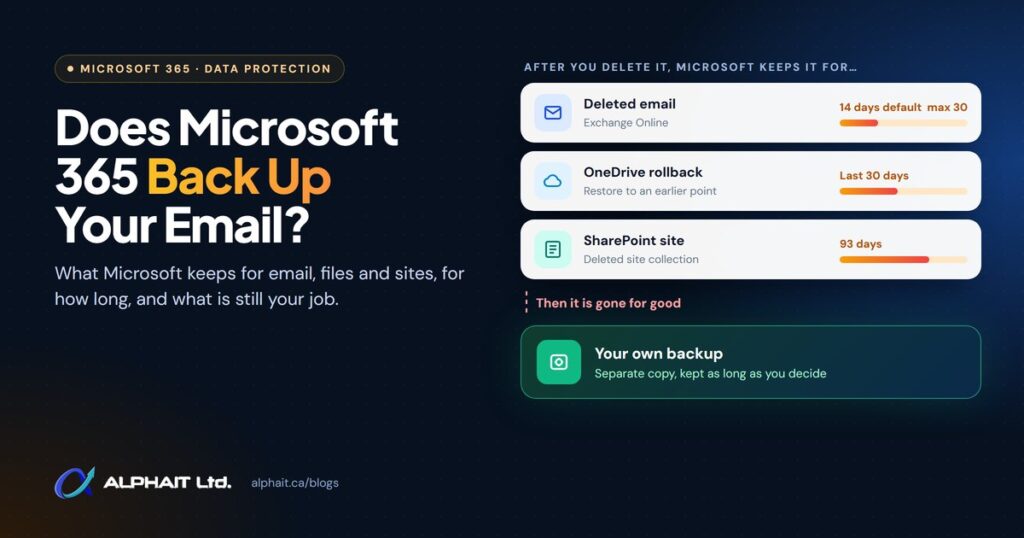
Deleted email moves to a hidden Recoverable Items folder. Exchange Online keeps it for 14 days by default, and an admin can raise that to a maximum of 30 days. Deleted SharePoint and OneDrive files sit in the recycle bin, where Microsoft says the retention time is 93 days.
Version history
SharePoint and OneDrive save earlier versions of a file as it is edited, so you can undo a bad change. Admins choose the limits. Under Microsoft’s recommended automatic setting, older versions are thinned out over time (hourly, then daily, then weekly) up to a 500-version cap. Versions that go past a library’s limits are permanently deleted and bypass the recycle bin.
Restore your OneDrive
If many files were deleted, overwritten or hit by malware, Microsoft 365 subscribers can roll their whole OneDrive back to an earlier point. Microsoft’s support page says this covers actions within the last 30 days, and that a file permanently deleted from the OneDrive recycle bin “can never be recovered.”
Retention policies and Litigation Hold
Retention policies in Microsoft Purview tell Microsoft 365 to keep (or delete) content for a set period. They work with content in place: if someone edits or deletes a covered item, a copy is kept in a hidden location so it stays available for eDiscovery (legal and compliance searches). Litigation Hold does something similar for a whole mailbox, preserving all items and protecting them from deletion by users or automated processes. These are compliance tools. They are built to find and preserve records, not to put a user’s mailbox back the way it was in a few clicks.
Microsoft 365 Backup (a paid add-on)
Microsoft also sells Microsoft 365 Backup, which creates restore points for Exchange, OneDrive and SharePoint. Its recovery window can be set to 3 months, 6 months, 1 year or 2 years, and it is billed pay-as-you-go based on how much data you protect. The fact that Microsoft sells this separately tells you the standard subscription isn’t a backup on its own.
What Microsoft 365 doesn’t protect you from
The built-in features share two weaknesses: they expire, and they live inside the same tenant (your organization’s Microsoft 365 environment) that the problem may have affected. Here are the situations where that matters most.
Mistakes noticed too late
If someone deletes an old client folder in March and you need it in October, the 93-day recycle bin has already emptied. The same goes for email past its 14 or 30 day window. Mistakes are often found months later, at tax time or during a dispute.
A departed employee’s data
When you delete a user, Microsoft’s admin guidance says you have 30 days to restore the account before the user’s data is permanently deleted, and that a deleted mailbox is recoverable for 30 days by default. Their OneDrive follows its own deletion process: a 30-day default retention period (admins can set 30 to 3,650 days), then 93 days in the site collection recycle bin.
Simply removing the licence and leaving the account in place is not a safe parking spot either. Microsoft states that unlicensed OneDrive accounts become read-only after 60 days and are archived after 93 days, and accounts that stay unpaid are at risk of deletion after 365 cumulative unpaid days. Our employee offboarding IT checklist covers how to hand over a leaver’s data before any of these clocks run out.
Ransomware on a synced computer
OneDrive keeps the cloud copy in step with the computer. If ransomware encrypts files in a synced folder, the encrypted versions sync up as normal changes. Restore your OneDrive and version history can help, but only within their limits, and someone has to notice in time.
A compromised account or a malicious insider
Anyone with enough admin rights can delete data, shorten retention settings or remove a hold. If an attacker takes over a global admin account, the same tenant that holds your data also holds the controls for its safety nets. Strong sign-in protection matters here, so see our guide to setting up MFA in Microsoft 365.
Sync and migration errors
Sync conflicts, a botched migration or a third-party app with write access can quietly overwrite or remove files. Microsoft 365 treats these as legitimate changes, so they flow through to every copy.
Teams chats
Teams chat data is copied into hidden folders in users’ mailboxes for compliance. Microsoft notes these folders “aren’t designed to be directly accessible to users or administrators” and are searched with eDiscovery tools. That is useful for an investigation, but it isn’t a way to restore a chat for a staff member.
Microsoft 365 data retention at a glance: is it a backup?
Use this table to see what Microsoft keeps in common situations, for how long, and whether you can count on it as a backup. Times are Microsoft defaults as of October 2026 unless an admin has changed them.
| Scenario | What Microsoft keeps | How long | Is it a backup? |
|---|---|---|---|
| Microsoft hardware or data centre failure | Replicated copies in separate fault zones | Ongoing, part of the service | No. It keeps the service up but can’t take you back in time. |
| User deletes an email | Item in Recoverable Items | 14 days by default, up to 30 | No. A recycle bin. |
| User deletes a SharePoint or OneDrive file | Item in the recycle bin | 93 days | No. A recycle bin. |
| File edited or overwritten badly | Earlier versions of that file | Up to 500 versions; older ones thinned or expired by policy | Partly. Good for one file, not for a whole library. |
| Many OneDrive files deleted or encrypted | Restore your OneDrive | Last 30 days | No. Short window, same account. |
| Employee’s account deleted | Mailbox and OneDrive, then OneDrive in recycle bin | 30 days for the account and mailbox; OneDrive 30 days (adjustable) plus 93 days | No. A grace period. |
| Licence removed, account kept | OneDrive goes read-only, then archived | Read-only at day 60, archived at day 93, deletion risk after 365 unpaid days | No. |
| Teams chat messages | Copies in hidden mailbox folders | As set by Teams retention policies | No. Compliance search only. |
| Retention policy or Litigation Hold applied | Copies of edited or deleted items, kept in place | As configured | No. A compliance tool inside the same tenant. |
| Microsoft 365 Backup (paid add-on) | Point-in-time restore points | 3 months to 2 years, as chosen | Yes, kept within Microsoft’s own service boundary. |
How to choose a backup for Microsoft 365
Whether you use Microsoft 365 Backup or a third-party tool, ask the same questions. We suggest putting the answers in writing before you sign anything.
- Where is the backup stored? Ask which country and which provider hold the copies. If you handle health or client records, you may prefer copies kept in Canada. Microsoft says its own backup service keeps data within the Microsoft 365 boundary and honours your tenant’s data residency. A third-party tool usually keeps a copy outside Microsoft. Decide which you need.
- How long is data kept? Match retention to your real needs: accounting, legal, insurance and industry rules. A 30-day backup barely beats the recycle bin.
- What does it cover? Confirm mailboxes, shared mailboxes, OneDrive, SharePoint sites and Teams files are all included, and how new users get added automatically.
- How finely can you restore? Can you restore one email, one file or one folder, or only a whole mailbox or site? Can you restore to a different location so you don’t overwrite live data?
- Who can delete the backups? This is the question most people skip. Find out whether backups can be deleted, by whom, and whether there is a waiting period. Microsoft notes its backups can be deleted by the backup admin when offboarding, with a 90-day grace period. Use separate admin accounts with MFA for the backup tool.
- How do you know it works? Alerts should reach someone who reads them, and you should run regular restore tests.
If you’d rather not sort through this alone, our backup and disaster recovery services cover planning, setup and restore testing, and our Microsoft 365 management for Edmonton businesses includes retention settings, offboarding and admin account security.
Frequently asked questions
Does Microsoft 365 back up email?
Not as a true backup. Deleted email is kept for 14 days by default (up to 30 if an admin changes it), and a deleted user’s mailbox is recoverable for 30 days. After that, it is gone unless a retention policy, hold or separate backup was in place.
Is OneDrive a backup?
No. OneDrive syncs files, so deletions and encryption on a computer sync to the cloud too. Its recycle bin, version history and 30-day restore help with recent problems, but they are not an independent copy.
Are retention policies enough?
They help with compliance and can preserve deleted items, but they sit inside the same tenant and are designed for eDiscovery searches, not quick restores. An admin, or an attacker with admin rights, can also change them.
What happens to a former employee’s email and files?
If you delete the account, you have 30 days to restore it. OneDrive files are kept for the OneDrive retention period (30 days by default), then 93 days in the recycle bin. Move or back up anything you need before deleting the account.
Related guides: How to test backups, the employee offboarding IT checklist, how to set up MFA in Microsoft 365, what to do in a ransomware attack.
Find out if your Microsoft 365 data is really protected
If you’re not sure whether anything beyond the recycle bin is protecting your email and files, that’s the place to start. Take our free 3-minute IT check to see where your backups and Microsoft 365 setup stand. To talk about a backup plan that fits your business, see our backup and disaster recovery services or call the AlphaIT team at 780-318-0149.