Vishal Sharma
On this page
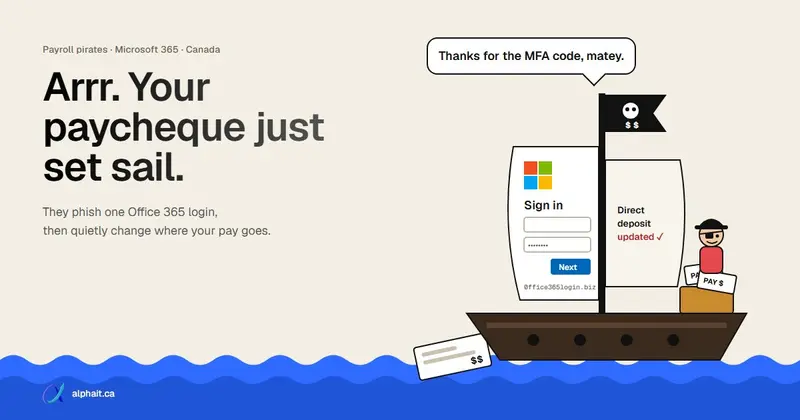
In April 2026, Microsoft reported a “payroll pirate” campaign against Canadian employees. The group behind it is called Storm-2755, and it’s after money. Staff who searched for “Office 365” (or a typo like “Office 265”) landed on a fake Microsoft 365 sign-in page at the top of the results. That page stole their password and their signed-in session. With the session, the attacker can skip the MFA prompt. Next, the attacker searched the mailbox and intranet for payroll and HR. Then they emailed HR: “Question about direct deposit”. Where that didn’t work, they changed the bank account in Workday themselves. Last, they set inbox rules to hide any reply mentioning “direct deposit” or “bank”. The fix that stops the money is not technical. No direct deposit change is ever processed from an email.
The details below come from Microsoft’s own write-up, published April 9, 2026. Microsoft says the group picked victims by geography (Canada), not by industry. A 12-person office in Edmonton is as much a target as a large employer.
How does the payroll pirate scam work?
Here is the chain, step by step, as Microsoft’s incident response team described it.
| Step | What the attacker does | What it looks like to you |
|---|---|---|
| 1. Bait | Gets a fake site (bluegraintours[.]com) to the top of search results for “Office 365”, most likely through SEO poisoning or paid ads |
An employee googles “Office 365 login” and clicks the first result |
| 2. Fake sign-in | Shows a copy of the Microsoft sign-in page that passes everything through to the real Microsoft (adversary-in-the-middle) | The login works normally, MFA prompt included |
| 3. Session theft | Keeps the session token Microsoft issued after MFA and replays it from its own tool | Nothing. No new MFA prompt, no alert to the user |
| 4. Recon | Searches for “payroll”, “HR”, “human”, “resources”, “finance”, “account”, “admin” and similar | Nothing |
| 5. The ask | Emails HR from the real mailbox: “Question about direct deposit” | HR gets a normal-looking email from a real colleague |
| 6. The change | If HR doesn’t bite, signs in to Workday as the employee and changes the payment elections | The next pay run goes to the attacker’s account |
| 7. Cover-up | Creates inbox rules that move messages containing “direct deposit” or “bank” to a hidden folder | The employee never sees HR’s “your banking was updated” confirmation |
A few details matter for defenders. Microsoft saw the stolen sessions replayed about every 30 minutes as non-interactive sign-ins. They were renewed around 5:00 AM local time, when nobody is watching. The attacker’s tool showed up with the user agent axios/1.7.9 while the session ID stayed the same. Tokens usually went stale after about 30 days. For a few accounts, the attacker changed the password and MFA method to hang on longer.
Microsoft confirmed at least one employee lost a pay deposit. It did not publish a total number of victims. Be wary of any article that quotes one.
Why didn’t MFA stop it?
Because the employee really did complete MFA. They just did it through the attacker’s page. The attacker didn’t need the code or the push approval. They only needed the session token Microsoft handed back afterwards. Once they have that, they are the user until the token expires or someone revokes it.
That’s why Microsoft’s write-up recommends phishing-resistant MFA (FIDO2 security keys, passkeys, Windows Hello for Business). They’re tied to the real Microsoft address, so they won’t complete on a look-alike page. We cover the switch in moving from SMS codes to passkeys and Windows Hello. No MFA at all yet? Start with setting up MFA in Microsoft 365. Ordinary MFA still blocks the far more common password-only attacks.
How should staff sign in to Microsoft 365?
This is the cheapest fix. It would have broken the chain at step 1.
- Bookmark the real address and use only the bookmark. For most offices that’s
https://www.office.comorhttps://outlook.office.com. Put it on the bookmarks bar of every work browser. If you manage devices, push it as a managed bookmark. - Never sign in from a search result, and never from an ad. Ads and SEO-poisoned results can sit above the real Microsoft link.
- Look at the address bar before typing a password. Microsoft sign-in happens on
login.microsoftonline.com. A travel agency domain, a random.com, or anything that isn’t Microsoft means close the tab. - A password manager helps here. It only fills your password on the site it was saved for. On a fake page, it stays silent. That silence is your warning. (More on picking one in our password manager guide.)
- Report it, don’t hide it. Typed a password into something odd? Tell IT within minutes. The session can be killed before the attacker gets to payroll. Make it clear nobody gets in trouble for reporting.
The payroll rule: no direct deposit change from an email
If you only do one thing this week, do this. Write it down and give it to whoever runs payroll: in-house staff, your bookkeeper or your payroll provider. Make it non-negotiable.
- Banking changes are never accepted by email, chat or text. Not even from the CEO’s real address. Storm-2755 sent its request from the employee’s real mailbox. “It came from their account” proves nothing.
- Verify by voice or in person. Call the employee on the phone number already in their HR file, not one in the email. Or have them confirm at their desk. A Teams message doesn’t count. Teams uses the same hacked account.
- Employee self-service changes trigger a check too. Can staff edit their own banking in Workday or another HR portal? Then have payroll notified of every banking change (most HR systems can do this). Follow step 2 before the next run.
- Build in a delay. A new account only takes effect after one confirmed pay cycle, or after a waiting period your payroll provider supports. Attackers want the money before anyone notices. A delay takes that away.
- Confirm to the old contact details. Send the “your banking was changed” notice to the work mailbox and to the phone or home email on file. Storm-2755 hid confirmations with inbox rules. A second channel beats that.
- Log it. Who asked, who verified, how, and when. It takes a minute. Your bank, insurer and police will ask for it.
The same habit protects you when fraudsters swap a supplier’s bank details on an invoice. See how to spot a fake invoice before you pay.
How big is this kind of fraud in Canada? The Canadian Anti-Fraud Centre (CAFC) groups these “change your banking information” scams under spear phishing. It reports roughly $57.7 million in spear phishing losses in the first six months of 2026. All of 2025 was more than $68 million. Those figures cover all spear phishing, not just payroll. And they only count what people reported.
Want whoever runs payroll to practise? Our free Spot the Scam quiz includes a direct deposit request like this one. And when a suspicious email does arrive, check its headers before anyone acts on it.
What should admins check in Microsoft 365?
You need an admin account. Some of these views need an Entra ID P1 or P2 licence (Microsoft 365 Business Premium includes P1).
1. Risky sign-ins and risk detections
In the Microsoft Entra admin center, go to ID Protection › Dashboard. Then open Risky sign-ins and Risk detections from the ID Protection menu. Risky sign-ins hold up to 30 days of data, non-interactive sign-ins included. Risk detections go back 90 days. Full detail needs Entra ID P2. Look for atypical travel, anomalous token and suspicious browser detections.
2. Sign-ins from places and tools you don’t expect
Go to Entra ID › Monitoring & health › Sign-in logs. Check both User sign-ins (interactive) and User sign-ins (non-interactive). Replayed sessions show up on the second tab. Things that should make you look twice:
- a sign-in from a country or hosting provider your staff don’t use;
- user agent
axios/1.7.9or anything that isn’t a normal browser or Office app; - the same user signing in every ~30 minutes overnight;
- a recent change to the user’s password or MFA methods they didn’t make.
3. New inbox rules that hide mail
This is the most telling sign for this attack. The script below only reads rules. It changes nothing. You need the Exchange Online PowerShell module and an Exchange admin role. Note that Get-InboxRule does not work for the Global Reader role.
# Read-only: list inbox rules that hide, delete or redirect payroll/bank mail
Connect-ExchangeOnline -ShowBanner:$false

$words = 'direct deposit|bank|payroll|pay stub|workday|\bhr\b'
Get-EXOMailbox -ResultSize Unlimited -RecipientTypeDetails UserMailbox | ForEach-Object {
    $mbx = $_.UserPrincipalName
    Get-InboxRule -Mailbox $mbx -IncludeHidden -ErrorAction SilentlyContinue |
        Where-Object {
            $_.Description -match $words -or
            $_.DeleteMessage -or $_.ForwardTo -or $_.RedirectTo -or
            ($_.MoveToFolder -and $_.StopProcessingRules)
        } |
        Select-Object @{n='Mailbox';e={$mbx}}, Name, Enabled, MoveToFolder,
                      DeleteMessage, StopProcessingRules, Description
} | Format-List
What it does: it signs in to Exchange Online and goes through every user mailbox. For each one, it pulls the inbox rules, hidden ones included (-IncludeHidden). It keeps a rule if:
- its description mentions payroll or banking words;
- it deletes, forwards or redirects mail;
- it moves mail and then stops other rules from running (the pattern Microsoft saw).
Expect some harmless hits, like a newsletter filter. But a rule nobody remembers that moves “bank” or “direct deposit” mail to an odd folder is a red flag. On a large tenant this is slow: one query per mailbox.
Have Defender XDR or Sentinel? Microsoft’s write-up includes hunting queries for them, with checks for Workday “Manage Payment Elections” events. If you’re licensed for Defender XDR, search Threat analytics for the Storm-2755 activity profile.
4. Settings that make this harder next time
Microsoft’s recommendations, in plain terms:
- Block legacy authentication.
- Roll out phishing-resistant MFA, starting with HR, payroll and finance.
- Require compliant devices (Intune) for sign-in, so a stolen session replayed from the attacker’s machine fails.
- Turn on alerts for suspicious inbox rule creation.
- Keep Continuous Access Evaluation on, so revoked sessions die quickly.
Your email security filtering never sees a Google search. These sign-in controls do the heavy lifting here.
What to do if an employee’s pay was redirected
Speed matters more than anything else. Work through this list the same day.
- Call your bank and the payroll provider right away. Ask your bank to try to recall or stop the deposit to the fraudulent account. Ask payroll to freeze changes on that employee’s record and put back the right account.
- Kill the attacker’s session. In the Entra admin center, go to Entra ID › Users › All users and select the user. Choose Revoke sessions on the Overview page. Microsoft notes access tokens can stay valid for up to an hour after this. If the attacker is still active, also disable the account under Account status › Edit.
- Reset the password and review MFA methods. Remove any phone number or authenticator app the employee doesn’t recognize, then have them re-register.
- Delete the hidden inbox rules you found with the script above. Then check Sent Items for messages to HR, payroll or finance the employee didn’t write.
- Lock down the HR system. Reset the employee’s Workday (or other HR portal) password and sign out their sessions there too. Revoking Microsoft sessions doesn’t always end the HR app’s own session.
- Report to police and the CAFC. Call your local police on their non-emergency line. Then report to the Canadian Anti-Fraud Centre at reportcyberandfraud.canada.ca or 1-888-495-8501. The CAFC says fast reporting can improve the chance of getting funds back.
- Check whether it went further. If the mailbox held personal information about other people, you may have a reportable breach. Our post on Alberta PIPA breach reporting explains when you must notify. Tell your cyber insurer early, too.
- Make the employee whole and talk to them. They didn’t do anything unusual: they searched for Office 365 and logged in. Treat it as a process failure, not a personal one. Otherwise the next person won’t report.
If a staff member has just entered their password or a code on a fake page, our phishing emergency guide gives the steps for the first hour.
Sources
- Microsoft Security blog: Investigating Storm-2755, “payroll pirate” attacks targeting Canadian employees (April 9, 2026: attack chain, search terms, inbox rules, Workday, IOCs, mitigations)
- Help Net Security: Poisoned “Office 365” search results lead to stolen paychecks
- Canadian Anti-Fraud Centre: Fraud trends, first 6 months of 2026
- Canadian Anti-Fraud Centre: payment redirection fraud release, May 13, 2026
- Canadian Anti-Fraud Centre: Report fraud
- Microsoft Learn: ID Protection risk reports
- Microsoft Learn: Revoke user access in an emergency
- Microsoft Learn: Get-InboxRule
Frequently asked questions
What is a payroll pirate attack?
It’s a scam where criminals take over an employee’s work account and change where their pay is deposited. Microsoft uses the name for campaigns like Storm-2755, which targeted Canadian employees in 2026. The attacker asks HR for a direct deposit change from the real mailbox, or edits the bank details in the HR portal. Then they hide the confirmation emails.
Can attackers get past MFA in Microsoft 365?
Yes, with an adversary-in-the-middle phishing page. The employee completes MFA on a fake page that relays everything to Microsoft. The attacker keeps the session token that comes back. Phishing-resistant methods like passkeys and FIDO2 keys don’t complete on fake sites, which is why Microsoft recommends them.
How do I check for suspicious inbox rules in Microsoft 365?
Run Get-InboxRule with the -IncludeHidden switch in Exchange Online PowerShell for each mailbox. Look for rules that move, delete or forward messages with words like “direct deposit”, “bank” or “payroll”. Users can also check Outlook’s Rules settings, but hidden rules only show up in PowerShell.
What should HR do when an employee asks to change direct deposit by email?
Don’t process it from the email. Call the employee on the phone number already in their HR file, or confirm in person. Only then make the change. Also send a confirmation to their personal contact details, and consider holding new bank details for one pay cycle.
Where do I report payroll fraud in Canada?
Call your bank and payroll provider first. Then report to your local police and to the Canadian Anti-Fraud Centre, online at reportcyberandfraud.canada.ca or by phone at 1-888-495-8501. Reporting quickly can improve the chance of recovering the money.
Want a second set of eyes on your sign-in settings and inbox rules, or help writing a payroll verification rule your team will actually follow? AlphaIT’s cybersecurity team can run these checks and set up the sign-in controls for you. Contact us.