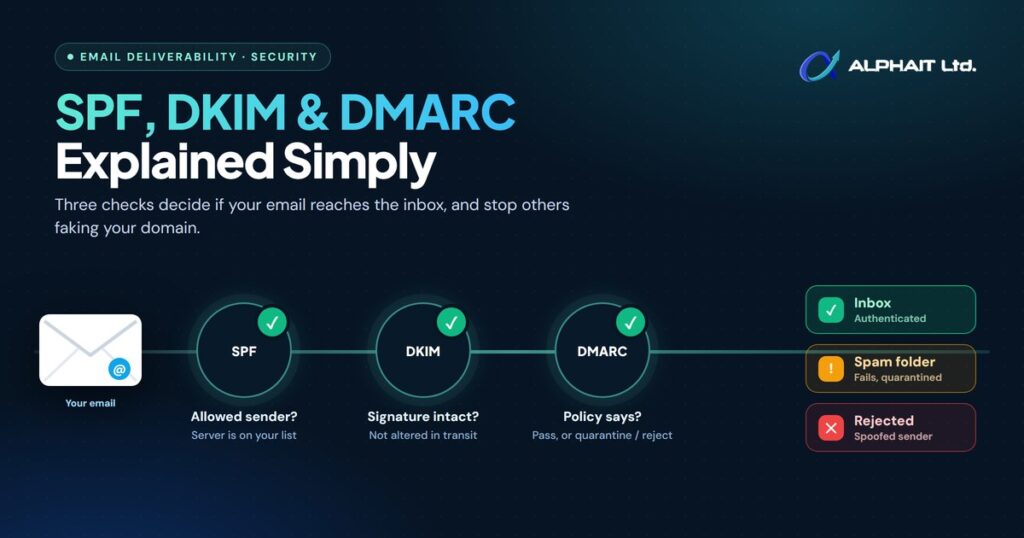
What is DMARC? It is a short text record you publish for your email domain that tells Gmail, Outlook and other receivers what to do with a message that claims to be from you but can’t prove it, and asks them to send you reports about it. DMARC works together with two older checks, SPF and DKIM. Set up properly, the three help your real emails reach the inbox and make it much harder for someone to send fake invoices or payment requests using your company name.
This guide explains each one in plain English, why the big email providers now insist on them, how to check your own domain in a few minutes, and how to switch DMARC on safely without blocking your own mail.
Key takeaways
- SPF is a guest list of the servers allowed to send email for your domain. DKIM is a tamper-evident signature on each message. DMARC tells receivers what to do when those checks fail, and sends you reports.
- Gmail and Yahoo have required SPF, DKIM and DMARC for bulk senders since February 2024. Outlook.com added similar rules for high-volume senders in May 2025.
- Even small senders are expected to have at least SPF or DKIM, and the receivers’ rules reward businesses that have all three.
- Start DMARC at p=none (monitor only), read the reports, fix every legitimate sender, then move to quarantine and finally reject.
- The most common mistakes are two SPF records, too many DNS lookups, and forgetting tools like newsletters, invoicing apps and website forms.
SPF, DKIM and DMARC explained in plain English
Email has no built-in way to prove who sent a message, and anyone can type any name in the “From” line. These three standards are the fix. Each lives as a record in your domain’s DNS (the internet’s address book for your domain), which you or your IT provider manage at your domain registrar or DNS host.
SPF: the guest list
SPF (Sender Policy Framework) is a list of the mail servers and services allowed to send email for your domain. Think of it as the guest list at the door. When a message arrives, the receiving server checks whether the server that sent it is on your list. Microsoft describes it as a record that uses a TXT record in DNS to identify valid sources of mail for the domain.
The catch: SPF checks a hidden “envelope” address, not the “From” address your reader sees, so SPF alone is not enough.
DKIM: the tamper-evident seal
DKIM (DomainKeys Identified Mail) adds a digital signature to every message you send. Think of a tamper-evident seal on a parcel. Your mail system signs the message with a private key, and the receiver checks it against a public key published in your DNS. According to Microsoft, the primary purpose of DKIM is to verify that a message wasn’t altered in transit. If someone changes the content or the signature doesn’t match, DKIM fails.
DMARC: the instructions and the reports
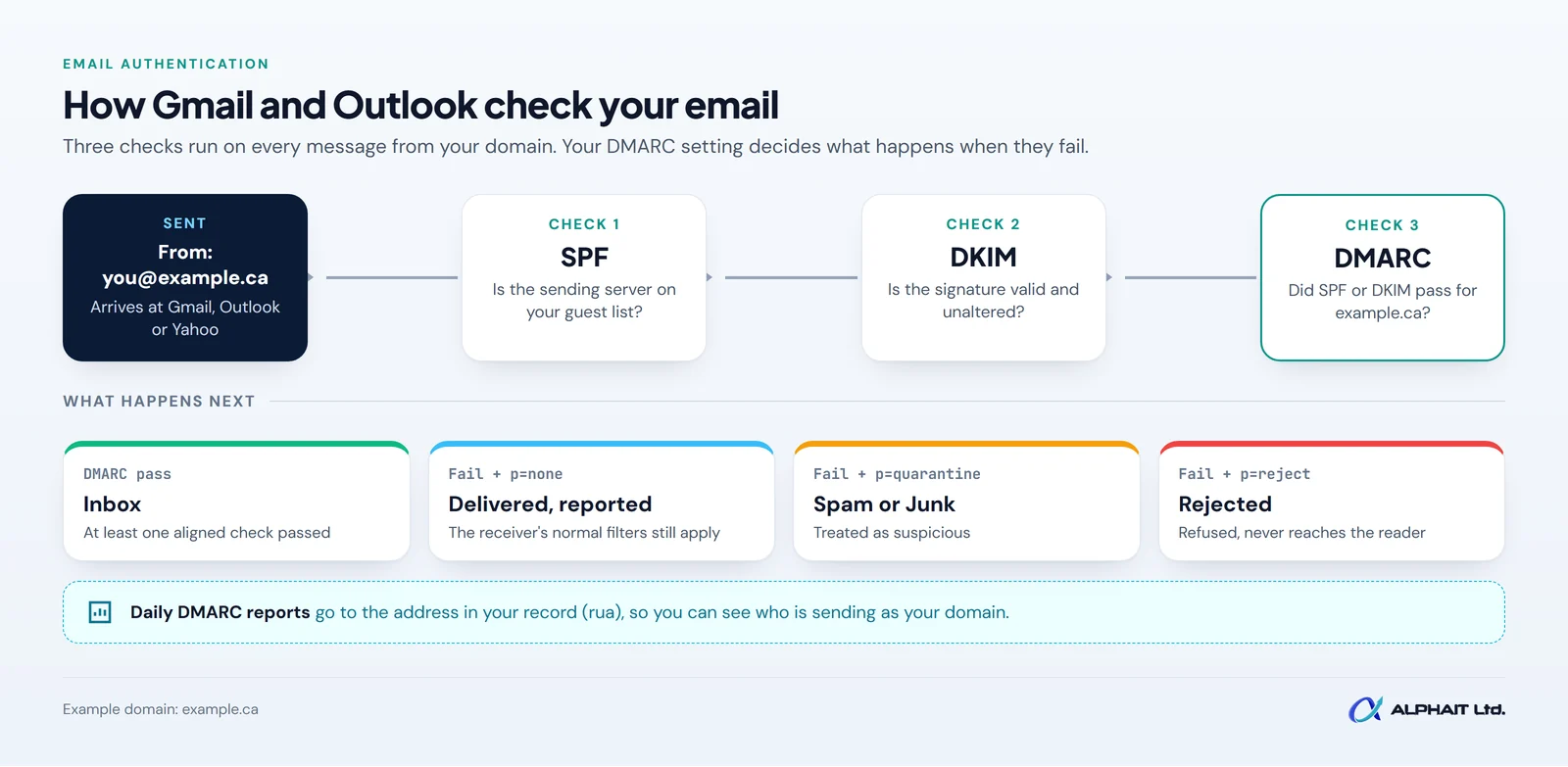
DMARC (Domain-based Message Authentication, Reporting and Conformance) ties the other two together. It does three jobs:
- It checks alignment. The domain that passed SPF or DKIM must match the domain in the “From” address your reader sees.
- It gives instructions. Your record tells receivers what to do with failures: nothing (p=none), treat as suspicious (p=quarantine), or refuse (p=reject).
- It sends reports. Receivers email you summaries of who is sending mail using your domain and whether it passed.
Microsoft’s documentation puts the pass rule simply: a message passes DMARC if one or both of the described SPF or DKIM checks pass, with alignment. It fails only when both fail.
Alignment, in one example
Say you send a newsletter through a mailing service. The message shows “From: news@example.ca”, but the service signs it with its own domain and uses its own bounce address. SPF and DKIM might both pass, but for the service’s domain, not yours. Nothing lines up with example.ca, so DMARC fails. The fix is to set up the service so it signs with your domain (custom DKIM) or uses your domain for its bounce address.
Why it matters now: Gmail, Yahoo and Outlook rules
The large mailbox providers have turned these records from “nice to have” into requirements.
- Gmail: Google’s email sender guidelines say that starting February 1, 2024, everyone sending to Gmail accounts must set up SPF or DKIM, among other requirements. Senders of more than 5,000 messages a day to Gmail accounts must set up SPF, DKIM and DMARC, and the “From” domain must align with the SPF or DKIM domain. Google notes the DMARC enforcement policy for these senders “can be set to none”.
- Yahoo: Yahoo’s Sender Hub best practices took effect in February 2024. All senders need SPF or DKIM at a minimum. Bulk senders need both, plus “a valid DMARC policy with at least p=none”, with alignment.
- Outlook.com: Microsoft announced requirements for domains sending more than 5,000 emails per day to its consumer addresses (outlook.com, hotmail.com and live.com). SPF and DKIM must pass, and DMARC must be at least p=none and aligned. In an April 2025 update, Microsoft said non-compliant messages would be rejected starting May 5, 2025.
Most 5 to 50 person businesses don’t send 5,000 emails a day. But a newsletter to a large list can, and every business benefits anyway. Microsoft’s own FAQ says that while enforcement first targets large senders, “all senders benefit from these best practices.” For most small firms, the bigger everyday risk is spoofing: someone sending a fake invoice that appears to come from your domain. DMARC at enforcement is the control designed to stop that, and it is a core part of our email security service for small businesses.
How to check your domain in five minutes
These records are public, so anyone can look.
- Use a free online checker. Search for an “SPF DKIM DMARC lookup” tool and enter your domain. Microsoft notes that free online tools can show your SPF record, and some even calculate the number of DNS lookups it needs.
- Or check from a Windows computer. Open Command Prompt and run nslookup -type=TXT example.ca for SPF and nslookup -type=TXT _dmarc.example.ca for DMARC, replacing example.ca with your domain. Microsoft’s DMARC troubleshooting guidance uses the same command.
- Look at a real message. Send an email to a personal Gmail or Outlook.com account, open it, and view the original message or headers. Look for spf=pass, dkim=pass and dmarc=pass.
What you want to see: exactly one record starting with v=spf1, a DMARC record starting with v=DMARC1, and DKIM passing on real messages with your own domain.
Example DNS records
The table below shows examples only, using the placeholder domain example.ca and a business that uses Microsoft 365. Your real values will differ, especially for DKIM, so copy the exact values from your own email platform.
| Record | Type | Host / name | Example value (example.ca) | What it means |
|---|---|---|---|---|
| SPF | TXT | @ (example.ca) | v=spf1 include:spf.protection.outlook.com -all | Only Microsoft 365 may send for example.ca; everything else fails |
| DKIM (selector 1) | CNAME | selector1._domainkey | Value copied from the Microsoft Defender portal | Points to the public key used to check signatures |
| DKIM (selector 2) | CNAME | selector2._domainkey | Value copied from the Microsoft Defender portal | Spare key used when keys are rotated |
| DMARC (start) | TXT | _dmarc | v=DMARC1; p=none; rua=mailto:dmarc-reports@example.ca | Monitor only; send daily summary reports |
| DMARC (goal) | TXT | _dmarc | v=DMARC1; p=reject; rua=mailto:dmarc-reports@example.ca | Receivers should refuse mail that fails |
| Parked domain | TXT | @ and _dmarc | v=spf1 -all and v=DMARC1; p=reject; | This domain never sends email |
The SPF and parked-domain patterns follow Microsoft’s SPF examples. If you send through other services, each one adds its own include: value, which is where the mistakes below usually start.
A safe rollout: none, then quarantine, then reject
Switching straight to p=reject is the fastest way to block your own invoices. Microsoft recommends a gradual approach, and the Canadian Centre for Cyber Security’s email domain protection guidance describes the same progression. It also notes that “only a policy of reject at 100% will prevent all illegitimate messages from being delivered”, so reject is the goal, reached carefully.
| Stage | DMARC setting | What happens to failing mail | Your job at this stage |
|---|---|---|---|
| 1. Prepare | None yet | No instructions | List every system that sends as your domain. Fix SPF and turn on DKIM. |
| 2. Monitor | p=none with rua reports | No action from DMARC | Read reports. Find unknown or failing legitimate senders and fix them. |
| 3. Quarantine | p=quarantine (optionally with pct to phase in) | Usually sent to junk | Watch for complaints of missing mail. Keep reading reports. |
| 4. Reject | p=reject | Usually refused outright | Review reports regularly and whenever you add a new email tool. |
DMARC reports arrive as compressed XML files that are hard to read by hand. Microsoft suggests a dedicated mailbox for them and points to reporting services that turn them into dashboards. We suggest spending at least a few weeks at each stage. How long depends on how many tools send mail for you, not on a fixed calendar.
Common mistakes that break email authentication
Two SPF records
Your domain may have only one SPF record. When a new tool’s setup guide says “add this SPF record”, people often add a second one. Microsoft warns that multiple SPF TXT records for the same domain cause SPF to return a permanent error. Merge them into one record instead.
More than 10 DNS lookups
Each include: in your SPF record makes the receiver look up another record, and those can contain more includes. SPF stops at 10 lookups, and past that it fails. The Cyber Centre notes this limit “can inadvertently be exceeded” by the way third-party records are built. Fixes include removing services you no longer use and moving bulk senders to a subdomain such as news.example.ca, which gets its own record.
Forgetting third-party senders
Your staff mailboxes are only part of the picture. Before moving past p=none, check every tool that sends email as your domain:
- Newsletter and marketing platforms
- Invoicing, accounting and payment tools
- Website contact forms and online booking systems
- CRM, help desk and e-signature tools
- Copiers and scanners that email documents
Each one must either be in your SPF record or sign with DKIM using your domain, preferably both. Microsoft and the Cyber Centre both suggest a separate subdomain for services you don’t directly control.
Leaving parked domains unprotected
If you own extra domains that never send email (an old brand name or a .com version of your .ca), publish records that say so. Otherwise they are easy to spoof.
How to enable DKIM in Microsoft 365
Microsoft 365 already signs mail sent from your built-in onmicrosoft.com address, but Microsoft notes that for custom domains, no DKIM signing occurs until you set it up. At a high level:
- In the Microsoft Defender portal, go to Email & collaboration, Policies & rules, Threat policies, Email authentication settings, then the DKIM tab.
- Select your domain and copy the two CNAME values Microsoft gives you (selector1 and selector2).
- Create those two CNAME records at your DNS host.
- Wait for Microsoft to detect them, then turn on Sign messages for this domain with DKIM signatures.
- Send a test message and confirm dkim=pass with your domain.
Microsoft stresses that the example values in its documentation are illustrations only. Always use the values shown for your own tenant. For help with this and the rest of your tenant, see our Microsoft 365 services.
Frequently asked questions
Do I need DMARC if I’m a small business?
The strict Gmail, Yahoo and Outlook.com rules apply to senders of more than 5,000 messages a day. Smaller senders still need SPF or DKIM, and we recommend all three for every business, because DMARC is what stops someone sending convincing fakes from your domain.
Will DMARC stop all spam and phishing?
No. It protects your own domain from being impersonated. It doesn’t stop lookalike domains or attacks from hacked accounts, so you still need staff awareness and multi-factor authentication.
Is p=none enough?
It meets the minimum the big providers require for bulk senders, and it gives you reports. It doesn’t tell receivers to block anything, so we recommend treating it as a starting stage, not the finish line.
What’s the difference between ~all and -all in SPF?
Both mark unlisted senders as failing. ~all is a “soft fail” and -all a “hard fail”. Microsoft recommends -all for Microsoft 365 domains that also use DKIM and DMARC.
Related guides: How to set up MFA in Microsoft 365, our employee offboarding IT checklist, a cybersecurity checklist for Alberta clinics, how to spot a fake invoice scam.
Get your email authentication checked
If you aren’t sure whether your domain has SPF, DKIM and DMARC set up correctly, or which tools are sending as you, that is the place to start. Take our free 3-minute IT check to see where your business stands, or visit our email security service page to see how we set up and monitor email authentication for Edmonton businesses. Prefer to talk it through? Call the AlphaIT team at 780-318-0149.