Vishal Sharma
On this page
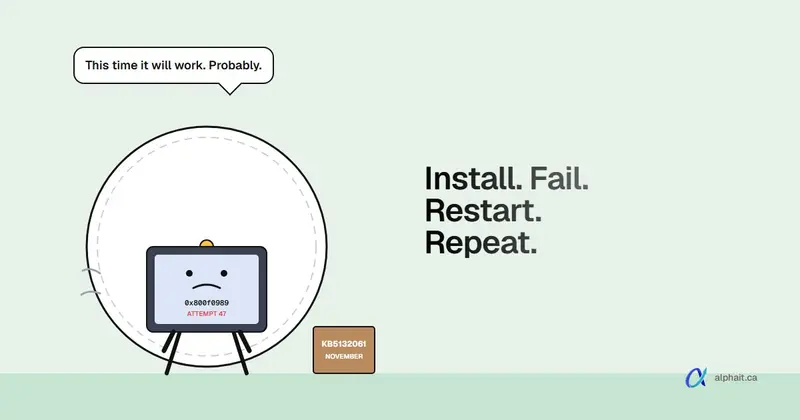
Microsoft’s November 10, 2026 security update, KB5132061, failed on some devices with error 0x80070306, 0x800f0989 or 0x800f0993. Some PCs just tried to install it over and over. Microsoft told IT admins it hit a limited number of devices that had installed the October 2026 non-security preview (KB5127936). The fix was automatic. It started November 11 at 10 am Pacific, and affected PCs should have been repaired within 24 to 48 hours. Microsoft marked the issue resolved on November 16. So by now, every office PC should show KB5132061 as installed. If one doesn’t, it needs a closer look, not more waiting.
The build numbers to look for are 26200.9974 (version 25H2) and 26300.9974 (version 26H2). Below is how to check a PC in two minutes, what to try if it’s still stuck, and what not to do.
What actually happened?
Here are the facts, taken from Microsoft’s own KB page and its Windows update history.
| Item | Detail |
|---|---|
| The update | November 10, 2026, KB5132061, the monthly security update (Patch Tuesday) |
| Builds after install | 26200.9974 (25H2), 26300.9974 (26H2), 26100.9974 (24H2 Enterprise and Education) |
| Error codes | 0x80070306, 0x800f0989, 0x800f0993, or the install repeating itself |
| Which PCs | A limited number that had the October 28 optional preview, KB5127936 |
| Microsoft’s fix | A repair pushed automatically through Windows Update, starting Nov 11, 10 am PT |
| Status | Marked resolved on the KB page change log, November 16, 2026 |
Two small notes, because sources didn’t agree.
- The KB number got mixed up in places. Microsoft’s own known issue text names the November update as “KB5127936”. That number is actually the October 28 preview. Microsoft’s update history lists the November security update as KB5132061. That’s the number to search for.
- The cause comes from Microsoft’s message to admins, as reported by BleepingComputer. The public KB page describes the symptoms and the fix, but not the cause. Early press reports guessed at other causes before Microsoft confirmed anything. Ignore those.
If a PC never installed the October preview, it should not have hit this problem at all.
How to tell if a PC is affected
You don’t need admin rights for any of this. It takes a couple of minutes per PC.
1. Check the build number
Press Windows key + R, type winver and press Enter. The window shows the version and build, for example “Version 25H2 (OS Build 26200.9974)”.
- 26200.9974 or 26300.9974: the November update is in. You’re done.
- A higher number, like 26200.10075: also fine. That’s the November 19 preview, which sits on top of the November update.
- A lower number, like 26200.9818 or 26200.9711: the November update is not installed. Keep reading.
You can see the same thing under Settings › System › About, in the “Windows specifications” section.
2. Check the update history
Go to Settings › Windows Update › Update history. Under Quality Updates, look for “2026-11 Security Update for Windows 11” with KB5132061. You’ll see either “Successfully installed on” a date, or “Failed to install on” a date with an error code. Write down the code. It tells your IT person a lot.
A few failures in early-to-mid November followed by a success is normal for this issue. That’s the automatic repair working.
What about PowerShell?
People often suggest Get-HotFix for this. We’d skip it for this job. Microsoft’s own Get-HotFix documentation says the class it reads doesn’t return every kind of update, and that its output “might vary on different operating systems”. The build number from winver is simpler and leaves no doubt. If your IT provider uses a management tool (an RMM), it can show the build on every PC at once.
Still stuck? What to do, in order
The repair started November 11 and was meant to land within two days of a PC hitting the error. If a PC still fails today, work down this list. Stop as soon as one step works.
- Restart properly, then check again. Use Start › Power › Update and restart if it’s offered. Then go to Settings › Windows Update and select Check for updates. Microsoft’s repair arrives through Windows Update, so a PC that was off, asleep or offline for two weeks may only be getting it now. Give it a few hours online.
- Check free disk space. Go to Settings › System › Storage. A full drive is one of the most common reasons any update fails. Microsoft’s general update troubleshooting guide lists low space as a cause and links to its free-up-space steps. Clearing Temporary files and emptying the Recycle Bin is usually enough for a monthly update.
- Run the Windows Update troubleshooter. It still exists in Windows 11. Go to Settings › System › Troubleshoot › Other troubleshooters, find Windows Update and select Run. Microsoft also offers the same troubleshooter through the Get Help app. It fixes common things like stuck services and a broken update cache.
- Unplug extras and retry. Microsoft’s guide suggests disconnecting external drives and docks you don’t need, and confirming the date and time are set automatically. It sounds basic. It does solve some failures.
- Install it by hand from the Microsoft Update Catalog. Search the Microsoft Update Catalog for KB5132061 and pick the file that matches the PC (x64 for most office PCs, Arm64 for some newer laptops). The KB5132061 page notes a checkpoint update (KB5043080) that must be installed first, and it explains the order. This step needs admin rights. If that sentence made you nervous, it’s a job for IT.
- Contact Microsoft or your IT provider. Microsoft’s KB page says anyone still having trouble after the repair should contact Windows help or Microsoft Support. If a PC fails after steps 1 to 4, we’d stop there and hand it over. Something else is going on, and guessing costs more time than it saves.
What not to do
These “fixes” make the situation worse.
- Don’t turn off Windows Update or set it to “never”. The November update contains security fixes. A PC without them is an easier target. One bad week isn’t a reason to stop patching for months.
- Don’t run registry “fixes” from forums or YouTube. Many of them disable services or change update policy keys. They can leave a PC that never updates again, and nobody notices until something breaks.
- Don’t download “update fixer” tools from random sites. Real Microsoft downloads come from microsoft.com. A fake update tool is an old malware trick.
- Don’t reset or reinstall Windows for this. Microsoft fixed it on its side. A reinstall is a big hammer for a problem that’s already been solved for most PCs.
- Don’t uninstall the November update once it finally installs. If an app misbehaves after it, call IT first. Removing a security update should be a deliberate decision, not a reflex.
Is Microsoft releasing another update today?
No. Today, November 24, is the fourth Tuesday of the month, and nothing was released. We checked Microsoft’s release health pages and Windows message center this morning. Here’s what came out since Patch Tuesday:
- November 10: KB5132061, the security update this post is about.
- November 13: an out-of-band (emergency) update for a licensing and activation error (0x80041008). It’s for Windows Server, Windows 10 and Windows 11 version 23H2, not 25H2 or 26H2.
- November 19: KB5132057, the optional preview for 25H2 and 26H2 (builds 26200.10075 and 26300.10075). Among its fixes, Microsoft lists one that “addresses an issue that might cause Sage 50 Accounting to close unexpectedly”. It’s optional. Most offices can wait for it to arrive in December’s security update.
- November 20 to 24: nothing new. The only change was an update to a separate SQL Server known issue, which is still open.
The next monthly security update is Patch Tuesday, December 8, 2026 (the second Tuesday). Microsoft also says there will be no non-security preview in the second half of December. Normal preview releases resume in January 2027.
For the bigger picture this month, see our roundup of November 2026 Microsoft 365 and Windows changes. If PCs are also being offered version 26H2, our post on the Windows 11 26H2 automatic upgrade explains who gets it and how to delay it.
For offices: keep preview updates off business PCs
Here’s the lesson from this one. The PCs that broke were the ones that had installed an optional preview. Previews are test builds of next month’s fixes. They’re useful to IT teams who want to test early. They’re not worth the risk on the reception PC or the bookkeeper’s laptop.
The setting to check is called Get the latest updates as soon as they’re available. It’s in Settings › Windows Update, as a toggle on the main page. Microsoft says it controls “how quickly you get the additional non-security updates, fixes, feature updates, and improvements”. Security updates arrive either way. Turning it on also means more restarts.
What we’d do on business PCs:
- Turn the toggle Off on every office PC. It takes ten seconds. Microsoft notes that anything already installed stays installed.
- Don’t click “Download & install” on optional previews in Settings › Windows Update › Advanced options › Optional updates. Those fixes come in the next security update anyway, after a month of wider testing.
- If your PCs are managed, your IT provider can lock this setting. Microsoft’s page names the policy AllowOptionalContent. That way a curious staff member can’t switch it back on.
- Keep a short list of each PC’s name, user and Windows build. Then “did everyone get the November update?” takes two minutes, not a morning.
The trade-off is real. With previews off, you wait about two extra weeks for non-security fixes. If a preview fixes a bug that’s hurting you right now, install it on that one PC, on purpose.
When to call IT
Call your IT provider (or us) if any of these are true:
- A PC still fails after a restart, a check for updates and the troubleshooter.
- The error code is not one of the three above. That’s a different problem.
- Several PCs show the same failure. That points to something shared, like a policy, security software or the network.
- The PC is low on space and you don’t know what’s safe to delete.
- You don’t know which PCs are behind. Checking ten PCs by hand is fine. Checking thirty isn’t.
Keeping PCs patched, tracking which ones fell behind and holding back risky previews is the day-to-day work of managed IT support. It’s the boring part of IT, and it’s the part that matters most. Not sure where your office stands? A free IT assessment is a quick way to find out.
Also this week: if you share Windows or Wi-Fi passwords with staff by text or sticky note, here’s how to share passwords securely.
Sources
- Microsoft Support: November 10, 2026, KB5132061 (OS Builds 26300.9974, 26200.9974 and 26100.9974) (known issue, Nov 11 repair, Nov 16 resolved, how to get the update, checkpoint KB5043080)
- Microsoft Support: Windows 11, version 25H2 update history (KB numbers and builds for Oct 28, Nov 10 and Nov 19)
- Microsoft Support: November 19, 2026, KB5132057 preview (builds, Sage 50 fix, no late-December preview)
- Microsoft Learn: Windows message center (Nov 13 out-of-band update, Nov 19 preview)
- Microsoft Learn: Windows 11, version 25H2 known issues and version 26H2 known issues (checked Nov 24, 2026)
- BleepingComputer: Microsoft confirms KB5132061 installation issues (Microsoft’s note on the October preview, Nov 12, 2026)
- Microsoft Support: Troubleshoot problems updating Windows (troubleshooter path, disk space, restart steps)
- Microsoft Support: Get Windows updates as soon as they’re available (toggle name, AllowOptionalContent)
- Microsoft Learn: Get-HotFix
Frequently asked questions
What is error 0x800f0989 on the November 2026 Windows 11 update?
It’s one of three error codes Microsoft listed for KB5132061, the November 10, 2026 security update. The others are 0x800f0993 and 0x80070306. Microsoft said it affected a limited number of PCs that had the October 2026 preview installed, and pushed an automatic repair starting November 11.
Has Microsoft fixed the KB5132061 install problem?
Yes. Microsoft’s KB page says the repair ran automatically on affected PCs connected to the internet, within 24 to 48 hours of the error. It marked the issue resolved on November 16, 2026. After the repair, the update installs through Windows Update on its own.
How do I know if the November update is installed?
Run winver. Build 26200.9974 (25H2) or 26300.9974 (26H2), or anything higher, means it’s in. You can also check Settings, Windows Update, Update history for KB5132061 marked “Successfully installed”.
Should business PCs install optional preview updates?
Usually not. Previews are early versions of next month’s non-security fixes. This month, the PCs that had the October preview were the ones that couldn’t install the November security update. Turn off “Get the latest updates as soon as they’re available” and let fixes arrive with the next security update.
When is the next Windows security update?
Patch Tuesday, December 8, 2026. Microsoft says there won’t be an optional preview in the second half of December. Nothing was released on November 24.
Want someone else to watch Windows updates on every office PC, hold back risky previews and chase the ones that fail? AlphaIT’s managed IT support covers patching, from $70/month. Contact us.