Vishal Sharma
On this page
- What’s actually wrong with emailing a password?
- One-time link or shared vault: how to choose
- How the options compare
- Our free tool: send a password with a one-time link
- Split the channel: link one way, context another
- Give new hires a temporary password they must change
- Never share an MFA code. Ever.
- When someone leaves, assume they know every password they saw
- The best password to share is no password
- Sources
- Frequently asked questions
Don’t paste a password into an email, a Teams chat or a text. Those messages get stored, searched, backed up and forwarded long after anyone needs them. For a password someone needs once (a first sign-in, the guest Wi-Fi, a vendor portal), send a one-time link that opens once and then deletes itself. Our free send a password securely tool does this. For logins people use every week, put them in a shared vault in a business password manager, so you can take access away when someone leaves. Send the link one way and tell the person what it’s for another way. And never share an MFA code with anyone, including someone who says they’re from IT.
That’s the whole rule. The rest of this post is how to apply it in a real office, with the exact Microsoft 365 settings and a step-by-step for the tool.
What’s actually wrong with emailing a password?
Nothing breaks the moment you hit send. The problem is everything that happens after.
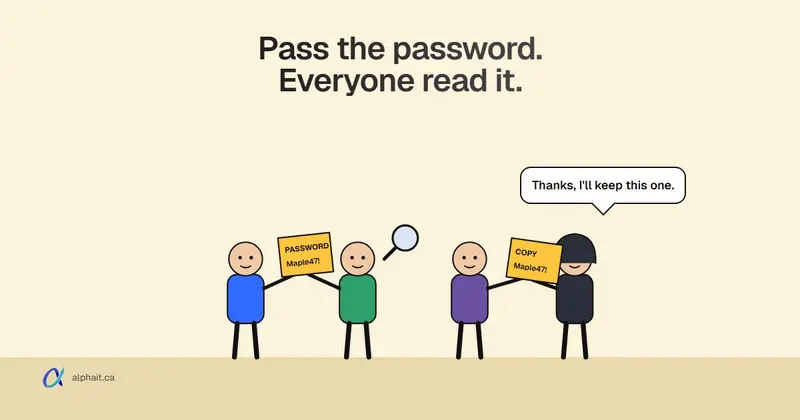
- Email keeps copies everywhere. There’s one in your Sent Items, one in their inbox, and one in each phone and laptop that syncs the mailbox. Deleting yours doesn’t touch theirs. Backups and retention policies can keep copies for years.
- Mailboxes get searched. If an attacker gets into either mailbox, searching for “password” is one of the first things they try. We saw the same pattern in the payroll pirate attacks, where attackers searched stolen mailboxes for payroll and HR.
- Emails get forwarded. “Can you send me the Wi-Fi password again?” turns into a thread with five people on it.
- Teams isn’t better. Microsoft’s own documentation says Teams chat data is copied to a hidden folder in the mailbox of each user in the chat. There, it stays searchable with eDiscovery tools. If a retention policy or legal hold applies, a message someone deleted from the chat stays searchable there for as long as the policy says. Anyone added to the chat later and shown the history gets a copy too.
- Texts sit on phones. Phones get lost, synced to cloud backups and handed down to family members.
Microsoft agrees. Since August 30, 2024, the Microsoft 365 admin center no longer lets you email a user’s account details and password. It now tells admins to print them to a PDF and share them “in a secure manner.”
One-time link or shared vault: how to choose
Ask one question. Will this person need this password again next month?
- No, they need it once. Use a one-time link. Think of a new hire’s first sign-in or a temporary password after a reset. Or the guest Wi-Fi key for a contractor, or a login a vendor needs for one job.
- Yes, they’ll use it regularly. Use a shared vault in a business password manager. Think the supplier portal the front desk logs into daily, the CRA business account, or the router admin page your IT provider manages.
Why not just send the regular ones by link too? Because a link can’t be taken back once it’s been read. A vault can. When someone leaves, you remove them from the vault and they lose every shared login at once. Then you change the ones they knew. Our password manager guide compares the business plans and shows how to roll one out, so we won’t repeat it here.
How the options compare
| Method | Who can read it later | Can you take it back? | Good for |
|---|---|---|---|
| Both mailboxes, synced devices, backups, anyone it’s forwarded to | No | Nothing involving a password | |
| Text message | Both phones and their cloud backups | No | The “what’s this for” note, not the password |
| Teams chat | Everyone in the chat, plus hidden mailbox copies searchable by eDiscovery | No | Nothing involving a password |
| One-time link | Only the first person who opens it, then it’s deleted | Not after it’s opened, but unopened links expire | One-off passwords |
| Password manager vault | Only people you give access to, with an audit log on most business plans | Yes, remove them from the vault | Logins people use regularly |
Our free tool: send a password with a one-time link
We built send a password securely because we kept seeing passwords in email threads. It’s free, needs no account, and here’s what it actually does. No marketing gloss.
- It encrypts in your browser with AES-256-GCM before anything leaves your computer.
- The key lives in the link, after the # sign. Browsers don’t send that part of a web address to the server. So our server only ever stores scrambled text. AlphaIT can’t read what you share.
- The link opens once. The moment someone views it, the message is deleted from our server.
- Unopened links expire after the time you pick: 1 hour, 1 day, 3 days or 7 days.
- Link previews don’t use it up. Outlook, Teams and messaging apps often “visit” links to build a preview. The page fetches nothing until the recipient clicks Show the message, so a preview can’t burn the link.
- It’s text only, up to about 5,000 characters. No files.
Two honest limits. First, anyone who gets the full link before your recipient opens it can read the message. That’s why you split channels (more below). Second, once your recipient has seen the password, it’s in their head or their notes. The link protects the trip, not what happens after.
How to use it, step by step
- Open alphait.ca/send-password-securely/.
- Paste the password into the box. Don’t add the username or the site name. Those go in a separate message.
- Pick when the link expires. For a new hire starting tomorrow, 1 day is plenty. Pick the shortest time that works.
- Click Create secure link, then Copy link.
- Don’t open the link yourself to test it. It works once, so you’d use it up.
- Send the link to the person by email.
- Text or call them with the context: “The link I just emailed is your Microsoft 365 password. Your username is your work email.”
- Ask them to save it in their password manager right away, or change it at first sign-in.
If they say the link has “already been opened or has expired,” don’t resend the same password. Something else may have opened it. Make a new password and send a new link.
Clients can use it to send passwords to us
This works in both directions. If your IT provider asks for a router login, a vendor portal password or a Wi-Fi key, you can create the link and send it to them. AlphaIT clients can do exactly that with us. It beats reading a password over the phone in an open office, and it beats an email that sits in two inboxes forever.
Split the channel: link one way, context another
A link alone is just a random web address. A password alone is just a string of characters. Together with a username and a site name, it’s a working login. So keep them apart.
- Email the link. Text or phone the context: which account, which username.
- Or text the link, and say what it’s for when you see them in person.
- Never put the link, the username and the site in the same message. If that one message is read by the wrong person, you’ve handed over everything.
This also helps the recipient. When the link arrives they’re already expecting it, so they’re less likely to fall for a fake “secure message” email copying the same idea.
Give new hires a temporary password they must change
For a new Microsoft 365 user, don’t pick a permanent password for them. Let Microsoft make a temporary one and force a change.
In the Microsoft 365 admin center, go to Users > Active users and select Add a user. Under Password settings you’ll see two options, both selected by default:
- Automatically create a password
- Require this user to change their password when they first sign in
Leave both on. When you finish, Microsoft shows the credentials and offers to Print them. Instead of printing, copy the temporary password into a one-time link and send it the split-channel way above. The same applies to a password reset: in Active users, select the person, choose Reset password, and keep the “change at first sign-in” box ticked.
Now the password you sent only works until they use it. Even if the link or a printout turns up later, that password is already dead. For making strong passwords for accounts Microsoft doesn’t generate, use our password checker and generator.
Never share an MFA code. Ever.
Passwords sometimes have to be shared. MFA codes never do. A sign-in code or an Authenticator approval proves that you are signing in, right now. Nobody else has a legitimate reason to need it.
That includes:
- a “Microsoft” or “IT support” caller who says they need to verify your account;
- a coworker who’s locked out and asks you to read out “the code that just came to your phone”;
- a supplier, bank or phone company rep you didn’t call yourself.
Maybe someone needs into a shared account that uses your phone for MFA. The fix is to set up MFA properly for them, not to read codes aloud. Fake support calls are one of the most common ways small offices get hit. We walk through how they work in our post on the help desk phone scam. The same goes for phone company calls. After this month’s breach, we wrote about why Bell business customers should never give a password or account PIN to a caller they didn’t call.
When someone leaves, assume they know every password they saw
A one-time link expired. A vault entry was removed. But the person still remembers the Wi-Fi password, and may have the router login in their notes. So when someone leaves:
- Remove them from the password manager organization.
- Change every shared password they could see, starting with banking, payroll, the domain registrar and the website.
- Change the Wi-Fi password if they had it, and any door or alarm codes.
- Check your sent mail and Teams chats for passwords that were shared the old way. Treat those as known and change them too.
The full order of steps for Microsoft 365, devices and accounts is in our employee offboarding IT checklist.
The best password to share is no password
Every password you don’t have to share is one less thing to leak. Passkeys help here. A passkey is tied to one person’s device or face or fingerprint, so there’s nothing to type out, forward or read aloud. Microsoft is moving accounts that way and away from text-message codes. We cover the setup in moving your office from SMS codes to passkeys.
Shared accounts can shrink too. Instead of five people sharing one “info@” login, give each person their own account with access to a shared mailbox. Then there’s no shared password to hand out at all, and each person signs in with their own MFA. If you want help setting that up, our Microsoft 365 team does this kind of cleanup regularly.
If you only do one thing this week, do this: search your Sent Items and Teams chats for the word “password.” Change anything you find, and send the next one with a one-time link.
Sources
- Microsoft Learn: Add users and assign licenses in Microsoft 365 (Password settings options and the Print step)
- Microsoft Learn: Reset passwords (removal of emailing passwords from the admin center as of August 30, 2024)
- Microsoft Learn: Learn about retention for Teams (Teams chat data in hidden mailbox folders, eDiscovery, SubstrateHolds)
- MDN Web Docs: URI fragment (the fragment is not sent to the server)
- Get Cyber Safe (Government of Canada): Strengthen your cyber security weak spots (store passwords in a password manager, never share them)
Frequently asked questions
What is the safest way to send a password to someone?
For a one-off password, use an encrypted one-time link that deletes itself after it’s opened, and send the username or context through a different channel, like a text or phone call. For a login someone will keep using, share it through a business password manager vault so you can remove their access later.
Is it safe to send a password through Microsoft Teams?
No. Teams chat messages are copied to hidden folders in each participant’s mailbox, where they stay searchable with eDiscovery tools, sometimes long after the message is deleted from the chat. Anyone added to the chat later can also get earlier messages. Use a one-time link or a password manager instead.
How should I give a new employee their first Microsoft 365 password?
When you add the user in the Microsoft 365 admin center, leave “Automatically create a password” and “Require this user to change their password when they first sign in” selected. Send the temporary password in a one-time link and tell them their username separately. Once they sign in and change it, the temporary password stops working.
Can AlphaIT read passwords sent with the one-time link tool?
No. The message is encrypted in your browser, and the key is in the part of the link after the # sign, which browsers don’t send to the server. Our server stores only the encrypted text and deletes it on first open or when the link expires.
Should I ever share an MFA code?
No. An MFA code or approval proves the account owner is signing in at that moment. Anyone asking for one, including a caller claiming to be IT, Microsoft or your phone company, should be treated as a scammer. Hang up and call back on a number you already know.
Want shared passwords out of email for good, with a business vault, proper offboarding and passkeys for your team? AlphaIT’s cybersecurity team can set it up for you. Contact us.