Vishal Sharma
On this page
If a client recently told you they can’t open a file you shared, this is probably why. Microsoft is retiring SharePoint Online one-time passcode (SPO OTP). That was the old way outside people opened files you shared from SharePoint or OneDrive. Microsoft’s latest Message Center update (MC1243549, updated October 1, 2026) says the retirement began mid-October 2026. It’s expected to finish by the end of November 2026 for commercial tenants.
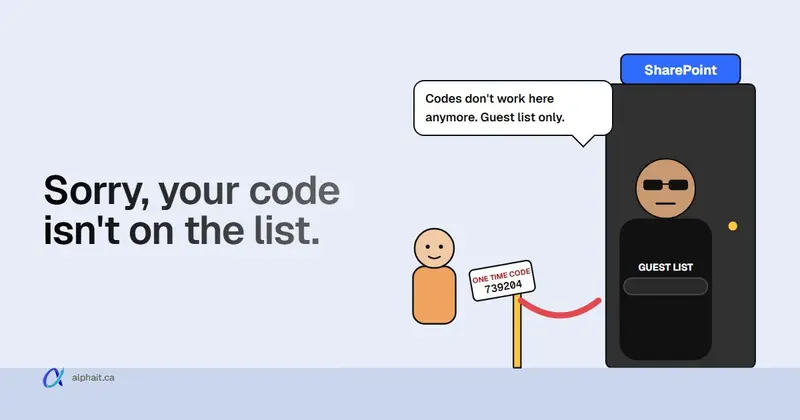
Once it reaches your tenant, a client who opens an older “Specific people” link gets access denied if they have no Microsoft Entra guest account in your directory. The fix is quick: share or re-share any one file, folder or site with that person, or have your admin create a guest account. You don’t need to re-share every file. You can’t opt out, and you can’t pick the date.
Below is what changed in plain words, then the admin checks.
What changed, in plain words
For years, SharePoint handled outside people on its own. Say you shared a file with a client who uses Gmail. They clicked the link, got a code by email, typed it in and saw the file. Nothing about them was added to your Microsoft 365 directory. That’s SPO OTP.
Microsoft is replacing it with Microsoft Entra B2B. Every outside person now gets a guest account in your directory (Entra ID, formerly Azure AD) and signs in through it. This came in two phases:
| Phase | What it does | Dates (per MC1243549) |
|---|---|---|
| 1 | New sharing with outside people creates an Entra guest account automatically | Started May 2026, fully rolled out by Oct 1, 2026 |
| 2 | SPO OTP is switched off, so old links for people without a guest account stop working | Began mid-October 2026, expected done by end of November 2026 |
The dates moved several times. The Message Center post has eight versions. Microsoft Learn’s SharePoint pages still say “during October 2026”. The October 1 Message Center update is the newest, so we go by that: assume it’s already live in your tenant or will be within weeks. Government clouds (GCC, GCC High, DoD) are excluded for now.
What isn’t affected: “Anyone” links (the ones that work without signing in), per Microsoft’s FAQ. People who already have a guest account are fine too.
What your clients will see now
It depends on two things: do they have a guest account, and what email do they use?
- Old “Specific people” link, no guest account yet: they get an access denied message. They can’t fix this themselves. Someone on your side has to act.
- New share (or a re-share) to Gmail, Shaw, Telus or another non-Microsoft address: a sign-in page says a code will be sent to their email. They select Send code, check their inbox and type it in. The code is valid for 30 minutes. The session lasts 24 hours, then they get a new code.
- New share to a Microsoft account or work Microsoft 365 account (another clinic, an accounting firm, a law office): they sign in with that account. Since late 2025 they go to their own organization’s sign-in page, then back to your file.
- If your admin turned off the Entra email code: people without a Microsoft account are asked to create a Microsoft account. That’s the “why is it asking me to make an account?” call.
Some clients will think the new sign-in page is phishing. Warn them. The template below does that.
Wait, isn’t there still a one-time code?
Yes, and that’s the confusing part. Two different features both send a code by email:
| SharePoint OTP (retired) | Entra B2B email one-time passcode (stays) | |
|---|---|---|
| Who runs it | SharePoint only | Microsoft Entra ID |
| Guest account in your directory | No | Yes, every guest has one |
| Covered by Conditional Access and MFA policies for guests | No | Yes |
| Shows in Entra audit and sign-in logs | No, SharePoint logs only | Yes |
| Status | Being retired Oct to Nov 2026 | Supported, on by default unless you turned it off |
So your client may still type in an emailed code. The difference: it now comes from Entra, and the person is a real guest you can see and remove. For a clinic or a law firm, that’s a good thing. You finally have one list of every outsider who can reach your files.
Who will feel this most
Any office that shares files from SharePoint or OneDrive with people who don’t have a work Microsoft 365 account:
- Medical and dental clinics sending forms, referrals or records to patients and specialists. Every guest now has access to your tenant, so check your clinic security checklist too.
- Accountants and bookkeepers with a shared folder per client for T4s, receipts and year-end files. This is the big one. Links sent last spring for tax season will be dead next spring.
- Law firms sharing closing documents or disclosure with clients on personal email.
- Contractors and property managers sharing drawings or reports with homeowners.
Clients with work Microsoft 365 accounts cause fewer problems. Their old links still need a guest account behind them, though.
For your admin: check your tenant
Everything below comes from Microsoft Learn and MC1243549. The checks are read-only unless a step says otherwise.
1. Confirm the integration is on (it is, but check)
For commercial tenants, Microsoft says Entra B2B integration is already on for new sharing and can’t be turned off. The EnableAzureADB2BIntegration setting “no longer controls sharing behavior” there. You can still view it in the SharePoint Online Management Shell as a SharePoint Administrator:
# Read-only: show the legacy B2B integration flag
Connect-SPOService -Url https://yourtenant-admin.sharepoint.com
Get-SPOTenant | Select-Object EnableAzureADB2BIntegration
Replace yourtenant with your tenant name. True means enabled. False on a commercial tenant? Don’t panic. Microsoft’s docs say the value is ignored there now. Don’t run Set-SPOTenant to flip it.
2. Make sure guests can still use an emailed code
- In the Microsoft Entra admin center, go to Entra ID › External Identities › All identity providers.
- Open the Built-in tab and select Configured next to Email one-time passcode.
- Email one-time passcode for guests should be Yes if your clients use personal email.
If someone set it to No years ago, those clients get pushed to create a Microsoft account. Changing it needs at least the Authentication Policy Administrator role.
3. Review External collaboration settings
Go to Entra ID › External Identities › External collaboration settings (Global Administrator or External Identity Provider Administrator). When an Entra setting is stricter than a SharePoint one, Entra wins. Look at:
- Guest invite settings. Is it set to Only users assigned to specific admin roles can invite guest users or No one in the organization can invite guest users? Then staff shares to new outside people will fail. Loosen it to Member users and users assigned to specific admin roles can invite guest users. Or give the staff who share with clients the Guest Inviter role.
- Collaboration restrictions. An allow or deny list here applies to SharePoint sharing and Teams. Had domain restrictions in the SharePoint admin center? Microsoft suggests deciding whether they belong here instead.
- Guest user access. The default, Guest users have limited access to properties and memberships of directory objects, is fine for most offices. Don’t move it to “same access as members”.
Also check Conditional Access policies. Guests now fall under them. A policy requiring a compliant device for “all users” could lock out clients.
4. Find the outside people who will lose access
Microsoft’s FAQ points to the site sharing report. You need to be a site admin.
- Open the SharePoint site.
- Settings › Site usage.
- Under Shared with external users, select Run report and choose where to save the CSV.
- You get an email when it’s done.
For a person’s OneDrive: open OneDrive, Settings › OneDrive settings › More settings › Run sharing report.
Look at the User E-mail column. The report skips “Anyone” links and links that were emailed but never clicked. For a whole-tenant view, Microsoft mentions the Purview audit log and Microsoft Graph Data Connect. That’s more than a small office needs.
Download the CSV. This script lists the outside addresses in it that don’t have a guest account yet. It only reads. You need the Microsoft Graph PowerShell module and an account that can read users.
# Read-only: which external emails in a SharePoint sharing report have no Entra guest account
Connect-MgGraph -Scopes 'User.Read.All' -NoWelcome

$csv      = "$env:USERPROFILE\Downloads\sharing-report.csv"   # path to the downloaded report
$internal = '@yourcompany.ca'                                 # your own email domain

# Every guest in the directory, by every email address they're known by
$guestMail = @{}
Get-MgUser -All -Filter "userType eq 'Guest'" -Property Mail, OtherMails, UserPrincipalName |
    ForEach-Object { @($_.Mail) + @($_.OtherMails) | Where-Object { $_ } | ForEach-Object { $guestMail[$_.ToLower()] = $true } }

# Outside addresses from the report that have no guest account
Import-Csv $csv |
    Where-Object { $_.'User E-mail' -and $_.'User E-mail' -notlike "*$internal" } |
    Select-Object -ExpandProperty 'User E-mail' -Unique |
    Where-Object { -not $guestMail[$_.ToLower()] } |
    Sort-Object
What it does:
- builds a list of every guest’s email addresses from Entra;
- reads the report and drops your own staff and blank rows (SharePoint groups);
- prints the outside addresses with no matching guest.
Those are the people who will hit access denied. We parse-checked this script but haven’t run it against every tenant. Treat the output as a to-do list and spot-check a few names.
5. Restore access: two ways
Both options restore access to all previously shared items for that person, not just one file:
- Re-share once (easiest for staff): anyone with sharing rights shares any one file, folder or site with the client’s email using Specific people. That creates the guest account. Old links work again.
- Create the guest account first (best for a list): as at least a User Administrator, go to Entra ID › Users › New user › Invite external user in the Entra admin center. Enter the exact email address the original link went to, then Review + invite. A different address won’t match the old links. Entra doesn’t accept a plus sign (+) in guest email addresses.
Work through your list from step 4 before clients call, and nobody notices. Microsoft won’t create duplicate guests if one already exists.
6. Tidy up afterwards
You now have a guest list you can actually manage. Remove guests you no longer work with. Add “remove their guest access” to your staff and client offboarding checklist. You can require MFA for guests through Conditional Access; our Microsoft 365 MFA guide covers the rollout. Other changes landing this month are in our November 2026 Microsoft 365 and Windows roundup.
What to tell your clients (copy and edit)
Send this to clients you share files with often. They don’t need the technical background.
Subject: A small change to how you open files we share with you
Hi [Name],
Microsoft has changed how people outside our office open files we share through OneDrive and SharePoint. If an older link from us now says you don’t have access, just reply to this email and we’ll re-send it. It takes us a minute.
When you open a new link from us, you may be asked to sign in. If you use Gmail or another personal email, choose Send code, then enter the code Microsoft emails you. If you have a work Microsoft 365 account, sign in with it as usual.
The sign-in page comes from Microsoft (login.microsoftonline.com or your own company’s sign-in page). We will never ask you for your email password by email or over the phone. If anything looks off, call us at [office number] before entering anything.
Thanks, [Your name]
That last paragraph matters. Attackers already send fake “shared document” emails, and a change like this gives them cover. Our business email compromise guide explains what to watch for.
Sources
- Message Center MC1243549: Retirement of SharePoint One-Time Passcode and transition to Microsoft Entra B2B (via mc.merill.net) (timeline, Oct 1, 2026 update, admin actions)
- Microsoft Learn: Microsoft Entra B2B integration for SharePoint and OneDrive
- Microsoft Learn: FAQ on improvements to external sharing in OneDrive and SharePoint
- Microsoft Learn: Email one-time passcode authentication
- Microsoft Learn: Configure external collaboration settings
- Microsoft Learn: Report on file and folder sharing in a SharePoint site
- Microsoft Learn: Add B2B collaboration users
Frequently asked questions
Why can't my client open a SharePoint or OneDrive link anymore?
Microsoft is retiring SharePoint’s own one-time passcode for outside people. After that reaches your tenant, an older “Specific people” link gives access denied unless the person has a Microsoft Entra guest account. Share any one file, folder or site with them again, or have your admin create a guest account with the same email. Their old links then work again.
When does SharePoint one-time passcode retirement happen?
Microsoft’s latest Message Center update (MC1243549, October 1, 2026) says retirement began mid-October 2026. It’s expected to finish by the end of November 2026 for commercial tenants. Microsoft Learn pages still say “during October 2026”. Tenants are picked automatically and you can’t choose the date or opt out.
Is the email one-time passcode for guests going away too?
No. Only the SharePoint-run passcode is retired. Microsoft Entra B2B email one-time passcode stays, and it’s on by default unless your admin turned it off. Guests without a Microsoft account still get a code by email, but now as a proper guest in your directory.
Do I have to re-share every file with every client?
No. Sharing at least one file, folder or site with the person creates the guest account. Microsoft says that restores access to everything shared with them before. Creating the guest account in Entra with the same email address does the same thing.
Are "Anyone" links affected?
No. Microsoft’s FAQ says Anyone (anonymous) links are not affected by the SharePoint OTP retirement. Still, Anyone links can be forwarded to anyone, so they’re a poor choice for patient records or financial documents. Use Specific people links for those.
Clients calling about dead links? AlphaIT’s Microsoft 365 team can run the sharing reports, create the missing guest accounts and review your sharing settings. We can also take it on as part of managed IT support. Contact us.