Vishal Sharma
On this page
Not all MFA is equal. Microsoft splits the methods into two groups. Phishing-resistant: passkeys (on a phone, in iCloud or Google, or on a security key), Windows Hello for Business, Platform Credential for macOS and certificate-based authentication. Phishable: text and voice codes, authenticator app codes and push prompts, and key-fob code generators. The phishable group still beats a password alone. But a fake sign-in page can pass those codes and approvals straight to Microsoft. For most small offices, the answer is a passkey in Microsoft Authenticator for staff with smartphones, a security key for everyone else, and two security keys per admin. Passkeys cost nothing extra in any Entra ID edition.
Below, every method you can turn on for a Microsoft 365 business account, so you can decide who gets what. For switching MFA on in the first place, see our guide on how to set up MFA in Microsoft 365.
What does “phishing-resistant” actually mean?
A phishable method gives you something you can type or tap anywhere. That could be a six-digit code or an Approve button. If you’re on a fake login page, you’ll type it there, and the attacker relays it to Microsoft in real time.
A phishing-resistant method checks the website address for you. The passkey or certificate signs a challenge tied to Microsoft’s real sign-in domain. On a look-alike site, there’s nothing to sign, so nothing to steal. That’s why attacks that steal a signed-in session work against codes and pushes but not passkeys. We explain how that relay works in how attackers get past MFA by hijacking Microsoft 365 sessions.
The Canadian Centre for Cyber Security says the same thing. Its MFA guide ITSAP.30.030 says FIDO-based solutions are “strongly recommended.” Its 2025 guidance on adversary-in-the-middle attacks, ITSM.30.031, goes further. It tells organizations to deploy phishing-resistant MFA “to every user, without exception” and to make sure users “cannot use any weak fallback methods.”
The big comparison table
“Phishing-resistant” follows Microsoft’s own list. Costs are for a Microsoft 365 business tenant.
| Method | Phishing-resistant? | Cost | Needs | Good for |
|---|---|---|---|---|
| Email one-time code | No | Free | A second email inbox | Guests and password reset only. Staff can’t use it as MFA |
| SMS or voice call code | No | Free until Microsoft retires it, then a paid provider | Any phone with a number | Nobody, after February 1, 2027 |
| Authenticator app code (TOTP) | No | Free | Microsoft Authenticator, Google Authenticator or similar | A backup that works with no signal |
| Hardware OATH token (key fob) | No | Price of the fob; CSV upload needs Entra ID P1 | A supported 30 or 60 second TOTP fob | A stopgap for staff with no phone |
| Authenticator push with number matching | No | Free | Smartphone with internet | Staff in transition to passkeys |
| Synced passkey (Apple, Google) | Yes | Free | iPhone, Mac or Google Password Manager | Non-admin staff who live in one ecosystem |
| Passkey in Microsoft Authenticator | Yes | Free | iOS 17+ or Android 14+, screen lock | Most staff with a smartphone |
| Windows Hello for Business | Yes | Included in Windows Pro | An Entra-joined PC with a PIN, face or fingerprint | Anyone with their own work laptop |
| Platform Credential for macOS | Yes | Free, but needs Intune or another MDM | A managed Mac with Touch ID | Mac users in a managed office |
| FIDO2 security key | Yes | From about US$29 per key | A USB or NFC key and a PIN | Shared PCs, no-phone staff, admins, emergency accounts |
| Certificate-based authentication | Yes | Free in Entra, but you run your own PKI | Smart cards or certificates you issue | Offices that already have smart cards |
A few of these need a closer look.
Email codes surprise people. For your own staff, Microsoft only allows email codes for self-service password reset. You can’t pick email as a sign-in MFA method for an employee. Email codes are for guest users from outside your company.
Key fobs (hardware OATH tokens) are still labelled preview in Microsoft’s docs as of November 2026. They show a code, so they’re as phishable as a text message. They just can’t be SIM-swapped.
Synced passkeys are no longer a preview. Microsoft’s Message Center notice MC1221452 made passkey profiles and synced passkeys generally available in the worldwide cloud, rolling out from early March to late March 2026. Microsoft counts them as phishing-resistant. Its passkey FAQ recommends them for regular staff and device-bound passkeys for admins. The reason: you can’t see which devices hold a copy, and synced passkeys don’t support attestation.
Certificate-based authentication is free in Entra, but Microsoft is clear that building the certificate system (PKI) is your job. For a 10-person office without smart cards already, it’s a lot of plumbing for no gain over a security key.
What happens when each one is lost?
- SMS: a lost phone means waiting for a new SIM. A stolen number (SIM swap) means someone else gets your codes.
- Authenticator push and codes: an admin deletes the old phone from the user’s methods and issues a Temporary Access Pass. The user sets up the new phone with it.
- Key fob: an admin unassigns it and hands over a new one. Fobs have no PIN, so a found fob plus a phished password is a working login.
- Passkey in Authenticator: it’s device-bound and can’t be restored to a new phone. Register a new one with a Temporary Access Pass. On Android, Microsoft notes that changing your phone PIN or switching from fingerprint to face invalidates the passkey too.
- Synced passkey: it comes back when the person signs in to their Apple or Google account on the new phone. Easy for them. It also means that account now guards a work login.
- Windows Hello: lives on one PC. A new or repaired laptop means enrolling again. It doesn’t help on a loaner PC or at home.
- Security key: use the spare. The key needs its PIN, so a lost key alone doesn’t get anyone in. Delete it in Entra anyway.
Whatever you pick, give every person two methods, and make the backup one that travels.
MFA protects the sign-in. The passwords behind it still need to be unique, which is the job of a password manager.
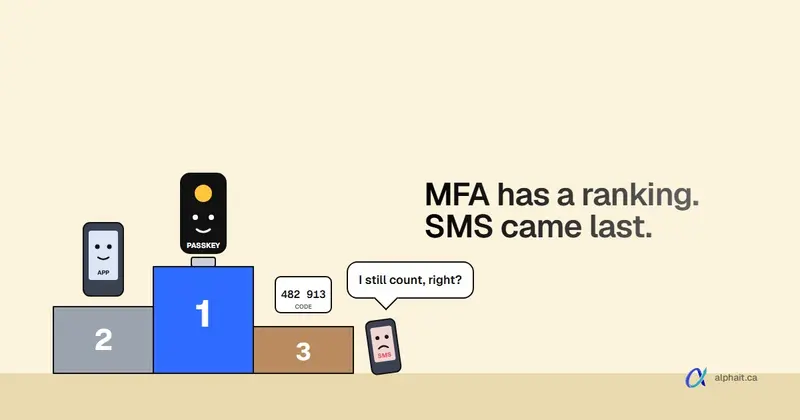
Ranking: weakest to strongest
- Email codes. Not an MFA option for staff at all. If someone tells you their MFA is email, it’s probably a guest account or something outside Microsoft 365.
- SMS and voice codes. Phishable, and open to SIM swaps. Microsoft is retiring its own SMS and voice codes.
- Authenticator codes and key fobs. No SIM swap risk, and they work offline. Still a code someone can type into a fake page.
- Authenticator push with number matching. Stops prompt spamming. Still phishable through a real-time relay.
- Synced passkeys. Phishing-resistant. The private key syncs to a personal cloud account you don’t control.
- Passkey in Microsoft Authenticator. Phishing-resistant and stays on one phone, backed by the phone’s secure hardware.
- Windows Hello for Business and Platform Credential for macOS. Phishing-resistant and bound to the computer’s security chip. Best day-to-day experience. Only covers that one machine.
- FIDO2 security keys and certificate-based authentication. Phishing-resistant, device-bound, portable, and separate from the computer. These are what Microsoft recommends for emergency access accounts.
Steps 6 to 8 are close. The jump that matters is between 4 and 5. That’s where a fake login page stops working.
A word on MFA fatigue and number matching
“MFA fatigue” or “push bombing” is when an attacker who has your password sends prompt after prompt. They wait for you to tap Approve just to make it stop. Microsoft closed most of that hole in May 2023. It enforced number matching for every Authenticator push, and users can’t opt out. You now have to type the number shown on the sign-in screen, so a blind tap does nothing.
Be honest about the limit, though. If you’re on a fake page, you can see the number too. Number matching stops spam, not phishing.
What we’d set up for a 10-person office
Picture a front desk, six or seven staff, a bookkeeper and one or two admins. This setup needs no extra licence unless noted.
| Who | Main method | Backup | Why |
|---|---|---|---|
| Front desk or shared PC | One security key per person, on their keyring | A second key in a locked drawer | Windows Hello is per person per PC, and a shared login defeats the point |
| Staff with smartphones | Passkey in Microsoft Authenticator | Windows Hello on their own laptop, or a synced passkey | Phishing-resistant, free, and already on their phone |
| Staff without smartphones (or who won’t use a personal phone) | Security key | A second key | No phone needed, works on any PC |
| Finance, payroll, HR | Device-bound passkey or security key | A second security key | These are the accounts scammers want; see the payroll pirate scam |
| Admins | A separate admin account with two security keys, device-bound only | The second key | Microsoft recommends device-bound passkeys for admins |
| Emergency (break-glass) accounts | Two cloud-only .onmicrosoft.com accounts, each with a security key |
Keys stored in separate secure places | Microsoft recommends passkey (FIDO2) here, using a different method from your normal admins, and testing at least every 90 days |
Some practical notes on this setup:
- Don’t leave the weak options switched on as fallbacks. Once a person has a passkey, remove SMS for them. The Cyber Centre is blunt about this. An attacker will simply pick the weakest method you allow.
- Finance and admins need enforcement, not just an option. With Microsoft 365 Business Premium (it includes Entra ID P1), a Conditional Access policy can require the built-in Phishing-resistant MFA strength for those people. Without P1, you rely on them only having strong methods registered.
- Mac users can use Platform Credential for macOS if the Macs are managed with Intune or another MDM. If not, give them an Authenticator passkey or a key.
- QR code sign-in shows up in Microsoft’s list and sounds handy for a front desk. It isn’t. It’s single-factor, for frontline staff on shared phones and tablets, and it doesn’t work in desktop browsers.
Which security key to buy, how many, USB-A or USB-C: our YubiKey comparison for small businesses covers that model by model. Short version: two keys per person who needs one.
What about SMS codes after February?
Microsoft is retiring its own SMS and voice codes for Entra work accounts. Most users lose them on February 1, 2027, and Global Administrators and external users on July 1, 2027. After that, anyone whose only method is a text gets a blocking prompt to register a passkey. You can keep SMS only by paying a third-party telephony provider. For a small office, I wouldn’t bother. The dates, who’s affected and the admin steps are all in our post on Microsoft retiring SMS sign-in codes.
If you only do one thing this week, find out who in your office still signs in with a text message. That person is your first passkey.
Sources
- Microsoft Learn: Microsoft Entra authentication overview (method table, phishing-resistant method list, email OTP scope)
- Microsoft Learn: Enable passkeys (FIDO2) in Microsoft Entra ID (synced vs device-bound, no extra licence)
- Microsoft Learn: Passkey FAQs (device-bound for admins, Android PIN change, Authenticator passkeys can’t be restored)
- MC1221452 via mc.merill.net: General availability of passkey profiles and synced passkeys
- Microsoft Learn: Enable passkeys in Microsoft Authenticator (iOS 17 / Android 14 requirement)
- Microsoft Learn: OATH tokens (hardware tokens in preview, P1 for CSV upload)
- Microsoft Learn: Conditional Access authentication strengths
- Microsoft Learn: Platform Credential for macOS
- Microsoft Learn: Microsoft Entra certificate-based authentication
- Microsoft Learn: QR code authentication method
- Microsoft Learn: Windows security features licensing and edition requirements
- Microsoft Learn: Manage emergency access admin accounts
- Microsoft Learn: How number matching works in Authenticator push notifications
- BleepingComputer: Microsoft enforces number matching to fight MFA fatigue attacks
- Microsoft Learn: Passkeys by default and retirement of Microsoft-provided SMS and voice authentication
- Canadian Centre for Cyber Security: Secure your accounts and devices with multi-factor authentication (ITSAP.30.030)
- Canadian Centre for Cyber Security: Defending against adversary-in-the-middle threats with phishing-resistant MFA (ITSM.30.031)
Frequently asked questions
What is the most secure type of MFA for Microsoft 365?
Phishing-resistant methods: FIDO2 security keys, passkeys in Microsoft Authenticator, synced passkeys, Windows Hello for Business, Platform Credential for macOS and certificate-based authentication. For admins and emergency accounts, a device-bound option like a security key is the strongest practical choice for a small business.
Is an authenticator app better than SMS?
Yes. An authenticator app can’t be hijacked by a SIM swap, and push prompts use number matching. But app codes and push approvals can still be relayed through a fake login page. A passkey in the same Authenticator app is the bigger step up, and it’s free.
Authenticator app or security key: which should staff use?
Staff with a smartphone can use a passkey in Microsoft Authenticator, which is phishing-resistant and costs nothing. Staff without a smartphone, shared front-desk PCs, admins and emergency accounts should use security keys, two per person.
Does Microsoft Entra ID support iCloud Keychain and Google Password Manager passkeys?
Yes. Synced passkeys became generally available in the worldwide cloud in March 2026, and admins allow them through passkey profiles. Microsoft recommends them for regular staff and device-bound passkeys for admins and other highly privileged accounts.
Can employees use email codes for MFA in Microsoft 365?
No. For members of your organization, Microsoft only supports email one-time codes for self-service password reset. Email codes for sign-in are for guest users from outside your company.
Want each person in your office on the right sign-in method, with spares and a lost-phone plan that works? AlphaIT’s cybersecurity and Microsoft 365 teams can set it up with you. Contact us.